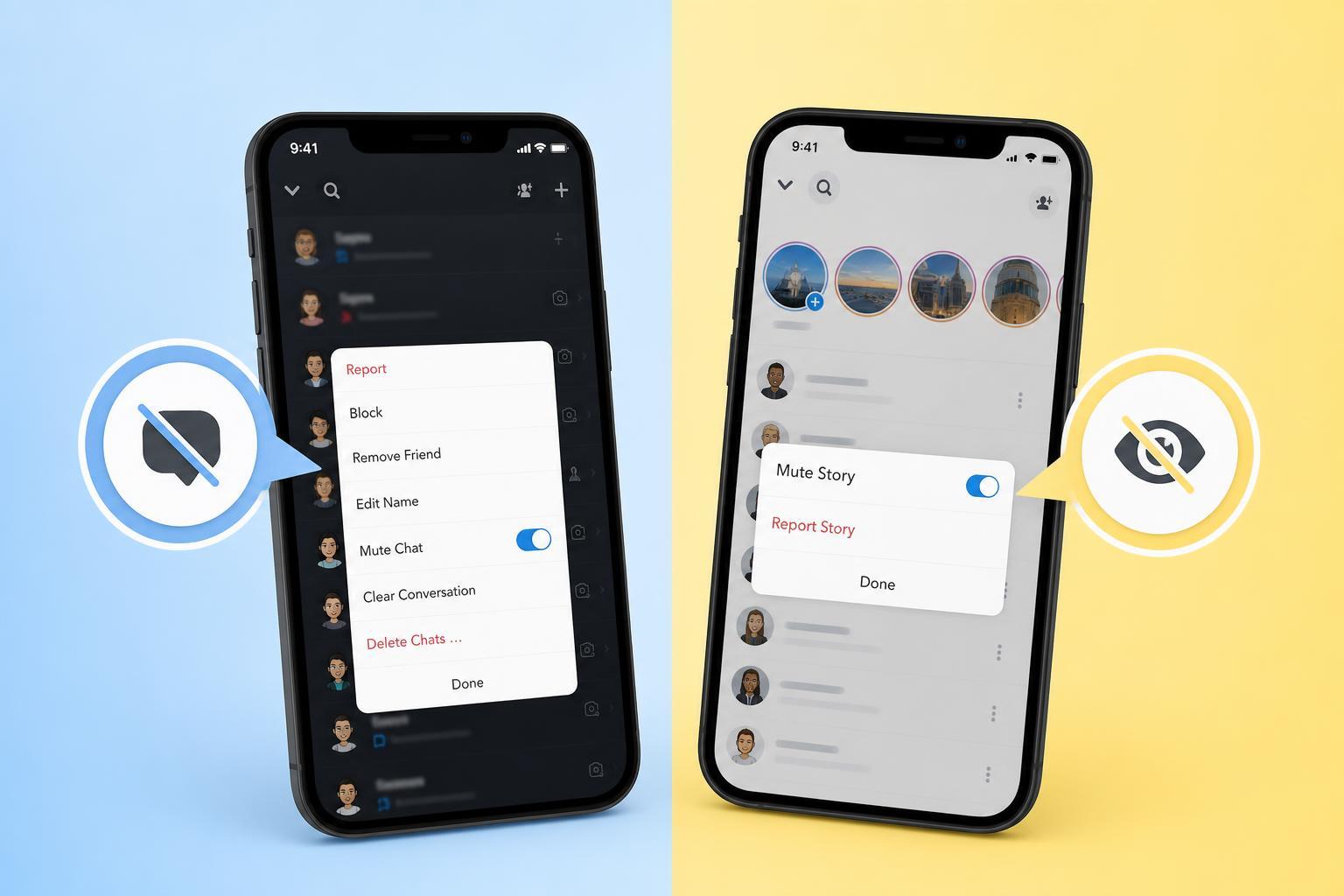
Snapchat gives you separate ways to cut down on noise from specific people: you can mute their chat notifications, or mute their Story so it stops showing up in your feed. Those two settings sound similar, but they do very different things.
If you are trying to quiet one person on Snapchat without unfriending them or blocking them, it helps to know which mute option does what before you tap the wrong one.
The Short Version
Mute Chat stops notifications from that person’s messages. You can still open the conversation and read or reply to their snaps and chats whenever you want.
Mute Story hides that person’s Story updates from your Stories feed, so you do not keep seeing their public or friends-only Story posts unless you go looking for them manually.
What Happens When You Mute a Chat
When you mute a chat on Snapchat, you are telling the app not to alert you every time that person sends a message, snap, or related chat activity, depending on the conversation type and notification settings on your phone.
- You may still receive the message in the conversation.
- The chat stays in your friends list or chat list.
- The person is not blocked or removed.
- You can unmute the chat later at any time.
This is useful when someone messages often, but you still want access to the conversation. It is a notification control, not a privacy control.
What Happens When You Mute a Story
When you mute someone’s Story, Snapchat stops showing their Story posts in the Stories section. Their updates will no longer compete for attention with the people you actually want to follow closely.
- Their Story is hidden from your main Stories feed.
- You usually remain friends with them.
- They are not notified that you muted their Story in a direct, obvious way.
- You can view their Story later if you visit their profile, depending on their privacy settings.
Story muting is helpful when you want to keep a person added on Snapchat but do not want their frequent posts filling your feed.
Mute Chat vs Mute Story: Key Differences
- Mute Chat affects message notifications.
- Mute Story affects Story visibility in your feed.
- Mute Chat helps reduce pop-up alerts and distractions.
- Mute Story helps reduce clutter while browsing Stories.
- Mute Chat is about direct interaction.
- Mute Story is about viewing content.
How to Mute a Chat on Snapchat
- Open Snapchat and go to the chat with the person you want to mute.
- Press and hold their name in the chat list or open the chat options menu.
- Select the mute or notification option shown by Snapchat.
- Choose whether you want to mute message notifications or adjust related alerts if prompted.
How to Mute a Story on Snapchat
- Open Snapchat and go to the Stories feed.
- Press and hold the person’s Story tile or open their profile from the Stories area.
- Look for the option to mute their Story or hide Story content.
- Confirm the change if Snapchat asks you to.
Which One Should You Use?
Choose mute chat if the main problem is message spam, repeated snap notifications, or distractions from direct conversations.
Choose mute Story if the main problem is seeing too many of their posts while browsing Stories, but you still want them available as a contact.
- Too many messages: mute chat
- Too many Story posts: mute Story
- Want both quieter chat and Stories: use both options
- Want to stop all contact: consider blocking instead
Can the Other Person Tell?
Snapchat does not make muting as obvious as unfriending or blocking, but behavior can still give clues. For example, if you stop replying or stop viewing their Story, they may notice indirectly.
That said, muting is designed as a quieter way to reduce what you see without making a dramatic change to the relationship.
If You Still See Their Content After Muting
- You may have muted only notifications, not Story visibility.
- Their Story may still be accessible from their profile.
- Snapchat may show content from other parts of the app, such as chats or Spotlight-related areas.
- App updates can slightly change where mute settings appear.
Bottom Line
Mute Chat is for reducing message alerts. Mute Story is for hiding someone’s Story from your feed. If you want a calmer Snapchat experience, the right choice depends on whether the annoyance is coming from conversations or from posts.