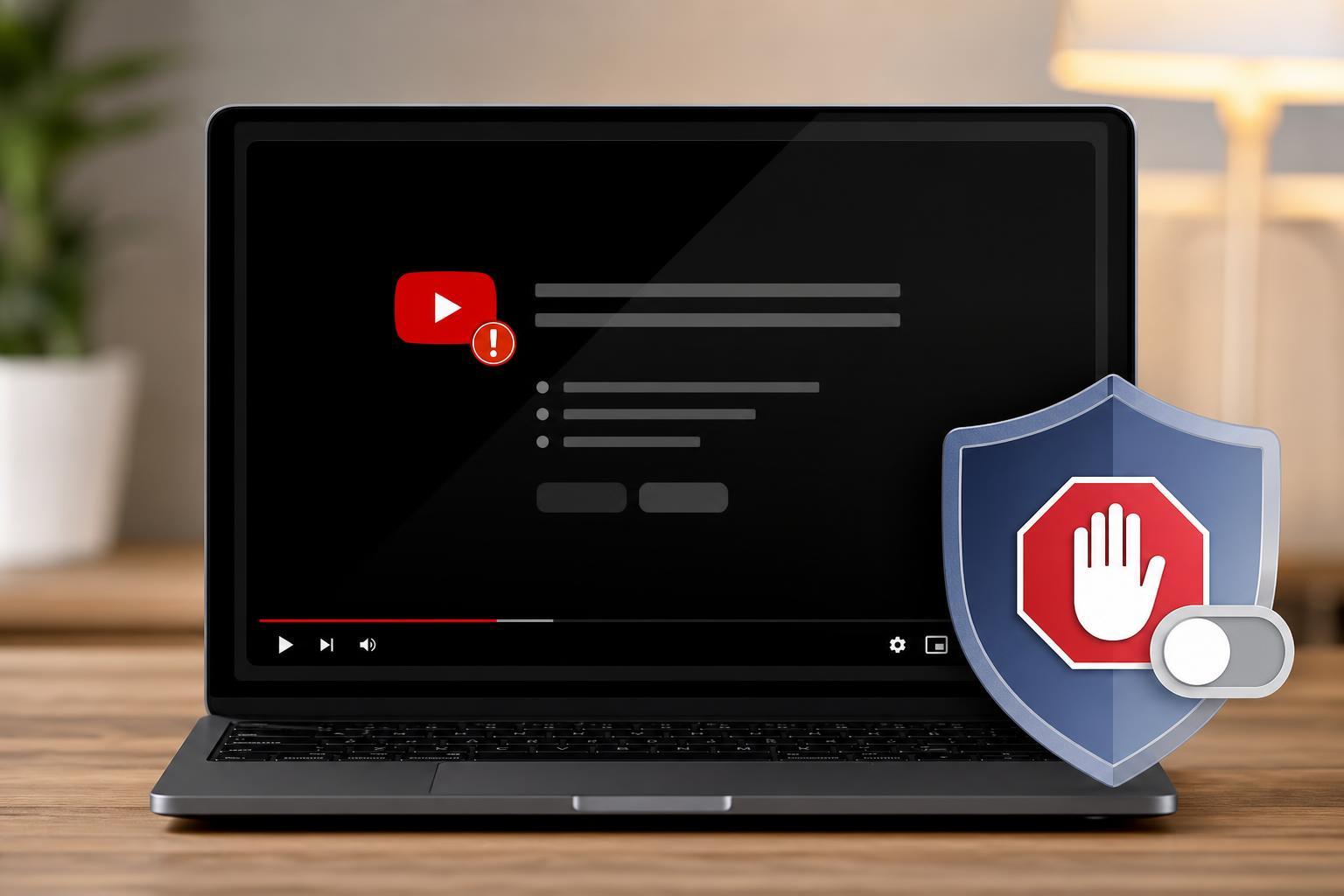
If YouTube is showing a warning that asks you to disable your ad blocker, the issue is usually not with YouTube itself but with a browser extension, privacy tool, or network-level ad blocker. The fix depends on what is actually blocking YouTube’s ads or scripts.
This guide explains the common ways to disable ad block prevention for YouTube, from pausing an extension for the site to checking browser filters and DNS-level blocking tools.
First, Identify What Is Triggering the Warning
Before changing settings, figure out what kind of ad blocking you are using. YouTube warnings can be caused by a browser extension, a built-in browser privacy feature, a DNS filter, or a system-wide ad blocker such as Pi-hole or similar tools.
- Browser extensions such as uBlock Origin, AdBlock, AdGuard, Ghostery, or similar tools
- Privacy features built into browsers like Brave Shields or enhanced tracking protection
- DNS-based blocking from services, routers, or home network filters
- Security software with web filtering or ad blocking features
Disable or Pause Your Ad Blocker for YouTube
The simplest fix is usually to pause the blocker only on YouTube instead of turning it off everywhere. That keeps ad blocking active on other sites while allowing YouTube to load normally.
- Open YouTube in your browser.
- Click your ad blocker extension icon near the address bar.
- Look for an option such as Pause on this site, Disable on youtube.com, or Don't run on pages on this site.
- Refresh the YouTube page after changing the setting.
- If the warning still appears, close and reopen the tab and try again.
Check Browser-Level Blocking Features
Some browsers include built-in tracking or ad blocking features that can interfere with YouTube even when no extension is installed.
- Brave: open Shields and lower protection for YouTube or turn Shields off for the site
- Opera: check ad blocking and privacy protection settings
- Firefox: review Enhanced Tracking Protection for the site
- Microsoft Edge: check Tracking prevention and any security add-ons
If You Use a DNS or Network Ad Blocker
If the warning appears in every browser or on multiple devices, the blocker may be running outside the browser. In that case, you need to adjust the network-level filter rather than browser settings.
- Check whether your router, Pi-hole, NextDNS, AdGuard Home, or security suite is filtering ads.
- Temporarily allow YouTube-related domains in the allowlist or whitelist.
- Save the change and wait a moment for the filter to update.
- Reload YouTube and see whether the warning disappears.
- Commonly affected setups include home routers with ad filtering enabled
- Family safety or security software can also block YouTube ad and anti-adblock scripts
- DNS filtering may need a short time to propagate changes
Clear Site Data if YouTube Keeps Remembering the Warning
Sometimes YouTube keeps showing the same message even after you change your ad blocker settings because the site stored old cookies or cached data.
- Open your browser settings.
- Find site data, cookies, or cache controls.
- Remove saved data for youtube.com and google.com if available.
- Reload YouTube and sign in again if needed.
This does not usually fix the underlying blocking problem, but it can help when YouTube is stuck in a repeated warning loop after you have already made changes.
Make Sure YouTube Is Allowed to Load Scripts
YouTube relies on several scripts and embedded resources to work properly. If a blocker is set to aggressively block scriptlets, cosmetic filters, or third-party requests, it may trigger the anti-adblock notice.
- Allow essential scripts for youtube.com
- Disable overly strict filter lists only for YouTube if your blocker supports per-site controls
- Update the ad blocker to the latest version, since filter lists change often
If You Want to Keep Blocking Ads Everywhere Else
Many users want YouTube to work normally while keeping their ad blocker for the rest of the web. That is usually possible by using a per-site exception instead of turning off protection completely.
- Whitelist only youtube.com and related YouTube pages
- Keep the extension enabled for other websites
- Avoid disabling all browser privacy protections unless necessary
- Test after each change so you know which setting fixed the problem
What If the Warning Still Appears?
If YouTube still detects ad blocking after you have allowed the site, the blocker may be using another component or a filter list you have not adjusted yet. Try these checks in order.
- Disable other extensions temporarily to see whether one of them is causing the warning.
- Update your ad blocker and browser.
- Try a different browser profile or a private window with only the essential extensions enabled.
- Check for security software or DNS filters that might still be active.
- As a last step, remove and reinstall the blocker if its settings seem corrupted.
What to Expect After You Disable AdBlock Prevention
Once YouTube is allowed to load normally, the warning should stop appearing and videos should play as expected. You may still see standard ads, depending on your region, account, and YouTube’s current ad delivery settings.
The Safest Way to Fix It
For most people, the best approach is to allow YouTube only, not to turn off all ad blocking. Start with your browser extension, then check browser privacy features, and finally look at DNS or router-level filtering if the problem affects every browser.
That method keeps the change as narrow as possible and makes it easier to reverse later if needed.