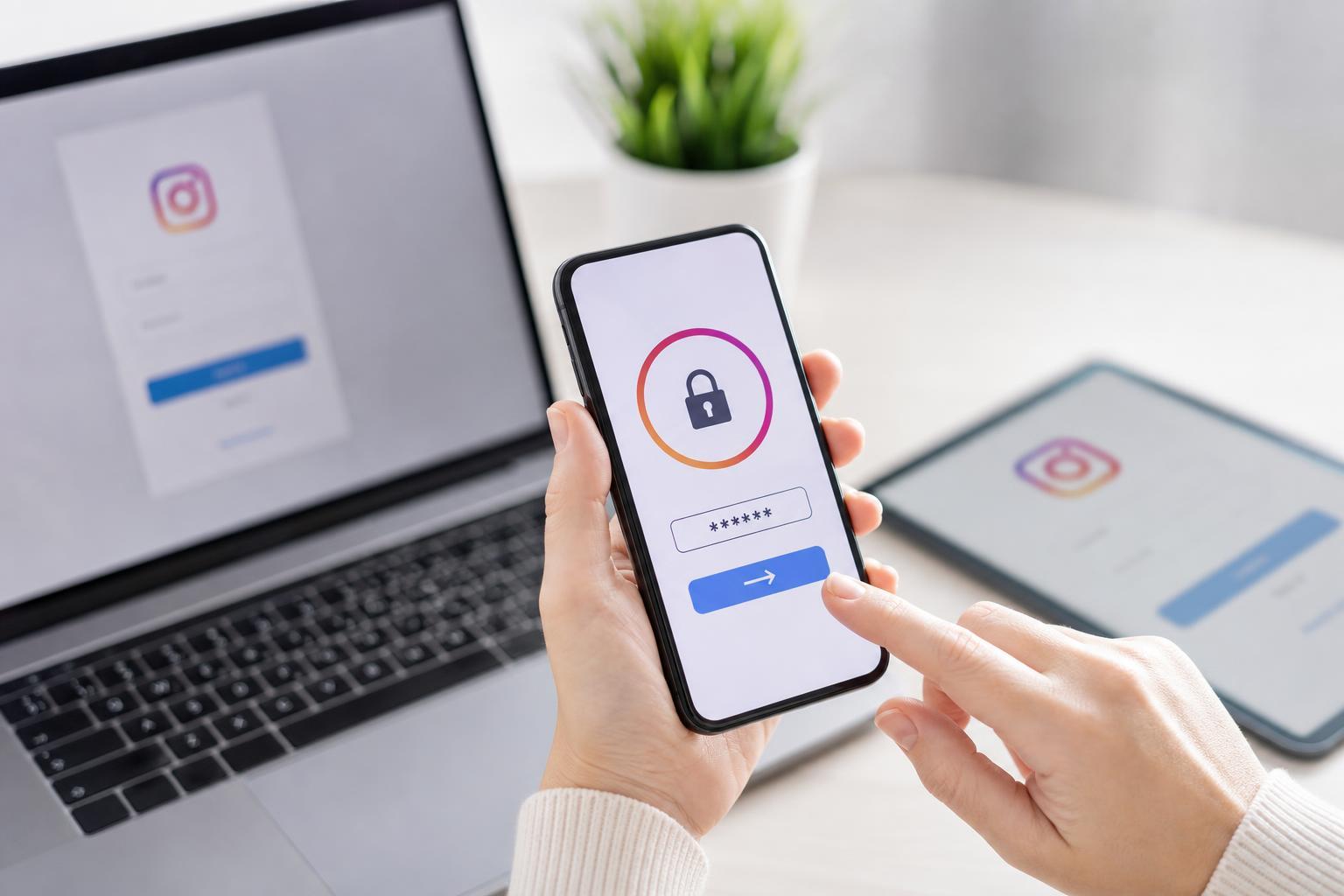
If you need your Instagram password, the first thing to know is that Instagram does not let you reveal an existing password from inside the app. In most cases, you can only view it if it was saved by your browser or password manager, or reset it if you no longer know it.
This guide shows the legitimate ways to check for a saved Instagram password on Android, iPhone, Windows, Mac, and popular browsers, plus what to do if the password was never saved.
What You Can Actually Do
You generally have three possibilities:
- Find the password in a saved-password feature on your phone, browser, or password manager.
- Use your browser or device settings to autofill or display the saved login if it was stored there.
- Reset the Instagram password if you cannot find a saved copy.
Check Your Saved Passwords First
If you have logged into Instagram before, your phone, browser, or password manager may already have stored the password. This is the fastest and safest place to check.
- Open the password manager or saved passwords section on the device you used for Instagram.
- Search for Instagram, instagram.com, or Meta.
- Open the saved entry and authenticate with Face ID, Touch ID, PIN, or your device password.
- View or copy the password if it is available.
Find a Saved Instagram Password on iPhone or iPad
On Apple devices, saved logins are usually stored in Passwords or iCloud Keychain.
- Open Settings.
- Tap Passwords.
- Authenticate with Face ID, Touch ID, or your passcode.
- Search for Instagram.
- Tap the saved entry to view the username and password.
Find a Saved Instagram Password on Android
Android devices often store logins in Google Password Manager or your phone maker’s password system.
- Open Settings.
- Look for Password Manager, Google, or Autofill settings.
- Open Password Manager and search for Instagram.
- Select the saved login and confirm your identity.
- View or copy the password if it was saved.
Find a Saved Instagram Password in Chrome
Chrome can store passwords on Windows, Mac, Android, and iPhone if you allowed it to save logins.
- Open Chrome.
- Select the menu and go to Settings.
- Open Password Manager.
- Search for Instagram.
- Select the account entry and click the eye icon or view option after signing in to your device or browser profile.
Find a Saved Instagram Password in Edge, Firefox, or Safari
Other browsers may also have saved your Instagram login if you used them to sign in.
- Microsoft Edge: open Settings, then Passwords, and search for Instagram.
- Firefox: open Settings or Preferences, then Privacy & Security, and look in Saved Logins.
- Safari: open Settings on iPhone/iPad or Passwords on Mac, then search for Instagram.
Find Your Instagram Password on Windows
Windows itself does not usually store Instagram passwords unless you saved them in a browser or a third-party password manager.
- Check your browser’s password manager first, especially Chrome, Edge, or Firefox.
- If you use a dedicated password manager such as 1Password, Bitwarden, or LastPass, open that app and search for Instagram.
- If the password was saved in a work or school account manager, check that service as well.
Find Your Instagram Password on Mac
On a Mac, the most common places to check are Safari’s saved passwords and the system Passwords feature.
- Open System Settings or the Passwords app.
- Authenticate with Touch ID or your Mac password.
- Search for Instagram.
- Open the saved entry to view or copy the password.
- If you used Chrome or Firefox, check those browsers too.
If You Used a Password Manager
Password managers are often the easiest place to find a forgotten Instagram password because they are designed to store and reveal saved logins after authentication.
- Search for Instagram, Meta, or the email address linked to the account.
- Check whether the entry shows a website, app name, or both.
- Make sure you are looking at the correct account if you have more than one Instagram login.
What to Do If You Cannot Find the Password
If no saved password exists, the practical solution is to reset your Instagram password instead of trying to find the old one.
- On the Instagram sign-in screen, tap Forgot password? or Get help logging in.
- Enter your username, email address, or phone number.
- Choose the recovery method Instagram offers.
- Follow the reset link or verification code to create a new password.
- Sign back in on your devices with the new password.
How to Avoid Losing It Again
Once you regain access, save the new password in a trusted password manager so you do not have to search for it again.
- Use a unique password for Instagram.
- Turn on two-factor authentication.
- Keep your recovery email and phone number up to date.
- Let your browser or password manager save the login only on devices you trust.
When to Be Careful
Be cautious with any website, app, or person that claims they can show your Instagram password. Instagram passwords should only be checked through your own saved-password tools or reset through Instagram’s official recovery process.
Which Method Should You Try First?
Start with the device or browser you most recently used to sign in to Instagram. In most cases, that is where the saved password will be stored if it was ever saved at all.
- Phone users: check the built-in password manager first.
- Browser users: check the browser’s saved passwords next.
- Everyone else: use Instagram’s password reset if nothing is saved.