If someone keeps sending you unwanted email in Gmail, blocking them is one of the quickest ways to stop seeing their messages in your inbox. It is easy to do on both desktop and mobile, but the way Gmail handles blocked messages is not always obvious.
This guide shows you how to block a sender in Gmail, what happens to their future emails, and when you may want to use other options such as filtering, muting, or unsubscribing instead.
How to Block Someone in Gmail on Desktop
- Open Gmail in your web browser and sign in to your account.
- Open a message from the person you want to block.
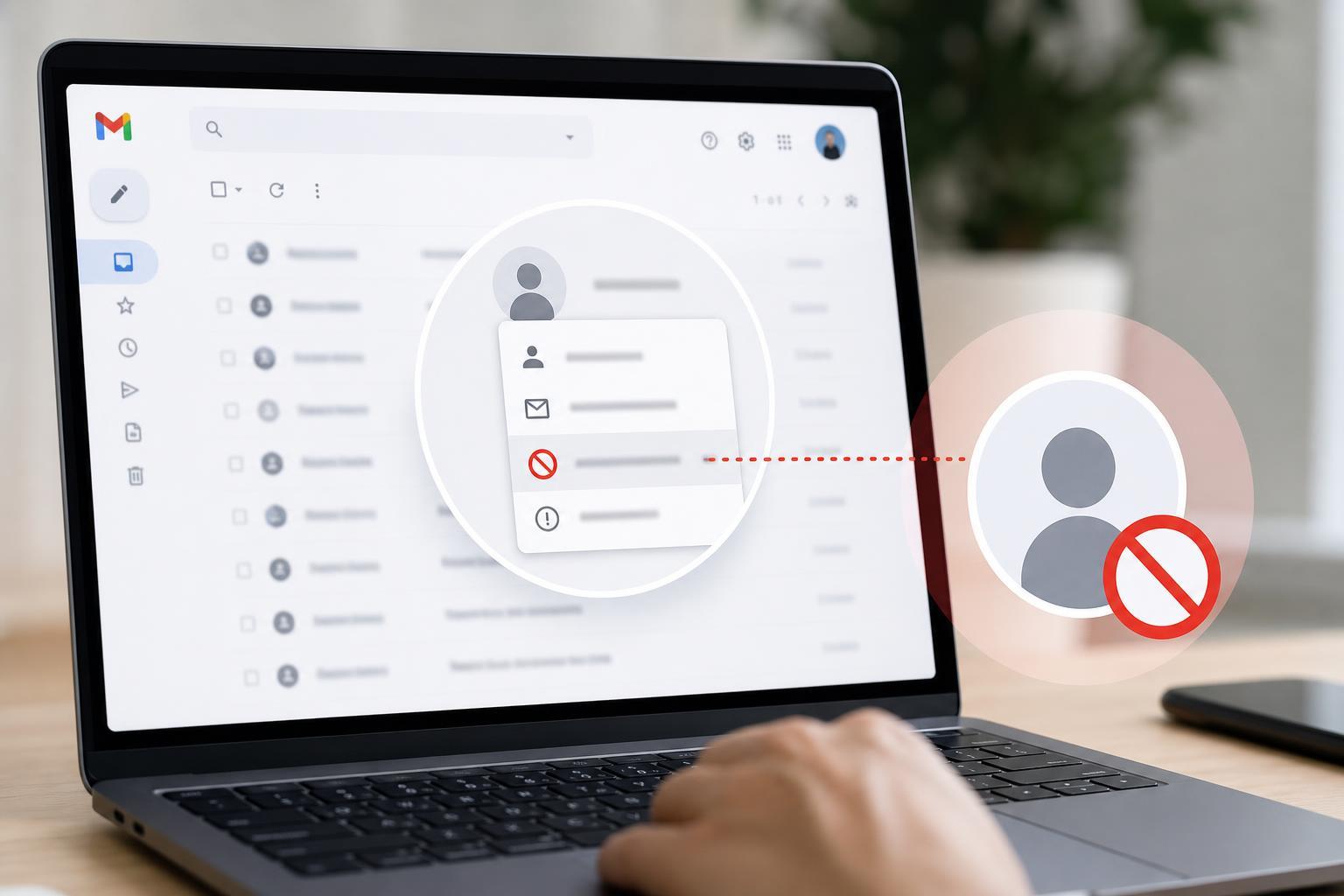
- Click the three-dot More menu in the top-right area of the message.
- Select Block "Sender Name" from the menu.
- Confirm the action if Gmail asks you to.
How to Block Someone in the Gmail Mobile App
- Open the Gmail app on your phone or tablet.
- Open the email from the sender you want to block.
- Tap the three-dot menu near the top-right of the message.
- Choose Block "Sender Name".
- If prompted, confirm that you want to block the sender.
What Happens When You Block Someone in Gmail
- Future messages from that sender are automatically sent to your Spam folder instead of your inbox.
- You will not usually see new emails from that sender in your normal inbox view.
- Existing emails already in your inbox are not removed automatically.
- Blocking does not stop the sender from being able to email you; it only changes where Gmail places those messages.
- If the sender uses a different email address, that new address will not be blocked unless you block it too.
Can the Sender Tell They Have Been Blocked?
Gmail does not notify the sender that you blocked them. Their email may still appear to be delivered normally on their side, even though Gmail is moving it to Spam for you.
That means blocking is generally discreet. However, if the sender checks whether you reply or notices that you are no longer responding, they may infer that their messages are not reaching your inbox.
How to Unblock Someone in Gmail
- Open Gmail and click the Settings gear icon if needed to navigate to your inbox controls.
- Open the message from the blocked sender or search for one of their emails in Spam.
- Click the three-dot More menu on the message.
- Select Unblock "Sender Name".
- Confirm the change if Gmail asks.
Blocking vs. Unsubscribing vs. Filtering
- Block: Best when you want messages from a specific sender moved to Spam.
- Unsubscribe: Best for legitimate mailing lists and newsletters that include an unsubscribe link.
- Filter: Best when you want to automatically label, archive, delete, or sort messages based on address, subject, or keywords.
When Blocking Is Not Enough
If the same person keeps reaching you from new email addresses, blocking one address may not solve the problem. In that case, creating a Gmail filter, reporting the messages as spam, or tightening your privacy settings may help more.
If the emails are threatening, harassing, or part of a scam, save the messages before blocking and consider reporting them through Gmail or your local authorities if needed.
A Quick Way to Decide What to Do
- Use Block for a person or address you want to stop seeing.
- Use Unsubscribe for newsletters or marketing email you signed up for.
- Use Filter if you want more control over where messages go.
- Use Report Spam if the message looks suspicious or unwanted and you want Gmail to learn from it.
Bottom Line
Blocking someone in Gmail is quick, private, and effective for cutting off unwanted inbox clutter. It is especially useful when you want a simple fix without changing anything else in your account. If the problem is larger than one sender, though, filters and spam reporting may give you better long-term control.