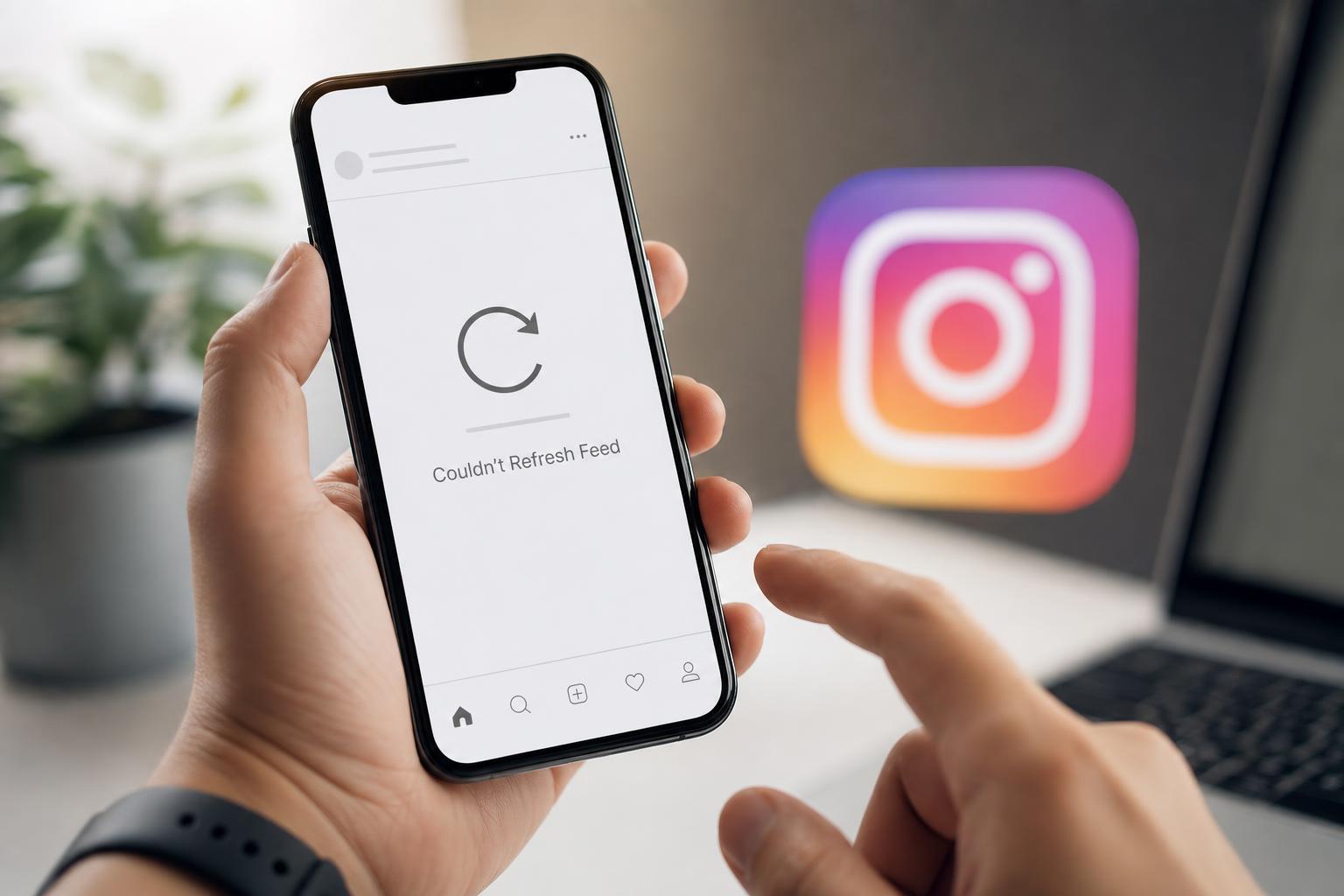
If Instagram shows “Couldn’t refresh feed,” the app is usually having trouble loading new content from Instagram’s servers or from your connection. The cause can be as simple as a weak network, or it may be related to the app itself, your account, or Instagram being temporarily down.
This guide walks through five practical fixes, starting with the quickest checks and moving to more specific troubleshooting steps.
1. Check Whether Instagram Is Actually the Problem
Before changing settings on your phone, make sure the issue is not on Instagram’s side. If Instagram’s servers are having trouble, the feed may fail to refresh even when your internet connection is fine.
- Try opening Instagram on another device or in a browser if you use Instagram Web.
- Check whether Stories, messages, and Explore are loading normally.
- If other people near you are also seeing the same error, the app may be experiencing an outage.
2. Fix Your Internet Connection
A weak, unstable, or restricted connection is one of the most common reasons Instagram cannot refresh the feed. Even if other apps seem to work, Instagram may be failing because the connection keeps dropping or timing out.
- Turn Wi-Fi off and back on, or switch between Wi-Fi and mobile data.
- Open a website or another app that uses the internet to confirm the connection is working.
- If you are on public Wi-Fi, try a different network if possible.
- If your mobile data is slow, move to a stronger signal area or wait for a more stable connection.
3. Force Close Instagram and Reopen It
Sometimes Instagram gets stuck and stops loading new content correctly. Closing the app fully and opening it again can clear that temporary app problem.
- Close Instagram from the app switcher or recent apps screen.
- On iPhone, swipe the app away; on Android, remove it from Recent Apps.
- Reopen Instagram and try refreshing the feed again.
4. Update or Clear Instagram’s App Data
An outdated app version can cause loading problems, especially if Instagram has changed how the app communicates with its servers. Corrupted cache or temporary app data can also lead to refresh failures.
- Check the App Store or Google Play Store for an Instagram update.
- Install any available update and try again.
- If you are on Android and the update does not help, clear Instagram’s cache from the app settings.
- If necessary, sign out and sign back in after the update or cache clear.
5. Check for Account or Device Restrictions
In some cases, the feed will not refresh because Instagram has limited part of your account activity or your device is affecting the app’s connection. This is less common than network or app issues, but it is worth checking if the error keeps returning.
- Try logging out of Instagram and back in.
- See whether the problem happens on another phone or in Instagram Web.
- Check whether you can still view your profile, messages, and search results normally.
- If you recently used a VPN, ad blocker, or DNS filtering app, turn it off briefly and test again.
When to Try a Different Device or Wait It Out
If Instagram still says it could not refresh the feed after these steps, the problem may be tied to the device, network, or Instagram itself. Testing on another device can help narrow it down quickly.
- If Instagram works on another phone, the original device is likely the problem.
- If it fails on every device and network, Instagram may still be having service issues.
- If only one network causes the error, focus on router settings, network filtering, or signal quality.
In many cases, this error clears on its own once the connection improves or Instagram finishes resolving a temporary issue. If it keeps happening every time you open the app, focus first on network stability and app updates, since those are the most common causes.