Microsoft Launcher can do a lot more than replace your home screen. A few settings make it faster to use, easier to organize, and better matched to the way you actually use your Android phone.
If you have just installed it, these are the five settings worth checking first so you get the most useful version of the launcher instead of the default setup.
1. Customize the Feed to Show What You Actually Use
The Feed is one of Microsoft Launcher’s most useful features. It can show your calendar, to-do items, recent documents, news, and other quick-glance cards when you swipe to the left from the home screen.
This is worth setting up first because it turns the launcher into a shortcut hub instead of just a place to hold app icons.
- Remove cards you never check so the Feed stays clean.
- Keep calendar and task cards if you use Microsoft 365 or Outlook.
- Add or rearrange widgets so the most important information appears near the top.
- Choose a news mix only if you actually want headlines on your home screen.
2. Set Up Gestures for Faster Navigation
Microsoft Launcher lets you assign actions to swipe gestures and other shortcuts. That can save a surprising amount of time if you repeatedly open the same apps or features.
For example, you may be able to swipe up for the app drawer, open search with a gesture, or launch a specific app from a shortcut. The available options depend on your version of the launcher and phone model.
- Open Microsoft Launcher settings.
- Look for the Gestures or Gestures and actions section.
- Choose the gestures you use most often.
- Assign actions that replace steps you repeat every day.
- Test each gesture to make sure it feels natural and does not conflict with your phone’s system navigation.
3. Turn On App Sorting and Folder Options
If you install a lot of apps, the app drawer can become hard to manage quickly. Microsoft Launcher’s sorting and folder tools help keep everything easier to find.
Depending on your setup, you may be able to sort apps alphabetically, hide rarely used apps, or group related apps into folders. This is especially helpful if you want work apps separate from games or social apps.
- Use alphabetical sorting if you want predictable app location.
- Create folders for related apps such as travel, banking, gaming, or work.
- Hide apps you do not use often to reduce clutter.
- Keep frequently used apps near the top or in easy-to-reach spots on the home screen.
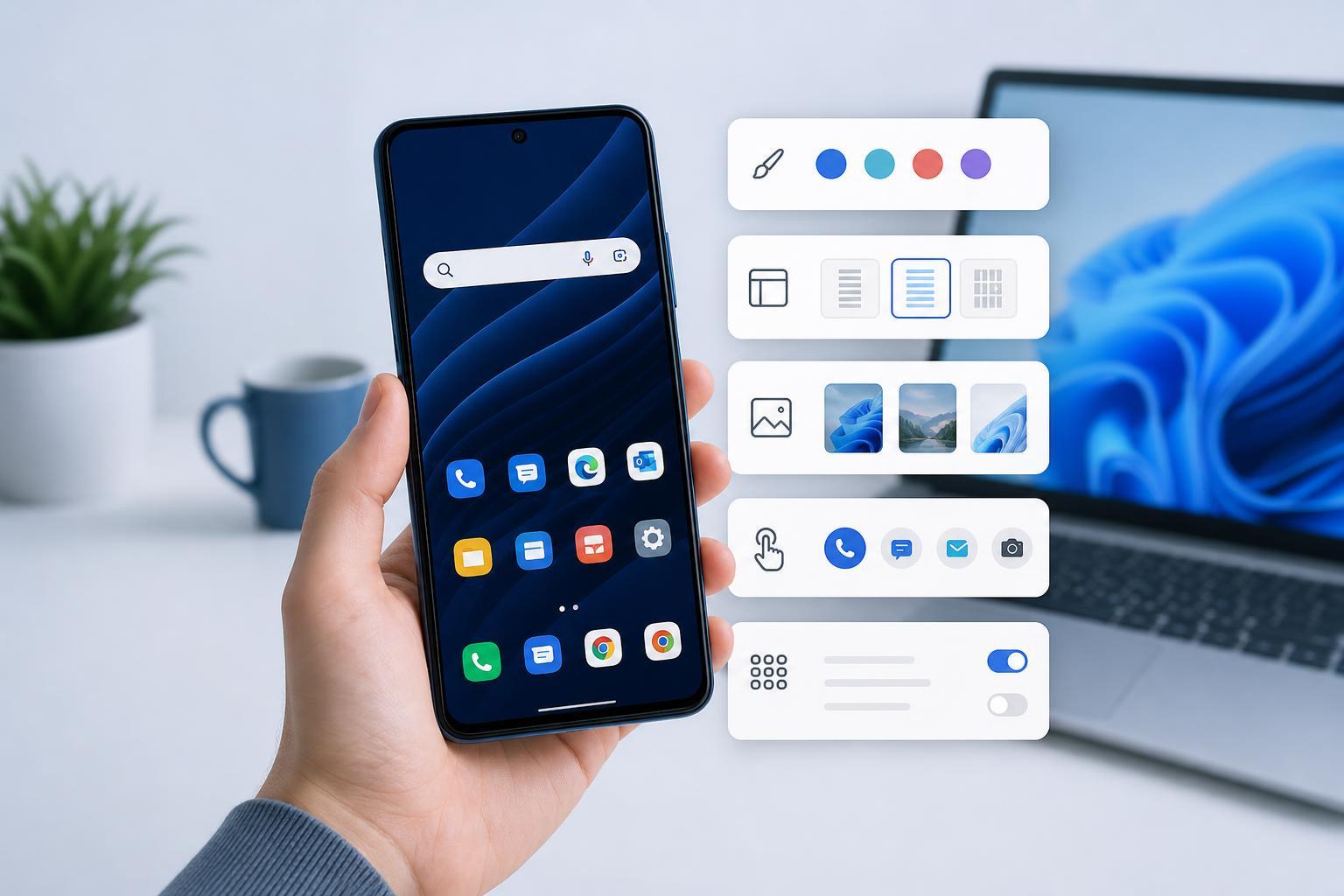
4. Adjust Personalization Settings for a Cleaner Home Screen
Microsoft Launcher includes a lot of visual customization, but the most useful changes are usually the ones that make the phone easier to read and less distracting.
Look for settings related to icon size, icon labels, theme color, wallpaper behavior, and home screen layout. Small adjustments here can make the launcher feel much more comfortable to use.
- Increase icon size if you want easier tapping.
- Turn off icon labels if you prefer a cleaner look and can recognize apps by their icons.
- Use a darker theme if you want a less bright interface at night.
- Match the launcher accent color to your wallpaper if you want a more consistent appearance.
5. Configure Search and Microsoft Services Integration
Search is one of the strongest parts of Microsoft Launcher. It can help you find apps, contacts, web results, and sometimes files or calendar items more quickly than digging through menus.
If you use Microsoft apps, this becomes even more useful. Connecting Outlook, Microsoft 365, or other Microsoft services can make the launcher feel more connected to your work and personal routine.
- Open Launcher settings and find the Search section.
- Choose what the search bar should include, such as apps, web results, contacts, or files.
- Sign in to Microsoft services you actually use.
- Review privacy-related search options so the results match your comfort level.
- Test the search bar with a few common queries to confirm it is returning useful results.
Other Settings Worth Checking Later
Once the five settings above are in place, there are a few other Microsoft Launcher options that may be worth exploring depending on how you use your phone.
- Wallpaper and theme behavior if you like changing the look of the home screen often.
- Dock settings if you want quicker access to your most used apps.
- Notification badges if you want unread counts on app icons.
- Backup and restore options if you want to move your setup to another device later.
Which Settings Should You Change First?
If you want the fastest payoff, start with the Feed and app sorting. Those two changes usually make the biggest difference right away because they affect how quickly you can get to information and apps.
Then set up gestures and search, and finish by cleaning up the visual layout. That order gives you a launcher that is both efficient and easier to live with every day.