WhatsApp lets you use the same account on multiple devices, including WhatsApp Web and the desktop app. If you have signed in on a shared computer, no longer use a browser session, or notice a device you do not recognize, you should log it out from your account.
This guide shows you how to view linked devices in WhatsApp and sign them out safely from your phone.
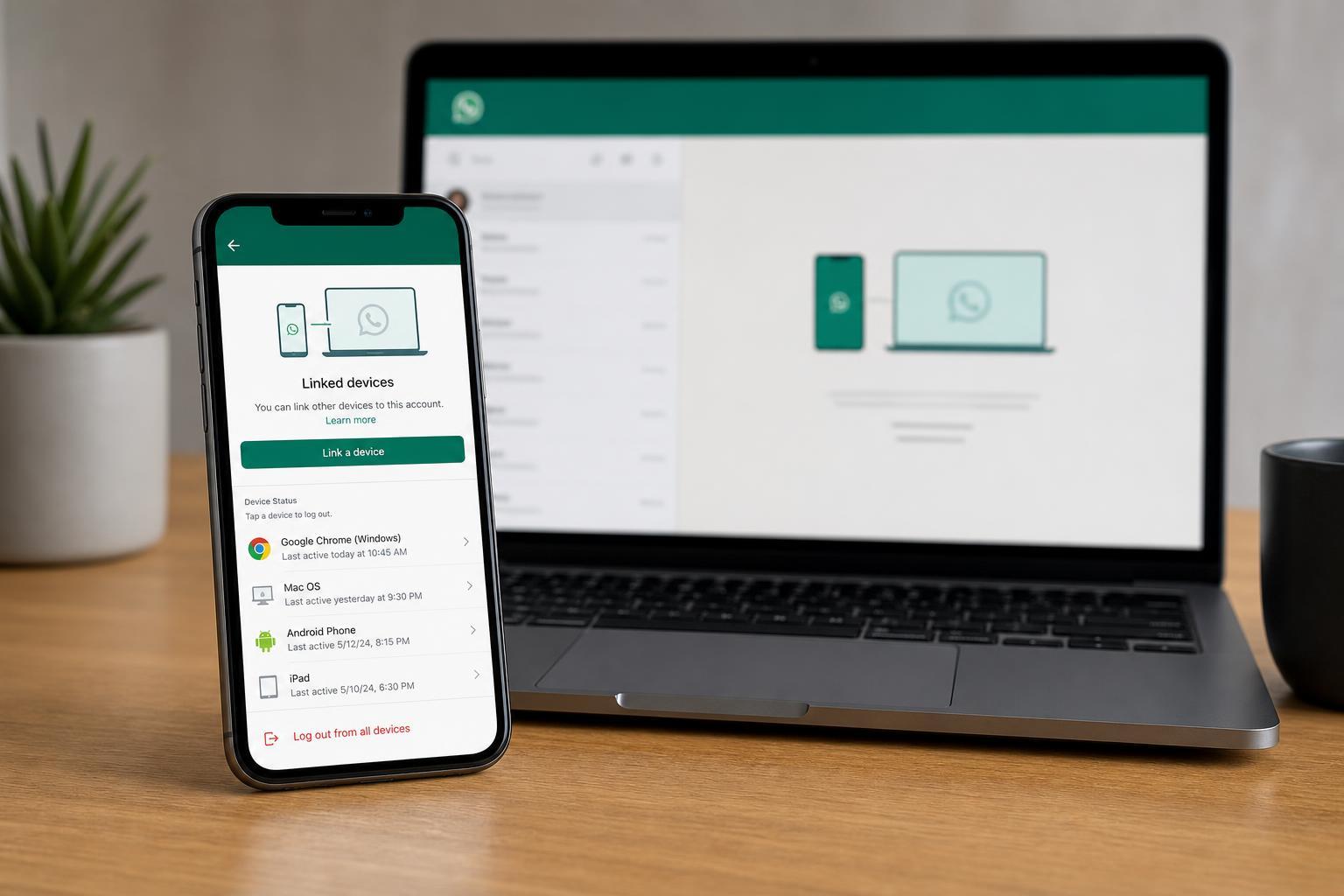
Open the Linked Devices List
- Open WhatsApp on your phone.
- On Android, tap the three-dot menu and choose Linked devices.
- On iPhone, go to Settings and tap Linked Devices.
- Review the list of devices currently connected to your account.
Log Out a Single Linked Device
- In the Linked Devices list, tap the device or session you want to remove.
- Choose Log out or the equivalent sign-out option.
- Confirm the action if WhatsApp asks you to.
The device will immediately lose access to your WhatsApp account. If it was a browser session, the WhatsApp page will usually stop working until the device is linked again.
Log Out of All Linked Devices at Once
If you do not recognize any of the sessions listed, or you want to make sure every browser and desktop app is disconnected, log out each linked device one by one. WhatsApp does not always provide a single button to disconnect every session on all versions, so removing each entry manually is the safest approach.
- Open Linked Devices on your phone.
- Check each active session carefully.
- Log out any device you no longer trust.
- Remove sessions you do not actively use, such as an old work PC or shared browser.
What to Do If You See an Unknown Device
- Log it out immediately from the Linked Devices screen.
- Check whether someone else may have accessed your phone or QR code.
- If your phone is lost or stolen, secure the device and change any related account protections you use.
- Watch for unusual activity in your chats, group memberships, or security notifications.
If You Cannot Find the Linked Devices Option
The menu location can vary slightly depending on whether you use Android or iPhone and which WhatsApp version you have installed. If you do not see the option, update WhatsApp from the App Store or Google Play and look again in the main menu or Settings screen.
Keep Your WhatsApp Account Safer
- Review linked devices regularly, especially after using a shared computer.
- Avoid scanning the WhatsApp Web QR code on devices you do not control.
- Lock your phone with a PIN, fingerprint, or Face ID.
- Sign out of any work, school, or public browser session after use.
When Logging Out Is Not Enough
If you still suspect someone else has access to your account after removing linked devices, the problem may be with your phone itself rather than WhatsApp Web. In that case, check for unknown apps, review your phone's security settings, and make sure no one else can unlock your device.