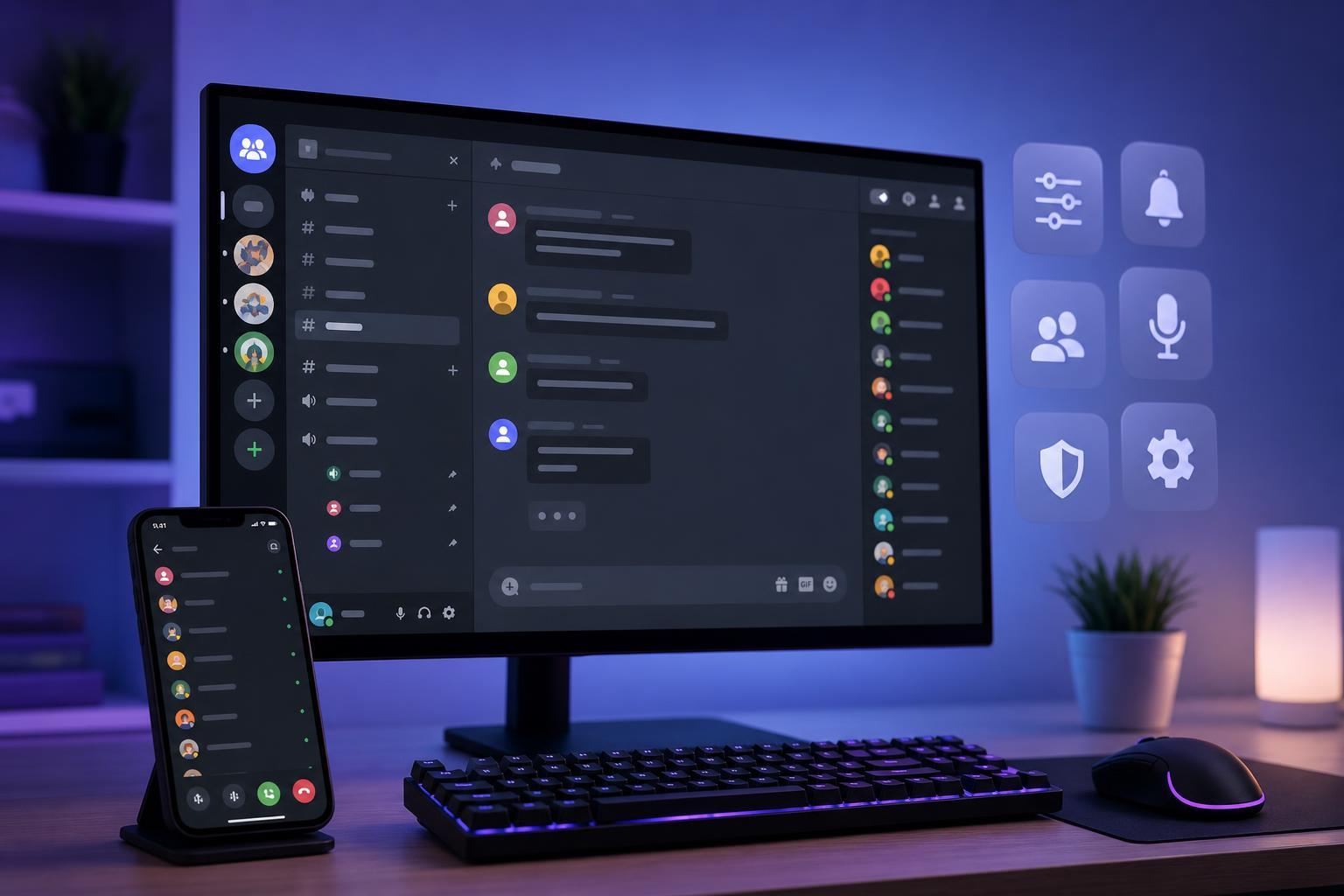
Discord can be as simple or as powerful as you want it to be. If you only use it for chatting with friends, you may be missing a lot of handy tools that make servers easier to manage, conversations easier to follow, and voice chats less messy.
This guide covers 17 practical Discord tips and tricks that are actually useful in day-to-day use, whether you are a casual user, a server admin, or someone who spends a lot of time in voice channels.
1. Use Slash Commands Instead of Hunting Through Menus
Discord’s slash commands can save a lot of time. Just type / in a chat box to see available commands for the app or for bots in that server. Many commands let you quickly send polls, make embeds, use moderation tools, or trigger bot actions without needing to click around.
2. Create Custom Notification Settings for Each Server
If Discord notifications feel overwhelming, do not treat every server the same. Right-click a server name or open its notification settings and choose what matters most. You can mute noisy servers, keep only @mentions, or allow all messages in important communities.
- Mute servers that are active all day but not urgent
- Keep mention-only alerts for large public servers
- Allow all notifications for small private groups or work-related servers
- Adjust mobile notifications separately if your phone gets too many alerts
3. Use Text Formatting to Make Messages Easier to Read
Discord supports simple Markdown formatting, which helps you emphasize important points in chat. You can use bold, italics, strikethrough, code formatting, and more without needing any special tools.
- *text* or _text_ for italics
- **text** for bold
- ~~text~~ for strikethrough
- `text` for inline code
- ```text``` for a code block
4. Pin Important Messages in Channels
Pinned messages are one of the simplest ways to keep useful information from getting lost. If a channel has rules, event details, links, or recurring instructions, pin those messages so people can find them later.
- Open the message you want to keep visible.
- Select the message options.
- Choose Pin Message.
- Check the pinned messages list whenever you need the info again.
5. Use Threads to Keep Busy Conversations Organized
Threads are ideal when a side discussion would otherwise bury the main channel. Instead of derailing the whole chat, move the conversation into a thread so the channel stays easier to follow.
This is especially useful in gaming servers, tech support servers, and communities where many people reply to the same post at once.
6. Set Up Server Roles to Control Access and Permissions
Roles are one of Discord’s most powerful admin tools. They let you decide who can see channels, post links, manage messages, moderate users, or access special areas of a server.
- Create roles for moderators, members, and new users
- Use roles to unlock private channels
- Separate trusted users from newcomers
- Assign color-coded roles to make member lists easier to scan
7. Learn the Difference Between Mute, Deafen, and Suppress
Voice chat controls can be confusing at first, but they are very useful once you know what they do. Muting prevents others from hearing you. Deafening prevents you from hearing others. Suppressing is common in Stage Channels and keeps your mic off until you are allowed to speak.
8. Use Push-to-Talk in Noisy Environments
If your keyboard, fan, or room noise keeps getting picked up in voice chats, push-to-talk can help. Instead of leaving your mic open all the time, you choose a key that activates your microphone only when you press it.
9. Hide or Organize Channels with Categories
Large servers can become cluttered fast. Categories help group channels by topic, such as announcements, support, general chat, gaming, or off-topic discussion. If you are a server admin, this makes the server much easier to navigate.
- Create a new category in server settings.
- Drag related channels into that category.
- Use clear names so members know where to post.
- Collapse categories that you do not need open all the time.
10. Use Keyboard Shortcuts to Move Faster
Discord has several keyboard shortcuts that make navigation quicker on desktop. You can jump between servers, search messages, open recent mentions, and switch channels without using the mouse every time.
- Use Ctrl/Cmd + K to jump to another channel or server
- Use Ctrl/Cmd + F to search messages in the current channel
- Use Ctrl/Cmd + Shift + M to check recent mentions
- Use Esc to close popups or return focus to chat
11. Search Messages Instead of Scrolling Forever
Discord’s search tools are better than most people realize. You can search by keyword, user, channel, date, or combination of filters to find old conversations, links, or instructions quickly.
This is much faster than scrolling through long channels, especially in active servers with thousands of messages.
- Search for a keyword plus a username
- Filter by channel if you only remember where the message was posted
- Look for recent messages if you only need the latest version of something
- Use search to find old file names, link text, or event details
12. Use the Overlay and Game Activity Carefully
Discord’s in-game overlay can be convenient if you want quick access to chats or voice status while gaming. It can show who is talking and let you respond without tabbing out of a game.
13. Customize Your Privacy and Safety Settings
Discord has several privacy options that are worth checking, especially if you join public servers. You can control who can add you as a friend, who can DM you, whether server members can message you directly, and whether explicit media is filtered.
- Open User Settings.
- Go to Privacy & Safety.
- Review friend request and direct message options.
- Adjust content filtering and server DM permissions to match your comfort level.
14. Use Server Folders to Group Communities
If you are in a lot of servers, folders are a simple way to keep the server list from turning into a wall of icons. You can group related communities together, such as gaming servers, school groups, friends, and hobby channels.
- Drag servers into folders on desktop
- Name folders by topic or priority
- Keep active servers near the top
- Collapse folders you do not need right now
15. Know When to Use a Webhook or Bot Instead of Manual Posting
If you run a server, bots and webhooks can automate repetitive tasks like announcements, moderation, reminders, and log messages. This keeps the channel active without requiring someone to post everything manually.
16. Turn Off Unneeded Channel Notifications for Specific Chats
You do not always need to mute an entire server. In many cases, muting one particularly busy channel is enough. This is helpful in servers where one chat moves too fast but the rest of the community is still useful.
- Open the channel you want to quiet down.
- Open the channel notification settings.
- Mute the channel or reduce how often alerts appear.
- Leave the rest of the server unmuted if you still want updates elsewhere.
17. Use Mobile and Desktop Features Together
Discord works differently on mobile and desktop, and using both versions well can make the app more practical. Desktop is usually better for typing, server setup, and voice management. Mobile is useful for checking mentions, quick replies, and staying informed away from your PC.
- Use desktop for setup, moderation, and longer conversations
- Use mobile for quick replies and notifications on the go
- Check whether mobile notification settings match your desktop preferences
- Keep important pinned messages handy on both devices
A Few Discord Habits That Make Everything Easier
The best Discord tip is not a single feature. It is learning which tools match the way you actually use the app. If you are a casual user, focus on notifications, search, and voice settings. If you manage a server, roles, channels, threads, and permissions matter much more.
Once these settings are in place, Discord becomes much easier to use, less noisy, and far better organized.