If your laptop battery keeps draining after shutdown, the problem is usually not the battery “using power” in the usual sense. Something in the laptop may still be drawing a small amount of power, the machine may not be fully shutting down, or the battery itself may be worn out and losing charge faster than expected.
In many cases, the drain is minor and can be explained by firmware settings, fast startup behavior, USB power delivery, wake features, or normal battery aging. But if the battery drops a lot while the laptop is off, that points to a setting issue, a hardware fault, or a battery that no longer holds charge well.
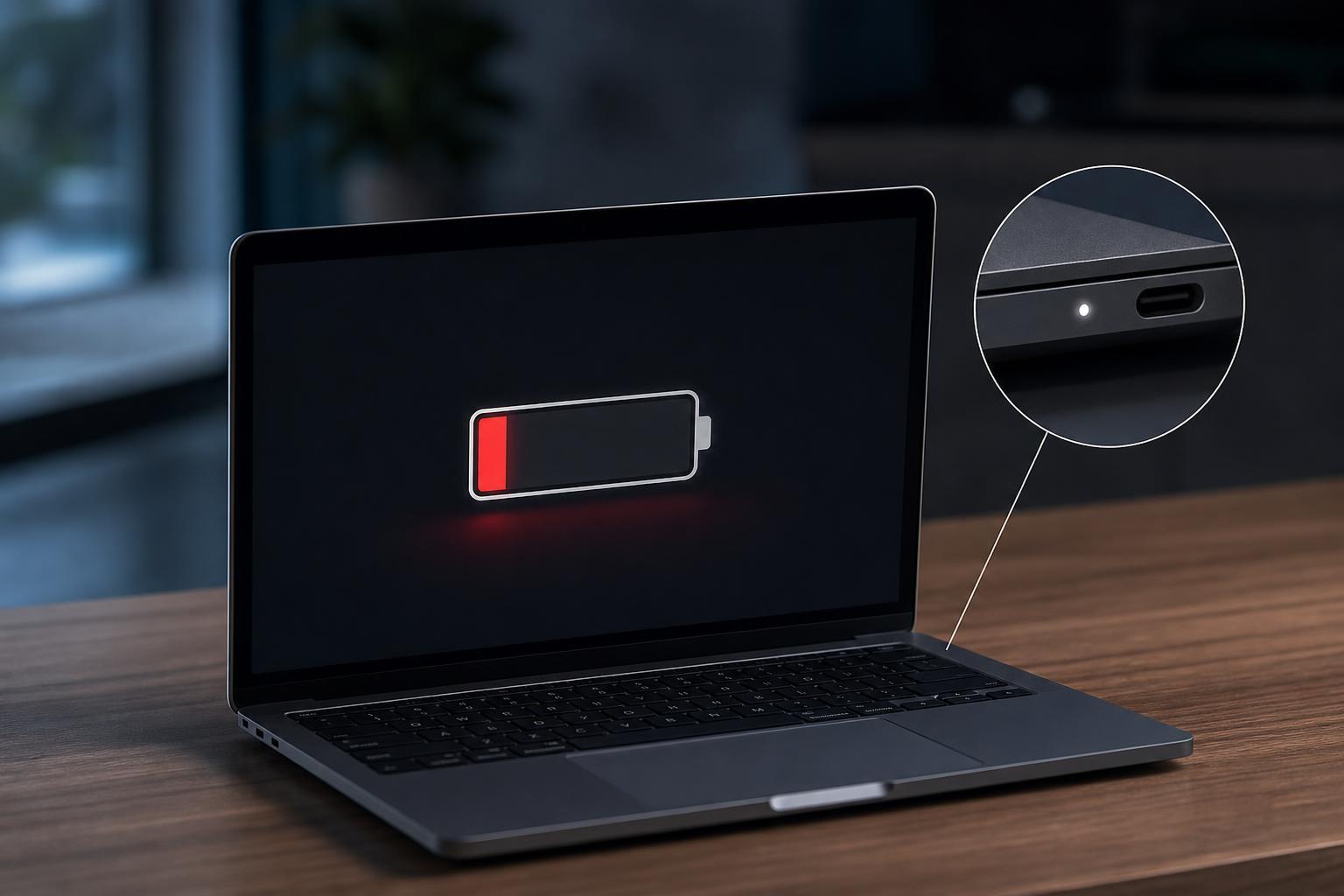
Common Reasons a Laptop Battery Drains After Shutdown
- The laptop is not fully shutting down because of Fast Startup or hybrid shutdown
- USB ports or other components still receive standby power after shutdown
- Wake-on-LAN, wake timers, or connected standby features are enabled
- A dock, adapter, or peripheral is drawing power from the laptop
- The battery is aging and losing charge more quickly while sitting unused
- A firmware or motherboard issue is keeping part of the system partially active
- The battery itself may be defective or no longer calibrated correctly
First Check: Is It Really Shut Down?
One of the most common causes is that Windows is not performing a true cold shutdown. With Fast Startup enabled, Windows saves part of the system state so the next boot is quicker. That is not the same as sleep, but it can still leave some hardware behavior different from a full power-off.
- Shut down the laptop normally.
- Wait until all lights and fan activity stop completely.
- Unplug external devices, docks, and chargers.
- Leave the laptop powered off for several hours.
- Check how much battery was lost before assuming there is a fault.
Turn Off Fast Startup to Test the Difference
If the battery drain is worse after a normal Windows shutdown than after a full power-off, Fast Startup may be part of the reason. Disabling it is a useful test because it forces a more complete shutdown behavior.
- Open Control Panel and go to Power Options.
- Select Choose what the power buttons do.
- Click Change settings that are currently unavailable.
- Uncheck Turn on fast startup.
- Save the changes and shut down the laptop again to test battery drain.
Check for Power Draw From USB and Accessories
Some laptops keep USB ports powered after shutdown so they can charge a phone or wake a device. That feature is convenient, but it can slowly drain the laptop battery if something remains connected.
- USB flash drives and external hard drives
- Phone charging cables
- Gaming controllers and dongles
- Docking stations and USB hubs
- External mice or keyboards with lighting or charging features
Disconnect everything external and test the battery drain again. If the problem improves, one of the accessories or a powered USB feature was the cause.
Look for BIOS or UEFI Settings That Keep Power Active
Many laptops have firmware settings that allow certain components to stay awake for networking, charging, or quick resume. These settings vary by manufacturer, but they can have a big effect on battery drain while the laptop is off.
- Wake on LAN or network wake features
- USB power in shutdown or always-on USB charging
- ErP or deep sleep settings
- Modern standby or connected standby options
- Battery health or charging limit features
If your laptop has an Always-On USB or similar option, disable it as a test. If there is a deep sleep, ErP, or low-power shutdown option, enabling it may reduce drain when the laptop is off.
Could the Battery Just Be Worn Out?
Yes. A battery that is old, heavily used, or damaged can appear to drain quickly even when the laptop is off. In some cases, the issue is not power draw at all but the battery’s inability to hold charge for long periods.
- The laptop is several years old
- Battery life has been getting worse over time
- The battery percentage jumps around unexpectedly
- The laptop shuts off at a high battery percentage
- The battery swells, gets unusually hot, or behaves inconsistently
Check Battery Health in Windows
Windows can give you a useful snapshot of battery condition. This won’t tell you everything, but it can confirm whether the battery’s capacity has dropped significantly.
- Open Command Prompt as an administrator.
- Run the command: powercfg /batteryreport
- Open the generated battery report file.
- Compare full charge capacity with design capacity.
- Look for a noticeable decline in battery health over time.
If the Drain Is Large, Suspect Hardware or Firmware Issues
A battery that loses a lot of charge while the laptop is fully shut down may point to a problem on the motherboard, charging circuit, or power management firmware. This is more likely if the drain happens even with all accessories removed and Fast Startup disabled.
- The laptop drains quickly even when unplugged and left untouched
- Different batteries show the same problem, if your model uses a replaceable battery
- The charger or power jack behaves erratically
- The laptop sometimes turns on by itself after shutdown
- Firmware updates are available for your model
Check the laptop manufacturer’s support page for BIOS, firmware, or chipset updates. Power management bugs are sometimes fixed there. If updates do not help and the drain remains severe, the hardware may need inspection.
Practical Troubleshooting Order
To narrow the cause efficiently, try the checks in this order:
- Fully shut the laptop down and leave it unplugged with no accessories attached.
- Compare normal shutdown to a true power-off test after disabling Fast Startup.
- Disconnect USB devices, docks, and charging accessories.
- Review BIOS or UEFI power settings for always-on USB or wake features.
- Check the battery report for signs of battery wear.
- Update firmware and system drivers if the problem still persists.
- Seek repair if the battery drains heavily even after these checks.
How Much Drain Is Normal?
There is no single number that fits every laptop, but a small drop after shutdown is often normal. What matters is the pattern. A slight decrease over a day is different from losing a large percentage overnight.
- A small drop after many hours may be normal
- A large drop in a short time is more suspicious
- A consistent drain only when accessories are attached suggests power draw from external devices
- A consistent drain even with everything unplugged points more toward firmware, hardware, or battery health
When to Get the Laptop Checked
You should consider professional service if the battery drains rapidly while shut down, the laptop shows signs of battery swelling, or the machine only behaves normally with the battery removed or replaced. Severe power loss can point to motherboard-level issues that are not safe or practical to fix at home.
If the laptop is under warranty, contact the manufacturer before opening the case or replacing parts yourself.