You can use a mouse with an iPhone if you want more precise control than touch input provides. This can be helpful for accessibility, productivity, or simply making certain tasks easier, such as selecting small text, editing documents, or navigating with one hand more comfortably.
iPhone support for mouse input works through Accessibility features, so the setup is a little different from pairing a mouse to a computer. Once it is configured, the pointer behaves like an on-screen cursor that you can customize to match how you want to use the phone.
What You Need Before You Start
- An iPhone running a recent version of iOS
- A Bluetooth mouse, or a wired mouse with the right adapter
- A charged mouse with Bluetooth enabled if it is wireless
- Access to the AssistiveTouch settings in Accessibility
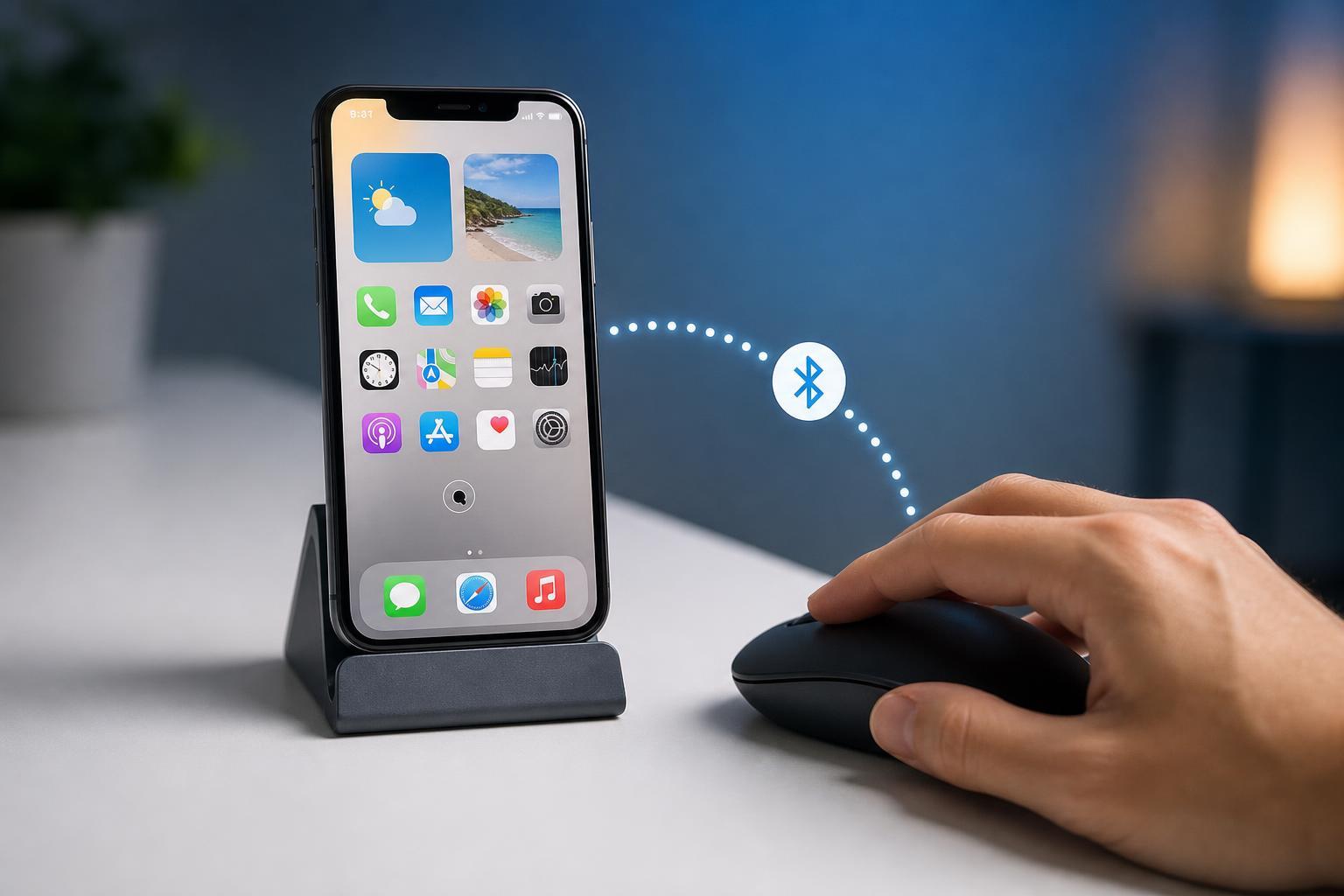
How to Connect a Bluetooth Mouse to iPhone
- Open Settings on your iPhone.
- Tap Accessibility.
- Choose Touch, then tap AssistiveTouch.
- Turn AssistiveTouch on if it is not already enabled.
- Scroll down and tap Devices under the Pointer Devices or related AssistiveTouch options.
- Put your Bluetooth mouse into pairing mode.
- Tap the mouse name when it appears on the iPhone and confirm pairing if prompted.
How to Use a Wired Mouse With iPhone
A wired mouse can work too, but you usually need an adapter because the iPhone does not have a standard USB-A port. Depending on your mouse and iPhone model, that may mean using a Lightning-to-USB adapter or a USB-C hub or adapter.
- Plug the mouse into the correct adapter.
- Connect the adapter to your iPhone.
- Wait a moment for the pointer to appear.
- If prompted, enable AssistiveTouch in Accessibility settings.
How the iPhone Mouse Pointer Works
Once connected, the mouse does not behave exactly like a desktop cursor. Instead, iPhone shows a circular pointer that is designed for touch-first navigation. It highlights tappable items, buttons, and controls rather than acting like a traditional Windows or macOS pointer.
- Move the mouse to move the on-screen pointer
- Click to tap items on screen
- Right-click may open extra actions depending on settings and mouse support
- Scrolling works in many apps if your mouse has a scroll wheel
Customize Pointer and Button Settings
If the mouse feels too slow, too fast, or too hard to use, iPhone lets you adjust several pointer-related options in AssistiveTouch.
- Open Settings.
- Go to Accessibility, then Touch, then AssistiveTouch.
- Adjust pointer speed if the cursor moves too quickly or too slowly.
- Look for options such as Pointer Style, Pointer Color, and Button behavior if available on your iPhone version.
- Test the pointer in an app like Notes or Safari and fine-tune the settings as needed.
Common Problems and Fixes
- Mouse is not detected: make sure Bluetooth is on, the mouse is in pairing mode, and AssistiveTouch is enabled.
- Pointer appears but clicks do nothing: check whether the mouse is connected properly and whether accessibility shortcuts or touch gestures are interfering.
- Scrolling does not work: some mice and apps support scrolling better than others, so test in a different app.
- Mouse connects then disconnects: charge the mouse, replace batteries, or try a different adapter if it is wired.
- Pointer feels awkward: reduce or increase pointer speed and test different pointer styles.
When a Mouse Makes Sense on iPhone
A mouse is not necessary for most iPhone users, but it can be very useful in specific situations. It can make precise taps easier, reduce hand strain, and help if touch input is temporarily inconvenient because of an injury or limited dexterity.
- Accessibility and mobility support
- Editing text and selecting small interface elements
- Working at a desk with an iPhone docked nearby
- Reducing repeated tapping in certain apps
What to Try If You Want the Best Experience
For the smoothest setup, use a mouse that supports Bluetooth Low Energy or a reliable wired mouse with a compatible adapter. After pairing, spend a few minutes tuning AssistiveTouch settings so the pointer feels natural on your screen size and in the apps you use most.