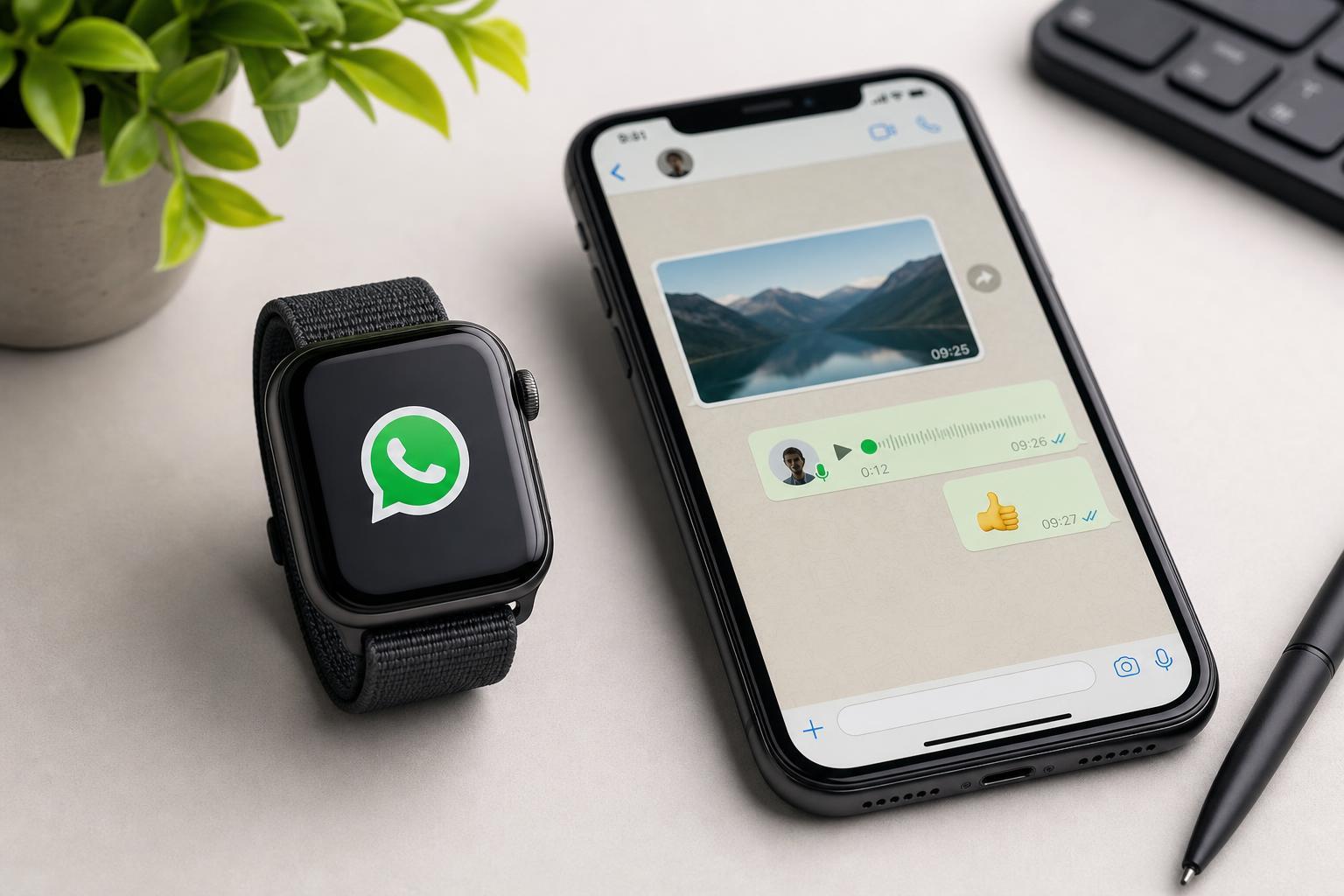
WhatsApp does not have an official Apple Watch app, but you can still stay on top of messages from your wrist. The exact experience depends on whether you want simple notifications, quick replies, or a more full-featured third-party solution.
This guide explains what works on Apple Watch, how to enable WhatsApp alerts, and what to do if messages are not showing up correctly.
What You Can Do with WhatsApp on Apple Watch
- See incoming WhatsApp message notifications on your watch
- Read message previews from the notification screen
- Reply with voice dictation, preset replies, emoji, or Scribble in supported situations
- Use third-party apps to view more of your chat history or interact more directly with WhatsApp-related alerts
Set Up WhatsApp Notifications on iPhone
- Open Settings on your iPhone.
- Tap Notifications.
- Scroll down and tap WhatsApp.
- Turn on Allow Notifications if it is off.
- Make sure Lock Screen, Notification Center, and Banners are enabled if you want alerts in those places.
- Tap Sounds and Badges if you want them turned on as well.
Once WhatsApp notifications are enabled on the iPhone, the Apple Watch usually mirrors them automatically when the watch is unlocked and paired with your phone.
Make Sure Apple Watch Mirroring Is Working
- Open the Watch app on your iPhone.
- Tap Notifications.
- Check that WhatsApp is allowed to mirror iPhone alerts.
- If you use custom notification settings, make sure WhatsApp is not set to silent or blocked.
- Confirm that your watch is connected to your iPhone and not in Airplane Mode.
How to Reply to WhatsApp Messages on Apple Watch
When a WhatsApp notification appears on your watch, you can usually respond directly without opening your phone.
- Tap Reply on the notification.
- Choose a suggested response, if available.
- Use Dictation to speak your reply aloud.
- Use Scribble to write letters on the screen, if supported.
- Send emoji from the quick reply options when available
Using Third-Party WhatsApp Apps on Apple Watch
If you want more than basic notifications, some third-party Apple Watch apps connect to WhatsApp Web or mirror chats through your iPhone. These apps can offer a more app-like experience, but they are not official WhatsApp software.
- Read recent messages on the watch
- Sometimes send replies from the watch interface
- Scan QR codes or use iPhone pairing steps depending on the app
- Get chat-style views instead of simple notification cards
If WhatsApp Notifications Are Not Showing on Apple Watch
If your watch is not showing WhatsApp alerts, the problem is usually with notification permissions, focus modes, or the connection between the iPhone and the watch.
- Check that WhatsApp notifications are turned on in iPhone Settings.
- Make sure the Watch app is allowed to mirror WhatsApp alerts.
- Confirm the iPhone is unlocked only when needed; watch notifications often appear when the iPhone screen is locked.
- Check Focus modes such as Do Not Disturb, Sleep, or Work Focus.
- Make sure both devices are signed into the same Apple ID and paired correctly.
- Check that WhatsApp itself is allowed to send notifications inside its own app settings if prompted
If messages still do not appear, open the Watch app on iPhone and verify that the watch is actually connected. A weak Bluetooth connection or a disconnected watch can prevent notifications from arriving reliably.
How to Get the Best WhatsApp Experience on Apple Watch
- Keep WhatsApp notifications enabled on both iPhone and Apple Watch
- Use short replies when you want to answer quickly from your wrist
- Turn on haptic alerts so you notice messages without looking at your phone
- Use a third-party app only if you need more than notifications and quick replies
- Keep watchOS and iOS updated for the most reliable notification behavior
When an Apple Watch Is Enough and When It Is Not
If you mainly want to know when a WhatsApp message arrives and send short replies, the built-in notification system is usually enough. If you need to browse old chats, manage groups, or use every WhatsApp feature, you will still need your iPhone.