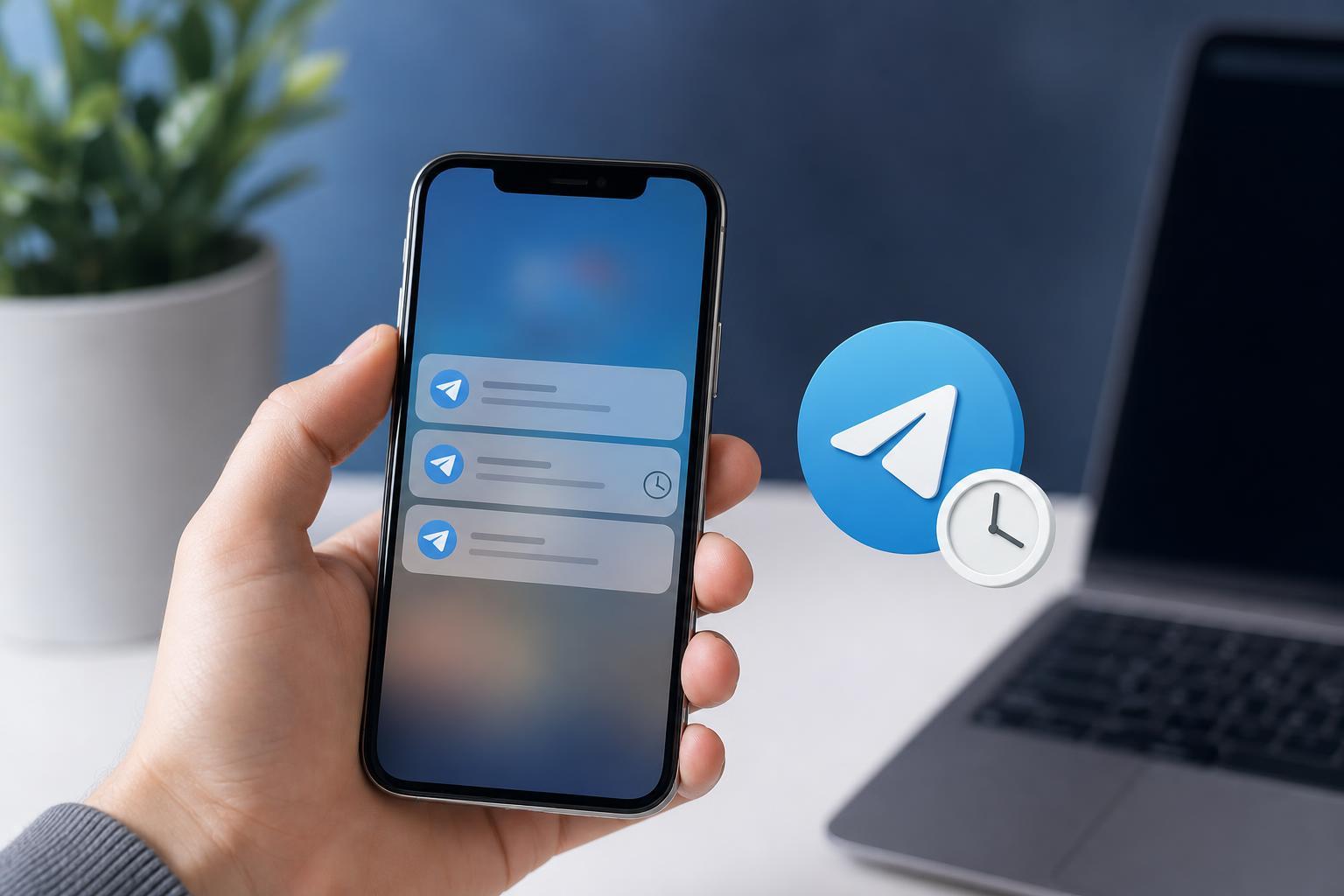
If Telegram messages are arriving late on your iPhone, the problem is usually caused by notification settings, iPhone background restrictions, or Telegram not syncing properly in the background. The good news is that in most cases, you can fix it without uninstalling the app or making major changes.
This guide walks through three reliable fixes that address the most common causes of delayed Telegram notifications on iPhone.
1. Check Telegram’s Notification Settings
Start inside Telegram itself. If notifications are disabled for chats, groups, or the app as a whole, messages may only appear when you open Telegram manually.
- Open Telegram and tap Settings.
- Go to Notifications and Sounds.
- Make sure message notifications, group notifications, and other alert types are enabled.
- Open a specific chat if needed and check whether that conversation is muted.
- If the chat is muted, unmute it so messages can alert you normally.
2. Remove iPhone Restrictions That Can Delay Alerts
If Telegram is configured correctly but notifications still arrive late, iPhone may be limiting what the app can do in the background. Focus on battery, background app activity, and notification permissions.
- Open Settings on your iPhone.
- Tap Notifications, then Telegram, and confirm Allow Notifications is turned on.
- Check that Lock Screen, Notification Center, and Banner alerts are enabled if you want Telegram to appear immediately.
- Go back to Settings and open General, then Background App Refresh.
- Make sure Background App Refresh is enabled for Telegram.
- Open Settings, then Battery, and check whether Low Power Mode is turned on.
- If Low Power Mode is enabled, turn it off and test whether Telegram notifications improve.
3. Refresh Telegram’s Connection and Push Delivery
Delayed notifications can also happen when Telegram’s push connection becomes inconsistent. This is more common if the app has been restricted for a long time, the network has been unstable, or Telegram has not been updated recently.
- Make sure your iPhone has a stable internet connection, switching between Wi-Fi and mobile data if needed to test.
- Close Telegram completely from the app switcher and open it again.
- Update Telegram from the App Store if an update is available.
- If the issue continues, sign out of Telegram and sign back in after confirming you know your login details.
- As a last step, delete Telegram and reinstall it from the App Store if notifications are still delayed.
How to Narrow Down the Cause
You can tell a lot by testing when the delay happens.
- Only one chat is delayed: check whether that conversation is muted.
- All Telegram alerts are delayed: look at iPhone notification permissions, background refresh, and Low Power Mode.
- Notifications arrive only when you open Telegram: the app may be restricted in the background or having push delivery trouble.
- Delays happen on Wi-Fi and cellular: the issue is more likely settings-related than a single network problem.
What to Try First
If you want the fastest fix, check Telegram’s notification settings first, then iPhone’s notification and battery settings. If Telegram still lags behind, refresh the app by updating it or reinstalling it. In most cases, one of those three steps is enough to restore normal notification timing.