Apple Music’s Autoplay feature keeps the music going by adding similar songs after your queue ends. If you want Apple Music to keep playing related tracks, or you want it to stop when your queued songs finish, you can change the setting in just a few taps or clicks.
The exact steps are slightly different depending on whether you are using an iPhone, iPad, Mac, or Android device, but the control is always found in the Now Playing screen or queue.
What Apple Music Autoplay Does
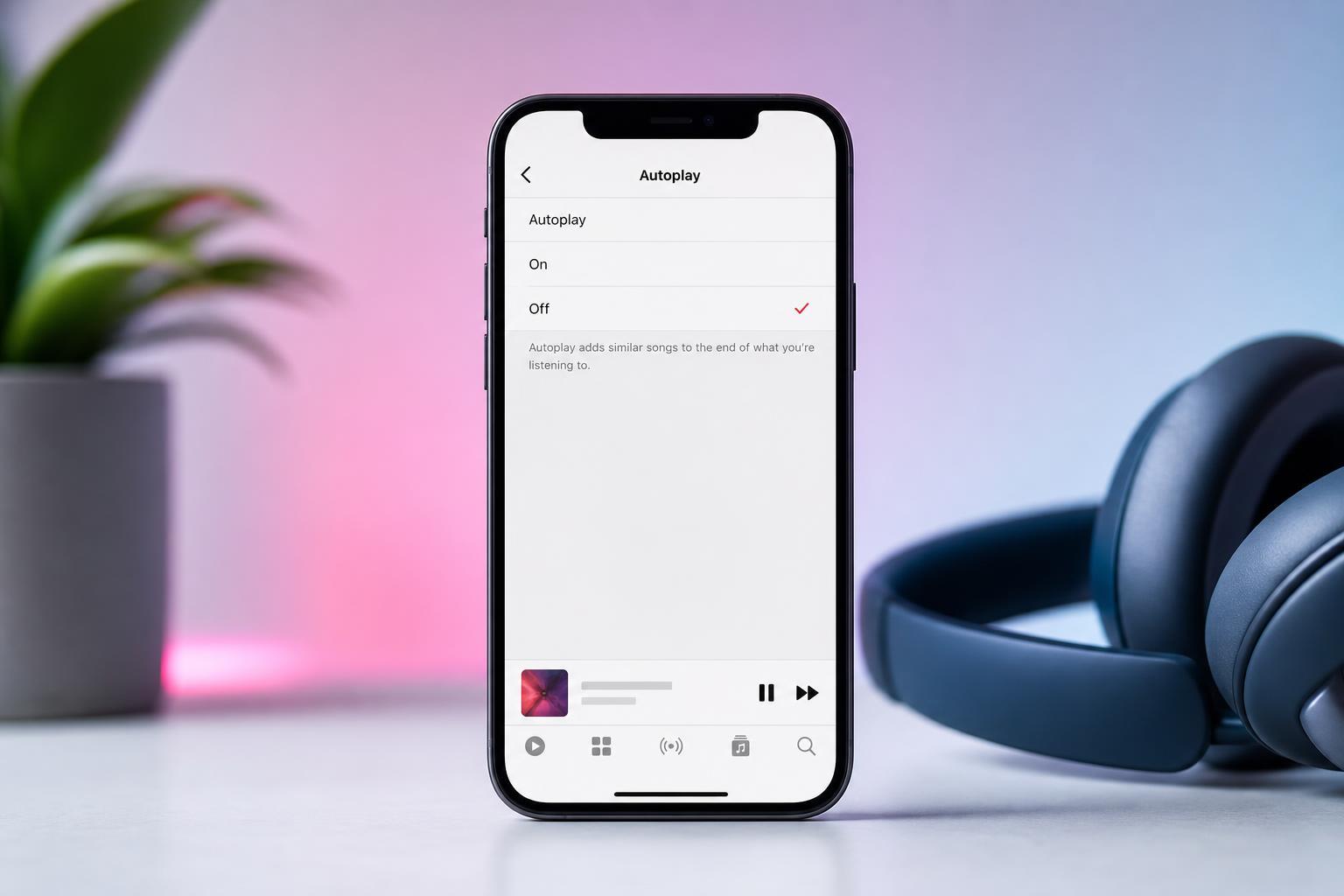
When Autoplay is enabled, Apple Music looks for songs that fit the vibe of what you were already listening to and adds them automatically after your queue ends. When it is disabled, playback stops after the last song in your queue finishes.
How to Disable or Enable Autoplay on iPhone or iPad
- Open Apple Music and start playing a song.
- Tap the Now Playing bar at the bottom of the screen to open the full player.
- Tap the queue icon, which looks like three horizontal lines with a play symbol or queue indicator, depending on your version of iOS.
- Look for the Autoplay symbol, which is usually an infinity icon.
- Tap the infinity icon to turn Autoplay on or off. If it is highlighted, Autoplay is enabled. If it is not highlighted, Autoplay is disabled.
How to Disable or Enable Autoplay on Mac
- Open Apple Music on your Mac and play a song.
- Click the Now Playing area near the top of the window.
- Open the queue or Up Next list.
- Find the infinity symbol in the queue controls.
- Click the infinity symbol to toggle Autoplay on or off.
How to Disable or Enable Autoplay on Android
- Open the Apple Music app and start playing music.
- Tap the Now Playing bar or open the full player.
- Open the queue or Up Next screen.
- Find the infinity symbol for Autoplay.
- Tap it to switch the feature on or off.
Apple Music’s Android app uses the same basic idea as the iPhone app, even if the layout looks a little different. If you cannot find the control, check the queue view first.
How to Tell Whether Autoplay Is On
- Highlighted infinity icon: Autoplay is on
- Dim or unselected infinity icon: Autoplay is off
- New songs continue after your queue ends: Autoplay is likely enabled
- Music stops after the last queued track: Autoplay is likely disabled
If the Autoplay Option Does Not Appear
If you do not see the Autoplay button, the most common reason is that you are not in the queue or Up Next screen. The control is not usually visible from the library view or playlist browsing screen.
- Start playback first, then open the Now Playing screen.
- Open the queue or Up Next list rather than the full library.
- Update Apple Music or your device if the interface seems outdated.
- Check whether the app layout has changed after a recent update.
When You Might Want to Turn Autoplay Off
- Listening to an album and wanting it to end naturally
- Playing a short playlist without extra songs added
- Using Apple Music in the background and wanting to save data or battery
- Avoiding unexpected music when sharing a device or speaker
When to Leave Autoplay On
- Discovering new music similar to what you already like
- Keeping music going during work, studying, or long sessions
- Avoiding silence after a short playlist ends
- Using Apple Music as a background listening source without managing a queue
Troubleshooting Autoplay Changes That Do Not Stick
If you turn Autoplay off and it seems to come back later, check whether you are changing the setting on one device but listening on another. Apple Music behavior can vary across devices, so the queue setting you change on your iPhone may not necessarily reflect what you see on a Mac until you adjust it there too.
- Confirm you changed the setting in the current playback queue.
- Check the same account on each device you use.
- Close and reopen the Apple Music app if the control seems unresponsive.
- Make sure you are not confusing Autoplay with repeat or shuffle settings.
Related Playback Settings You May See
- Repeat: plays the current song or queue again
- Shuffle: changes the order of songs in the queue or playlist
- Autoplay: adds similar songs after the queue finishes