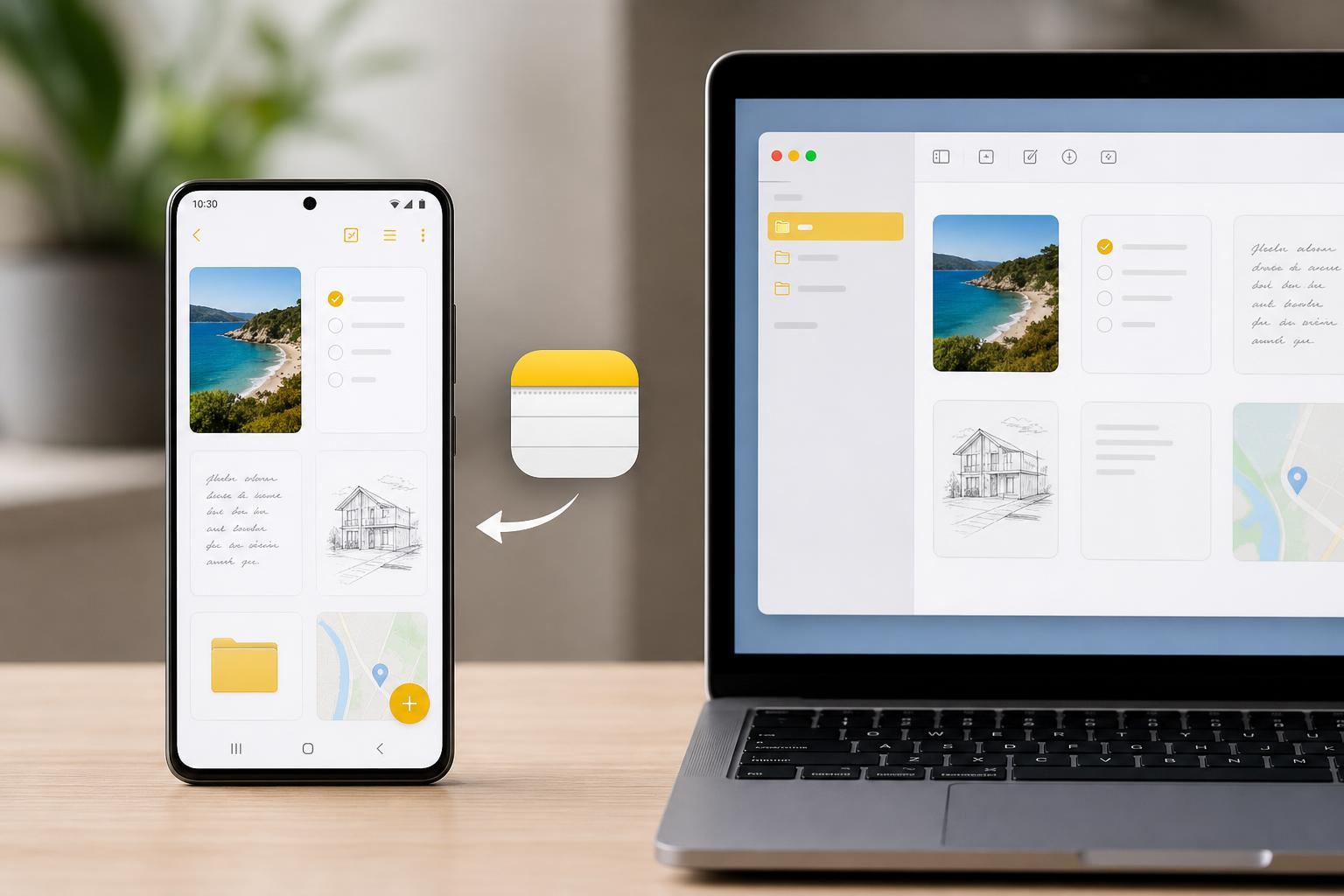
Apple Notes is built for Apple devices, but you can still view many notes on an Android phone if they’re synced to iCloud or shared from another Apple device. The best method depends on how the notes were created, whether they were synced to iCloud, and whether you only need to read them or also edit them.
This guide explains the most reliable ways to open Apple Notes on Android, what limitations to expect, and how to troubleshoot notes that do not appear.
The Easiest Way: Use iCloud in a Mobile Browser
If your notes are stored in iCloud, the simplest way to view them on Android is through the iCloud website. This works best for notes that are synced with your Apple ID and not locked behind device-only restrictions.
- On your Android phone, open a web browser such as Chrome.
- Go to iCloud.com.
- Sign in with the Apple ID that contains the Notes you want to view.
- Complete any two-factor authentication prompts if Apple asks for them.
- Open the Notes app inside iCloud to see your synced notes.
Check Whether the Notes Are Actually Synced to iCloud
Not every note on an iPhone or iPad automatically appears online. Some notes may be stored only on the device, especially if the account was set up to keep notes locally or in another email account instead of iCloud.
- Notes stored under the iCloud account can usually be viewed at iCloud.com
- Notes stored under Gmail, Outlook, or another mail account may be tied to that provider instead
- On-device notes that are not synced will not appear on Android at all
- Locked notes may show up only after you unlock them on an Apple device or in iCloud
Use Shared Notes When Someone Sends You Access
If an Apple user shared a note with you, you may be able to open it on Android through a browser link. This is useful when you only need to read a shared note and do not own the Apple account that created it.
- Open the shared note link in your Android browser.
- Sign in if the page asks for an Apple ID.
- View the note in the browser if sharing permissions allow it.
- If available, use the sharing controls to request access or open the note in a compatible view.
What You Can and Cannot Do on Android
Android can usually help you read Apple Notes through iCloud or a shared link, but it is not a full replacement for the Notes app on Apple devices.
- You can often view synced notes in a browser
- You may be able to read shared notes if the owner allows it
- You usually cannot use the native Apple Notes app on Android
- Editing support may be limited depending on the note and browser
- Some attachments, formatting, or locked notes may not display exactly as they do on an iPhone or Mac
If Your Notes Do Not Show Up
If iCloud opens but the note list is empty or incomplete, the issue is usually one of a few common causes. Start by checking whether the notes are in the right account and whether syncing is enabled on the Apple device.
- Confirm that the notes were saved to iCloud and not only on the local device.
- On the Apple device, open Settings and check the Apple ID and iCloud settings for Notes sync.
- Make sure Notes sync is turned on for that Apple ID.
- Check whether the note was saved under a different account such as Gmail or Outlook.
- Try opening iCloud.com in another browser or in desktop mode.
- If the note was shared, ask the owner to verify the sharing link or permissions.
Alternative Ways to Get the Content Onto Android
If you only need the information inside the note, there are a few practical workarounds when direct viewing is not possible.
- Copy the text from Apple Notes on an iPhone or Mac and paste it into an email or message you can open on Android
- Export or share the note as a PDF if the Apple device supports it
- Take screenshots of the note and send them to your Android device
- Move the content into a cross-platform note app such as Google Keep, OneNote, or Evernote
How to Make Future Access Easier
If you regularly switch between Apple and Android devices, it helps to store important notes in a service that works well on both platforms. That reduces the chance of losing access later or depending on a browser workaround.
- Use a cross-platform note app for shared or work notes
- Keep critical notes synced to iCloud and test access from the browser ahead of time
- Avoid storing only-device local notes when you may need them on Android
- Save important reference notes as PDFs or plain text copies
Choosing the Best Method
For most people, iCloud.com is the first and best place to check. If the note is shared, use the shared link. If the note was not synced to iCloud, you will need the Apple device that created it or another export method to get the content onto Android.