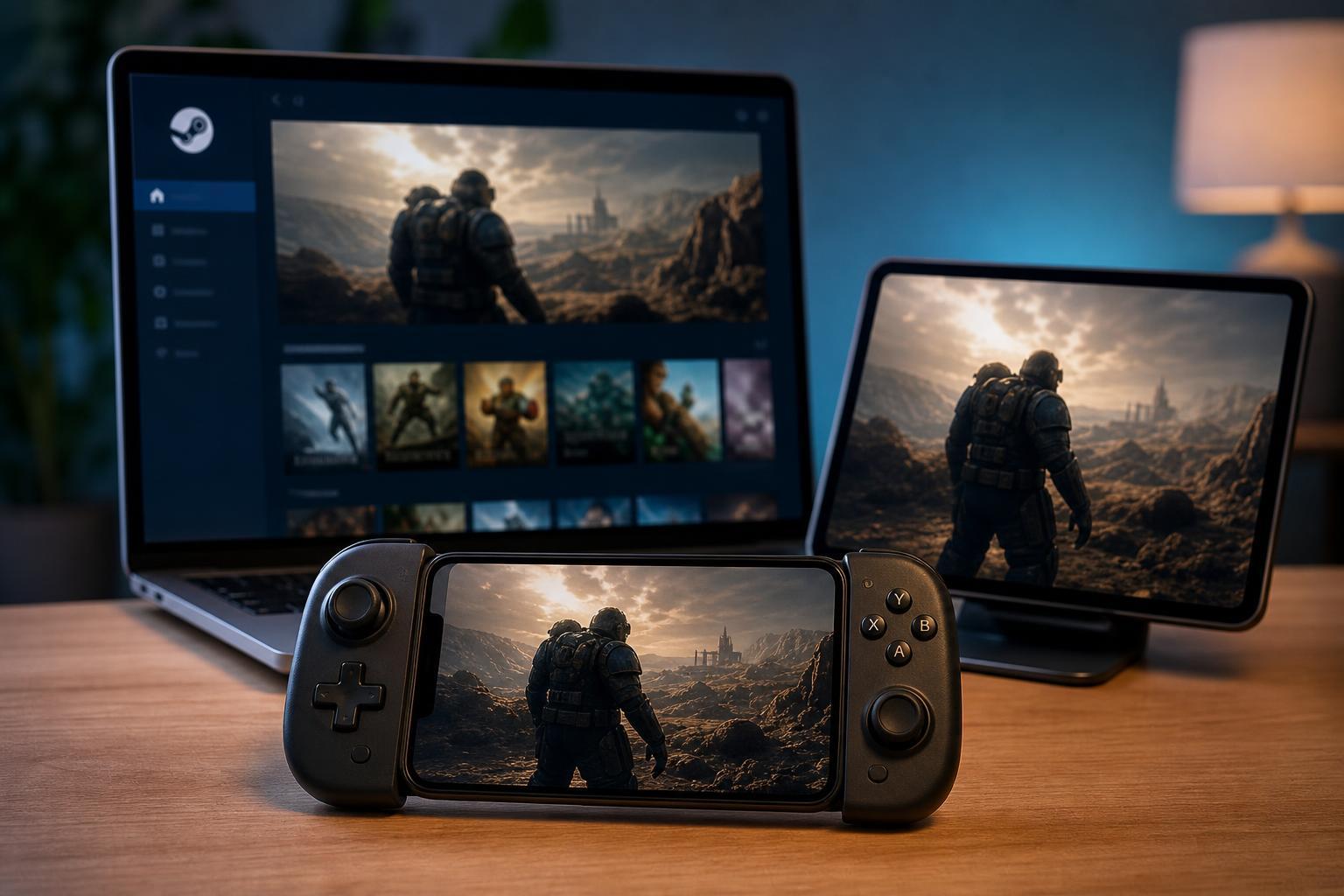
You cannot install most Steam PC games directly on Android or iPhone, but you can still play them on your mobile device through streaming. The most common method is Steam Link, which lets your phone or tablet display and control games running on your PC over your home network or the internet.
This guide explains the easiest ways to play Steam games on Android and iOS, what you need before you start, and how to troubleshoot the most common connection and control problems.
What You Need Before You Start
- A Windows, macOS, or Linux PC with Steam installed
- A Steam account with the games you want to play
- A strong home Wi-Fi network, preferably 5 GHz or Wi-Fi 6
- An Android phone or tablet, or an iPhone or iPad
- The Steam Link app installed on your mobile device
- A controller if the game is difficult to play with touch controls
The Easiest Method: Use Steam Link
Steam Link is Valve’s official app for streaming your Steam library to mobile devices. It is the simplest option for most people because it keeps your game installed on your PC and sends the video to your phone or tablet in real time.
- Install Steam on your PC and sign in to the account that owns the games.
- On Android, install Steam Link from Google Play. On iPhone or iPad, install it from the App Store.
- Make sure your PC and mobile device are on the same network for the first setup.
- Open Steam Link on your phone or tablet and follow the pairing instructions.
- Steam Link will ask you to connect a controller or confirm touch controls.
- After the connection test, choose a game from your Steam library and start playing.
How Steam Link Works on Android and iOS
On Android, Steam Link usually offers the most flexible experience because many controllers, keyboards, and accessories work more smoothly there. On iOS, Steam Link also works well, but Apple’s touch and controller rules can make certain setups feel a little more limited depending on the game and accessory.
- Android: generally best if you want broad controller support and more device options
- iPhone and iPad: good for casual play, especially with a Bluetooth controller
- Both platforms: best suited for action, strategy, RPG, and controller-friendly games
Using a Controller Instead of Touch Controls
Many Steam games are not designed for touchscreens, so a controller makes a huge difference. Steam Link supports common Bluetooth controllers, including Xbox and PlayStation-style pads, depending on your device and operating system.
- Put your controller in pairing mode.
- Open Bluetooth settings on your Android device or iPhone.
- Pair the controller with the phone or tablet.
- Open Steam Link and check that the controller is detected.
- Launch your game and test the buttons before starting a long session.
Can You Play Steam Games on Android or iPhone Without a PC?
In most cases, no. Standard Steam games need a PC or another device running the game. If you do not have access to your own gaming PC, you may need to look at cloud gaming services that support a PC-like game library, or use a remote PC you already own.
- Steam Link: requires your own PC running the game
- Remote Desktop apps: technically possible, but usually worse for gaming
- Cloud gaming services: may work for some games, but they are separate from Steam in many cases
How to Improve Performance and Reduce Lag
If the game looks blurry, feels delayed, or disconnects often, the problem is usually the network rather than the game itself. A few small changes can make streaming much smoother.
- Use 5 GHz Wi-Fi instead of 2.4 GHz if possible
- Move closer to the router or use a mesh node with a strong signal
- Connect the PC to the router with Ethernet
- Close downloads, video streaming, and other heavy network traffic
- Lower the streaming resolution or bitrate in Steam Link settings
- Keep your PC from sleeping while you play
Common Problems and Fixes
- Steam Link cannot find the PC: make sure both devices are on the same network and Steam is open on the computer
- Controller not working: re-pair the controller in Bluetooth settings and reconnect it in Steam Link
- Black screen or poor video quality: lower the streaming resolution or check your network signal
- Audio but no video: restart the Steam Link session and confirm the PC display is active
- Game launches but controls feel wrong: open Steam Input settings for that game and check the controller layout
Best Types of Games to Play This Way
Steam Link works best with games that are comfortable on a controller or do not need pixel-perfect mouse accuracy. Fast-paced shooters can still work, but strategy and menu-heavy games may feel easier on a larger screen or with mouse input.
When Another Method Makes More Sense
If you want to play while away from home, Steam Link can still work as long as your PC is powered on and reachable over the internet. But if you want a more portable solution, or if your home PC is not suitable for streaming, a cloud gaming service or a handheld PC may be a better fit.
- Choose Steam Link if you already own a gaming PC and want the easiest setup
- Choose a cloud gaming service if you do not want to keep a PC running at home
- Choose a handheld gaming PC if you want to install and run PC games locally without streaming
A Simple Setup That Works for Most People
For the smoothest experience, install Steam Link on your Android phone or iPhone, connect your PC by Ethernet, pair a Bluetooth controller, and test the game on your home Wi-Fi first. Once that works well, you can decide whether streaming over the internet is worth using for your setup.