WhatsApp can automatically download photos, videos, audio, and documents as soon as they are sent to you. That is convenient if you want everything to appear right away, but it can also fill up your storage, use mobile data quickly, and clutter your gallery with files you did not want to keep.
If you want more control, WhatsApp lets you turn off auto-download for different connection types and choose which media types are allowed to download automatically.
What Auto-Download Actually Changes
Turning off auto-download does not stop people from sending you media. It only stops WhatsApp from saving files to your phone automatically. You can still tap a photo or video to download it manually when you want to view it.
How to Stop Auto-Download on Android
- Open WhatsApp.
- Tap the three-dot menu in the top-right corner and choose Settings.
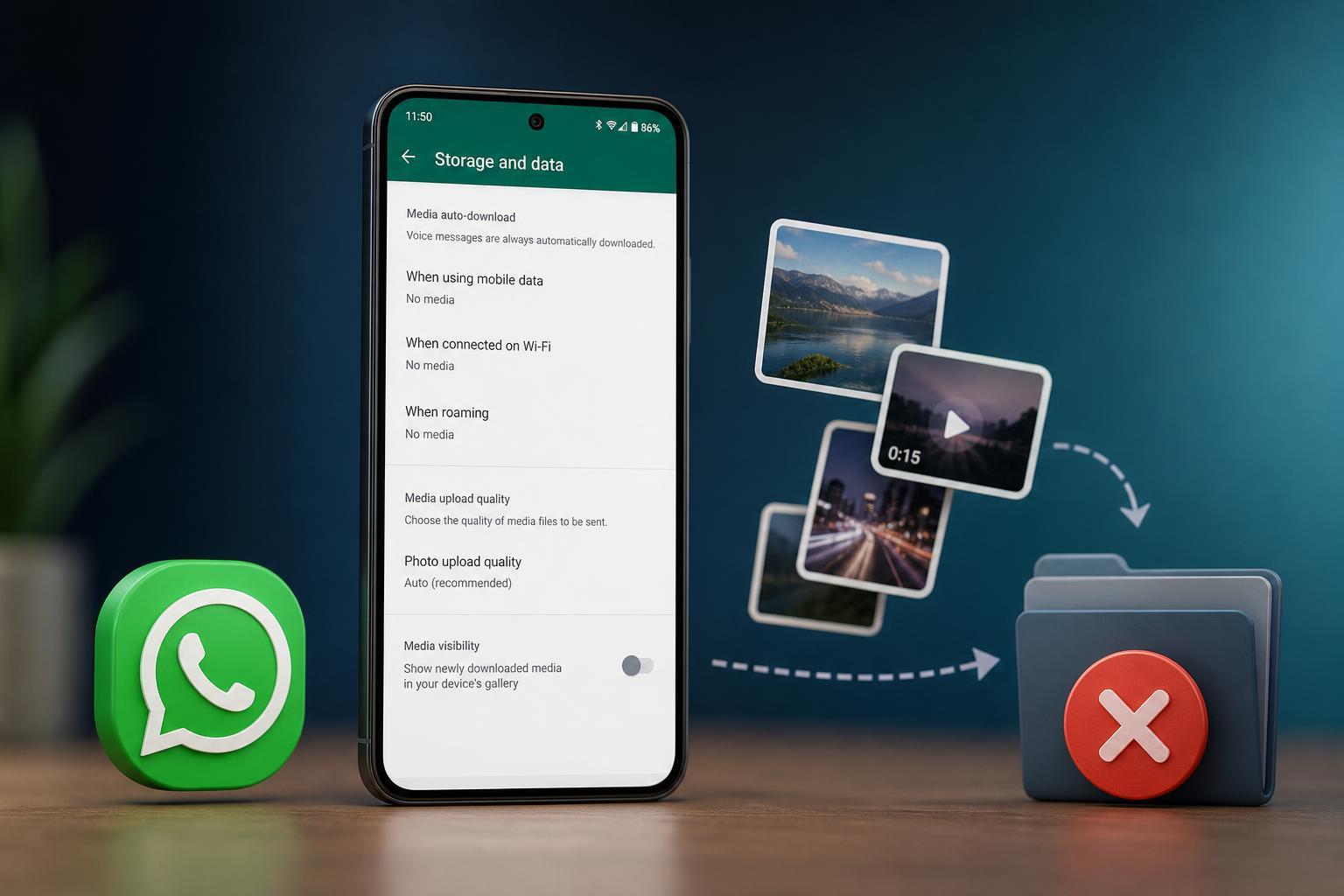
- Tap Storage and data.
- Under Media auto-download, review the options for When using mobile data, When connected on Wi-Fi, and When roaming.
- Open each section and uncheck Photos, Audio, Videos, and Documents as needed.
- Tap OK or save the selection if prompted.
If you want nothing to download automatically, clear every media type in all three connection categories. If you only want to block large files, you can leave audio on and turn off videos first.
How to Stop Auto-Download on iPhone
- Open WhatsApp.
- Tap Settings in the bottom-right corner.
- Tap Storage and Data.
- Under Media Auto-Download, tap Photos, Audio, Videos, and Documents one at a time.
- Set each item to Never if you do not want it to download automatically.
On iPhone, these controls affect whether WhatsApp downloads the media to the app. If you also want to keep photos and videos out of your Camera Roll, there is a separate setting for that.
Stop WhatsApp Media From Showing Up in Your Gallery or Photos App
Even after disabling auto-download, media you manually open can still be saved to your phone’s photo library depending on your settings. If you want a cleaner gallery, disable visibility or save-to-camera-roll behavior as well.
- On Android, open WhatsApp Settings and tap Chats.
- Turn off Media visibility if you do not want downloaded WhatsApp media to appear in your gallery.
- On iPhone, open WhatsApp Settings and tap Chats.
- Turn off Save to Photos if you do not want WhatsApp media to be added to the Photos app automatically.
Best Settings If You Want Less Data Use
If your goal is mainly to save mobile data rather than storage, a good compromise is to allow auto-download only on Wi-Fi and block it on mobile data and roaming.
- Allow photos on Wi-Fi only if you still want quick previews at home or work.
- Block videos on all connections to avoid large downloads.
- Keep audio enabled only if you regularly receive voice notes.
- Disable roaming downloads completely to avoid unexpected charges when traveling.
If WhatsApp Still Downloads Media Automatically
If media still seems to download after you change the settings, check these possibilities:
- You changed the settings for the wrong connection type, such as Wi-Fi but not mobile data.
- You are seeing media that was already downloaded before the change.
- The sender is sharing media in a group or chat that uses different expectations than your personal chats, but the download rules still come from your WhatsApp settings.
- Another app or cloud backup is copying the files after WhatsApp receives them.
A Simple Way to Choose the Right Setup
If you are not sure which options to disable, start with this approach: turn off video auto-download everywhere, allow photos only on Wi-Fi if needed, and disable downloads on mobile data and roaming. That usually gives the best balance between convenience and control.