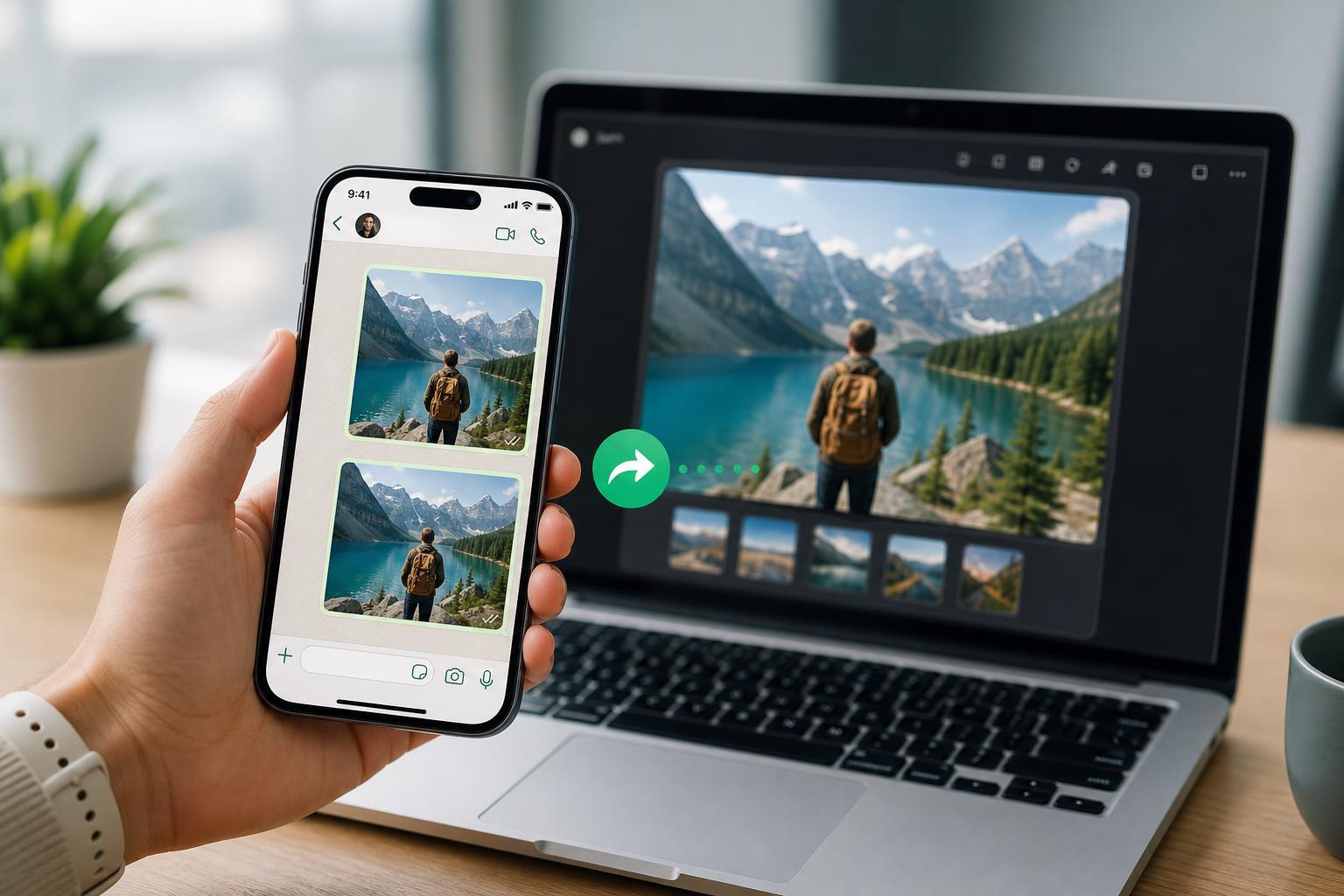
WhatsApp compresses normal photo uploads to save data and send them faster, but that can reduce detail and lower image quality. If you want to send a picture in its original size, there are a few easy ways to keep the file as close to the original as possible.
The best method depends on whether you want the recipient to see the image immediately in chat or download the full-resolution file separately.
Why WhatsApp Reduces Photo Quality
When you send a photo the usual way, WhatsApp often processes it as an image message. That can shrink the file and compress the picture so it uses less space and sends more quickly. The tradeoff is that fine details may soften, text in screenshots may become harder to read, and the picture may not print as well.
The Best Way: Send the Photo as a Document
The simplest way to preserve original size on WhatsApp is to attach the picture as a document instead of a photo. This usually sends the file without the same compression that normal image sharing uses.
- Open the chat in WhatsApp.
- Tap the attachment button: the paperclip on Android or the + button on iPhone.
- Choose Document instead of Gallery or Photo & Video.
- Browse to the image file you want to send.
- Select the picture and send it.
How to Send Original Size Pictures on Android
- Open the WhatsApp chat.
- Tap the paperclip attachment icon.
- Tap Document.
- Use the file picker to find the photo you want to send.
- Select the image file and confirm.
- Send the message.
If your image is in the camera roll, you may need to use the file browser rather than the gallery picker. The exact layout can vary by phone brand, but the idea is the same: choose the file as a document, not as a normal image attachment.
How to Send Original Size Pictures on iPhone
- Open the chat in WhatsApp.
- Tap the + button beside the message box.
- Choose Document.
- Tap Browse if needed to open the Files app.
- Find the photo file and select it.
- Send the document.
On iPhone, photos saved only in the Photos app may need to be exported or saved to the Files app first if you want to send them as a document. That extra step is often worth it when image quality matters.
Use WhatsApp’s HD Option When You Still Want a Normal Photo
WhatsApp also offers an HD sending option in some versions of the app. This is useful when you want the picture to appear like a normal image in the chat but with better quality than standard compression.
- The image still may not be fully original, but it can look better than the default version.
- The option may not be available in every app version or on every device.
- For absolute original quality, document mode is still the safer choice.
Other Ways to Share Full-Resolution Pictures
If you need to send multiple large photos or you want the recipient to keep the original files easily, a cloud link can be a better choice than sending everything individually through chat.
- Google Drive or OneDrive: upload the files and share the link in WhatsApp.
- iCloud Drive: useful for Apple users sharing with other iPhone or Mac users.
- Dropbox or similar services: good for sending a folder of photos or large image sets.
Things That Can Still Reduce Quality
Even if you send a file carefully, a few things can still affect the result.
- Screenshots taken after editing or resizing the image may already be lower quality.
- Some apps save photos in smaller versions by default.
- Forwarding an image that was already compressed will not restore the lost detail.
- Converting between file types can sometimes change quality or metadata.
Which Method Should You Use?
- Use Document if you want the closest thing to the original file.
- Use HD photo mode if you want the image to appear normally in chat and quality loss is acceptable.
- Use a cloud link if you are sending many photos or need easy access to the original files later.
Quick Check Before Sending
Before you send an important picture, check the file size and make sure you are choosing the right attachment type. If the photo is a screenshot, receipt, scan, artwork, or product image, document mode is usually the safest option.