If you join Zoom from a phone, knowing where the mute and unmute controls are can save you from accidental background noise or awkward delays. The controls are simple once you know where to look, but the exact buttons can move depending on whether you are on an iPhone or Android device and whether the meeting is using the audio through the Zoom app or your phone’s built-in dial-in audio.
This guide shows you how to mute and unmute yourself in a Zoom meeting on a phone, how to tell whether you are actually muted, and what to do if the option is missing or grayed out.
Mute and Unmute in a Zoom Meeting on Your Phone
- Join the Zoom meeting on your phone.
- Tap anywhere on the meeting screen to show the controls if they are hidden.
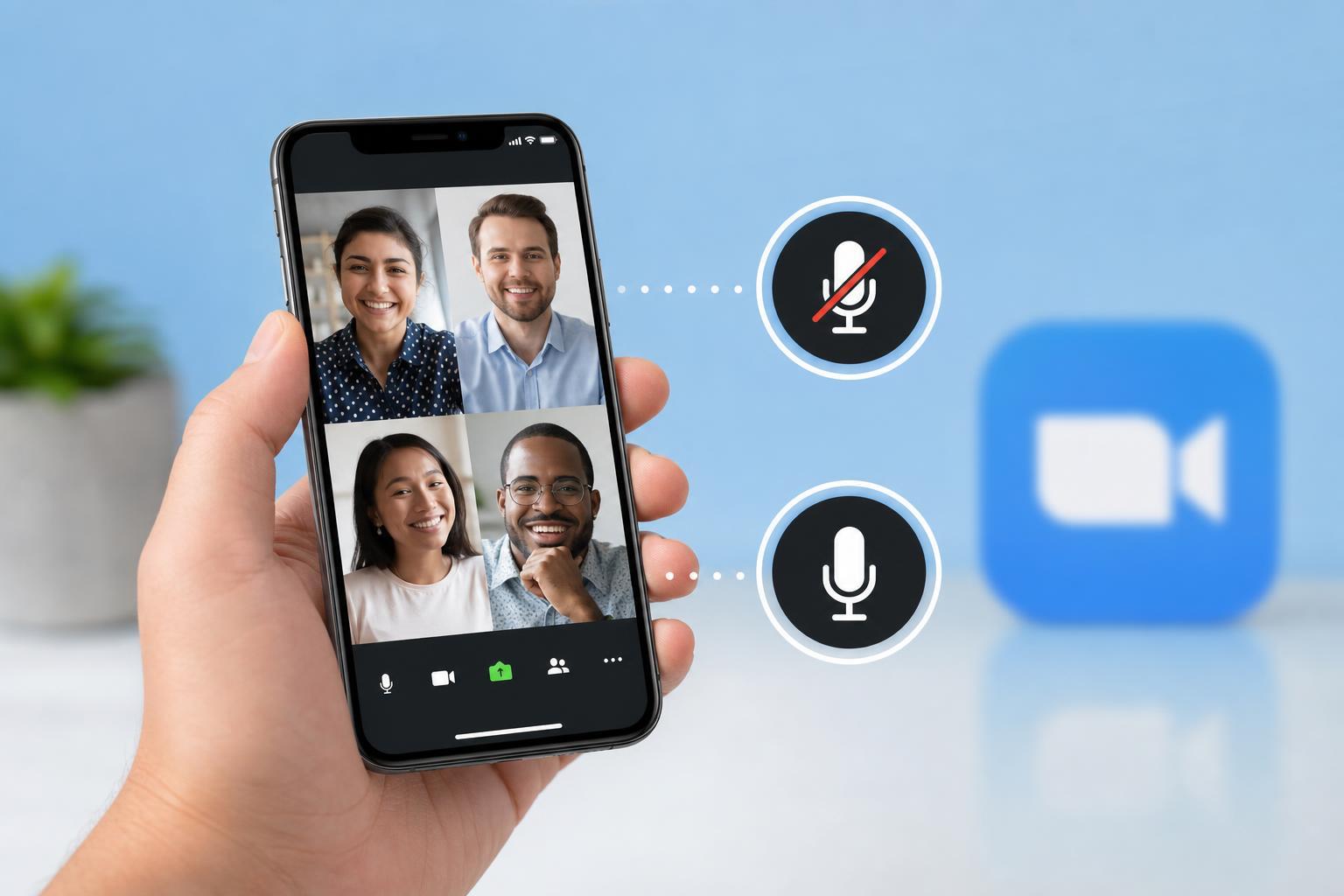
- Look for the microphone icon, usually at the lower-left area of the screen.
- Tap the microphone icon once to mute yourself. A slash through the mic or a red mute indicator usually means you are muted.
- Tap the same icon again to unmute yourself when you want to speak.
How to Tell Whether You Are Muted
- The microphone icon shows a slash or muted state.
- Zoom may display a short message confirming that you are muted or unmuted.
- If you are using speaker mode, you may still hear the meeting even when your own microphone is off.
- If other people mention they cannot hear you, check the mic icon before changing anything else.
If You Are Calling Into Zoom by Phone
Some Zoom meetings let you join audio by dialing in with a phone number instead of using the Zoom app’s built-in audio controls. In that case, muting and unmuting may work differently.
- If you joined by dialing in, use the phone keypad commands that Zoom provides in the meeting invitation or audio instructions.
- Common dial-in controls can include pressing *6 to mute or unmute, but this depends on the meeting setup.
- If you are using the Zoom app on a phone, the on-screen microphone button is usually the correct control instead of keypad commands.
What to Do If You Cannot Unmute
- Check whether the host has muted participants or disabled self-unmute.
- Look for a prompt asking for microphone permission and allow Zoom to access your mic if needed.
- Make sure your phone is not in a mode that blocks microphone use, such as a privacy setting or system-level mic restriction.
- If Bluetooth headphones are connected, check whether Zoom is using the correct microphone source.
- Leave and rejoin the meeting only if the audio appears stuck and you have already checked permissions and host restrictions.
Useful Tips for Managing Audio on a Phone
- Keep Zoom’s microphone permission enabled in your phone settings so you are not blocked when you need to speak.
- Use headphones with a built-in mic if you are in a noisy place and want clearer audio.
- If you often join calls in public, mute yourself before you answer the meeting invite or enter the meeting room.
- Test your mic once in a noncritical meeting so you know where the button is before an important call.
When the Mute Button Is Not Enough
If your phone’s microphone is picking up too much noise even while muted, the issue may be the environment rather than Zoom. A loud room, a case covering the mic, or a bad headset can make audio sound poor when you unmute later. In those cases, improving your mic setup or moving to a quieter spot can help more than changing Zoom settings.