Split screen is one of Android’s most useful multitasking features, but it does not always work the way you expect. Sometimes the option is missing, an app refuses to stay open in split view, or the screen simply snaps back to full screen.
In most cases, the problem is caused by app compatibility or by a setting that is limiting multitasking. These two fixes cover the most common reasons split screen stops working on Android phones and tablets.
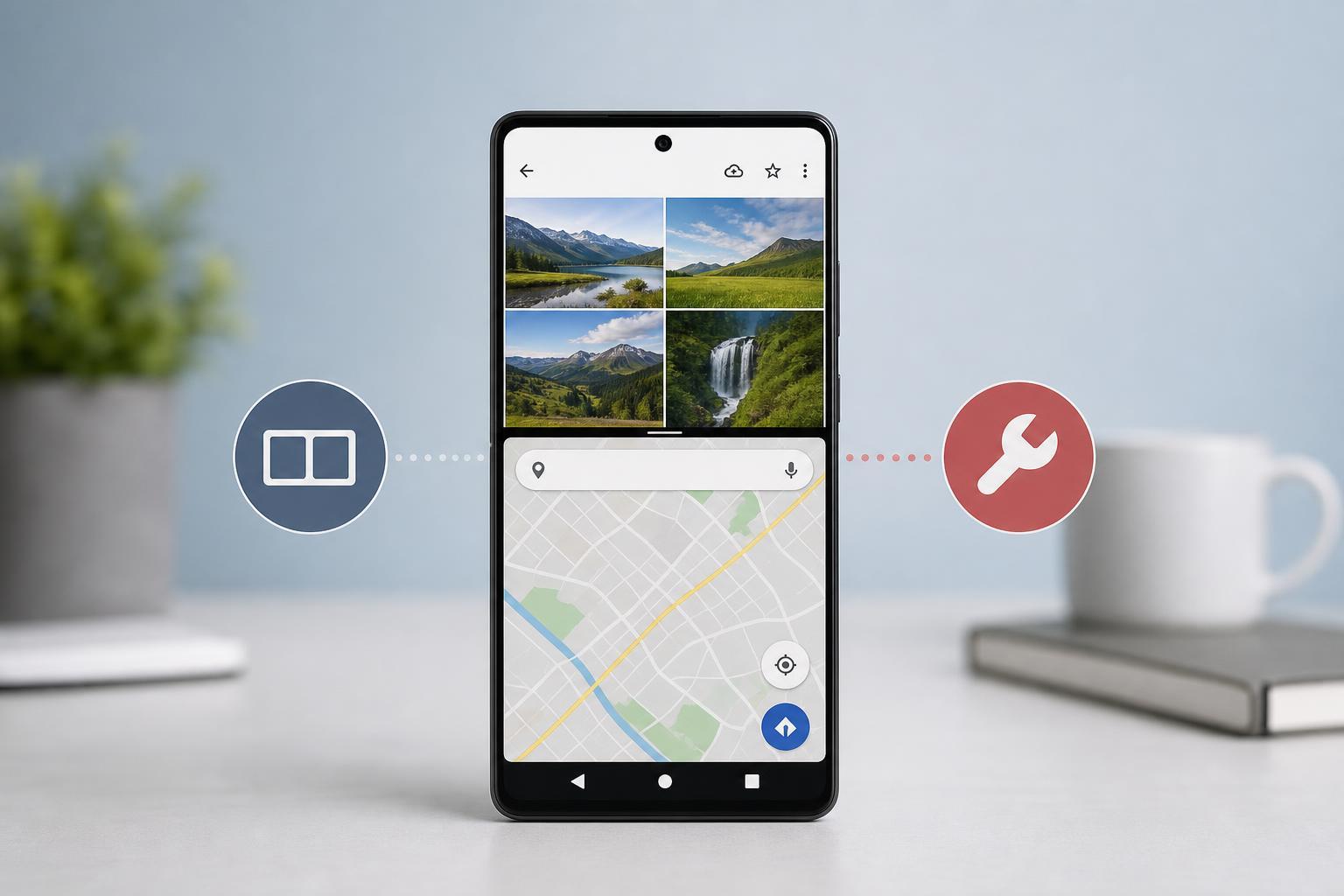
1. Check Whether the App Supports Split Screen
Not every Android app supports split screen. Some apps intentionally block it, especially streaming services, games, banking apps, and apps that need to keep full control of the screen. If split screen works with one app but fails with another, the app itself is probably the reason.
- Open the first app you want to use.
- Open the Recent apps view.
- Tap the app icon or menu at the top of the app card.
- Look for Split screen, Open in split screen view, or a similar option.
- Choose the second app from the recent apps list or app drawer.
If the split screen option does not appear, or if the app closes as soon as you try to use it, test with a different app. If another app works normally, the original app likely does not support split screen on your device or Android version.
2. Turn On Split Screen and Remove Multitasking Limits
Some Android phones hide multitasking features, limit them through battery or performance settings, or make split screen harder to use with gesture navigation. On some devices, a system option must be enabled before split screen behaves properly.
- Open Settings on your Android device.
- Search for Split screen, Multi-window, Labs, or Advanced features.
- If you find a multitasking option, make sure it is enabled.
- Check whether Battery Saver, Power Saving mode, or app optimization settings are restricting background activity.
- If your device has gesture navigation, try switching temporarily to 3-button navigation to see whether the split screen gesture or menu becomes available.
- Restart the device after changing the setting if the option still does not appear.
The exact menu names vary by manufacturer. Samsung, Google Pixel, OnePlus, Xiaomi, and other Android brands may place the split screen option in different locations, so it helps to use the Settings search bar instead of browsing every menu manually.
If Split Screen Still Will Not Work
If the feature still fails after checking app support and multitasking settings, the issue may be tied to your device software version or a manufacturer-specific restriction. In that case, look for a system update, test another app combination, and check whether the problem happens only in one user profile or only after a recent device update.
- A system update may restore missing multitasking features or fix bugs.
- A work profile or guest profile can limit which apps are available in split screen.
- Some app pairs work better than others, even on the same device.
- Certain Android skins add their own rules for floating windows and split view.