If you want to know what processor is inside your Android phone, there are a few easy ways to find it. This can help when checking app compatibility, comparing performance, or confirming the exact model of a phone before buying accessories or looking up support details.
Samsung phones can make this slightly confusing because the same model may use different chips in different regions. The good news is that you can still check the processor quickly on the phone itself or with a trusted device-info app.
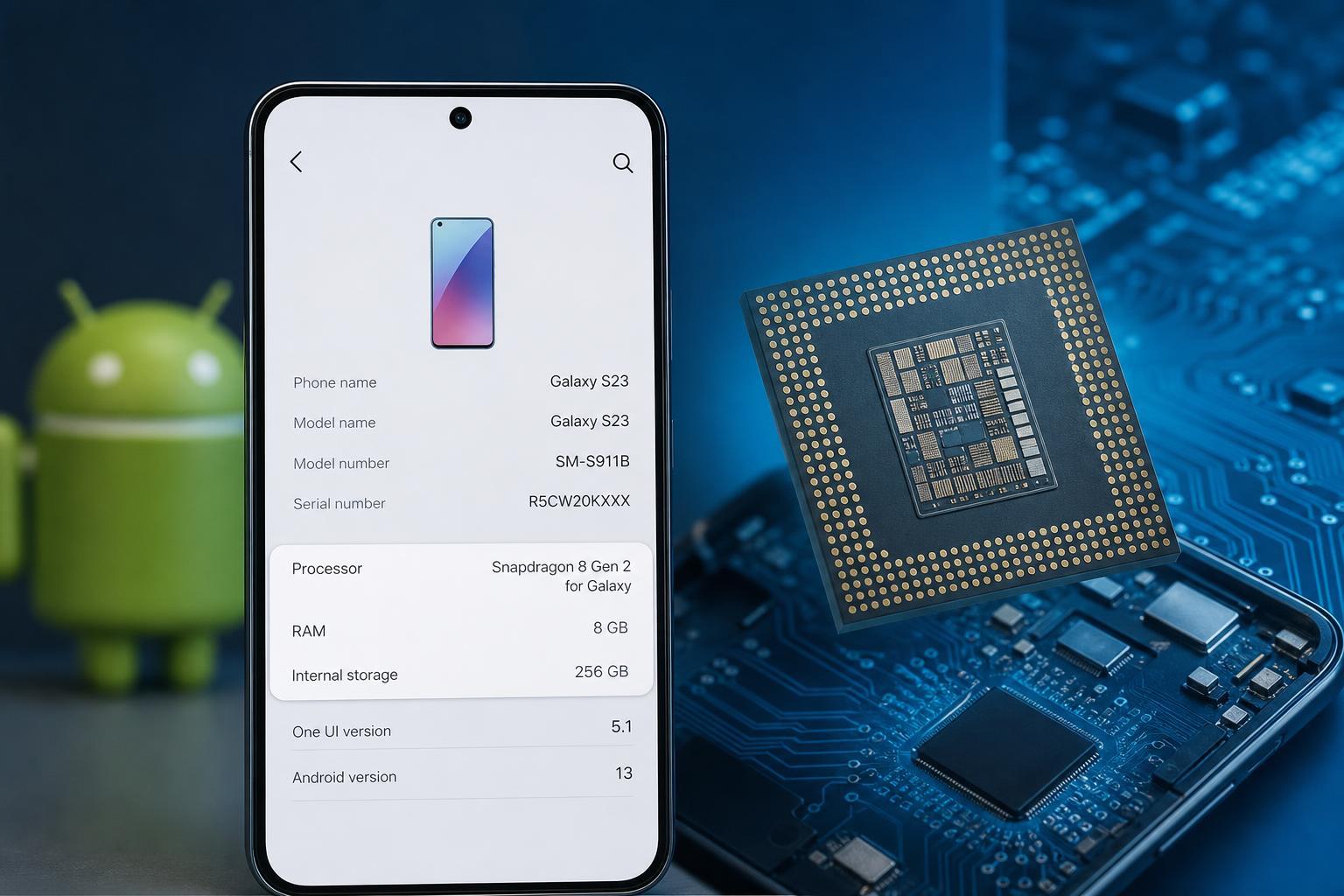
The Fastest Ways to Check Your Android Processor
On most Android phones, the processor is not shown clearly in the basic Settings app. Instead, you usually need to check the phone’s model details, use a device information app, or look in the manufacturer’s support information. Samsung devices often need a little extra checking because some models use Snapdragon chips while others use Exynos.
- Check the phone’s model number in Settings and look up the chip online
- Use a hardware info app such as CPU-Z, Device Info HW, or AIDA64
- Check the original product listing or box if you still have it
- For Samsung phones, confirm the chipset by region or model number
Check the Processor in Settings
- Open Settings on your Android phone.
- Scroll to About phone or About device.
- Look for the model number, device name, or hardware information.
- Write down the exact model number.
- Search that model number on the manufacturer’s website or a trusted spec page to find the processor.
This method is simple, but it often shows only the model name rather than the chip itself. That is still enough to identify the processor reliably if you use the exact model number.
Use a Device Info App
If you want the processor name directly on the phone, a hardware information app is usually the quickest option. These apps read the system details and display the chipset, core layout, GPU, memory, and other specifications.
- Install a trusted system-info app from the Google Play Store, such as CPU-Z, AIDA64, or Device Info HW.
- Open the app and allow any requested permission that is needed to read device information.
- Go to the CPU, SoC, or Device section.
- Look for the processor name, such as Snapdragon, Exynos, MediaTek, Tensor, or Dimensity.
How to Check the Processor on Samsung Phones
Samsung phones deserve special attention because the processor can vary by region. For example, one Galaxy model may use a Snapdragon chip in one market and an Exynos chip in another. The phone name alone is not always enough to know which one you have.
- Open Settings and tap About phone.
- Find the model number, such as SM-S9xx, SM-Axx, or a similar code.
- Search that exact model number along with your region or carrier.
- Check Samsung’s official specifications page or a trusted spec database.
- If you want confirmation directly on the phone, use a hardware-info app and check the SoC or CPU section.
On Samsung devices, the model number is usually the most useful clue. Two phones with almost identical names can have different chipsets depending on where they were sold.
Find the Processor Using the Box or Product Listing
If you still have the original box, retail label, or online order page, you may be able to identify the processor from the full model number. This is especially helpful if the phone will not turn on or you cannot access Settings.
- Check the box label for the full model number
- Look at the seller’s specification list
- Compare the model number to the manufacturer’s official specs
- Be careful with generic listings, since some sellers omit region-specific details
What the Processor Name Tells You
Once you find the processor, it can help you understand what kind of phone you have. Snapdragon, Exynos, MediaTek, Tensor, and Dimensity chips can differ in power efficiency, gaming performance, and software support. The processor is not the only factor in speed, but it is an important one.
- Snapdragon: commonly found in many Android flagships and mid-range phones
- Exynos: used in some Samsung models, often depending on region
- MediaTek: common in many budget and mid-range phones
- Tensor: found in Google Pixel phones
- Dimensity: MediaTek’s performance-focused chip family in many newer devices
If You Cannot Find the Processor
If Settings and app-based checks do not give you a clear answer, the most reliable fallback is the exact model number. From there, check the manufacturer’s official support page or a trusted specification source. If the phone is a Samsung model, region-specific listings are often the key to getting the correct answer.
- Use the exact model number, not just the marketing name
- Check the official support page first when possible
- Avoid unknown spec websites that do not cite model numbers
- If needed, compare the model with your SIM region or carrier version
A Quick Way to Confirm the Chip Before Buying or Troubleshooting
If your goal is to compare phones, check gaming performance, or confirm whether a fix applies to your device, the most practical approach is usually this: find the exact model number, then confirm the chipset with a trusted source or device-info app. That gives you the most accurate result with the least guesswork.