If you want to give a child an iPhone but keep communication limited to trusted people, Apple’s Screen Time tools can help. You can restrict who they can contact, control who they can communicate with during allowed times, and manage exceptions for emergencies or specific family members.
The exact steps depend on your child’s age, whether the phone is set up with Family Sharing, and how tightly you want to lock things down. In many cases, the best results come from combining Screen Time contact limits with a curated Contacts list.
What You Can Limit on iPhone
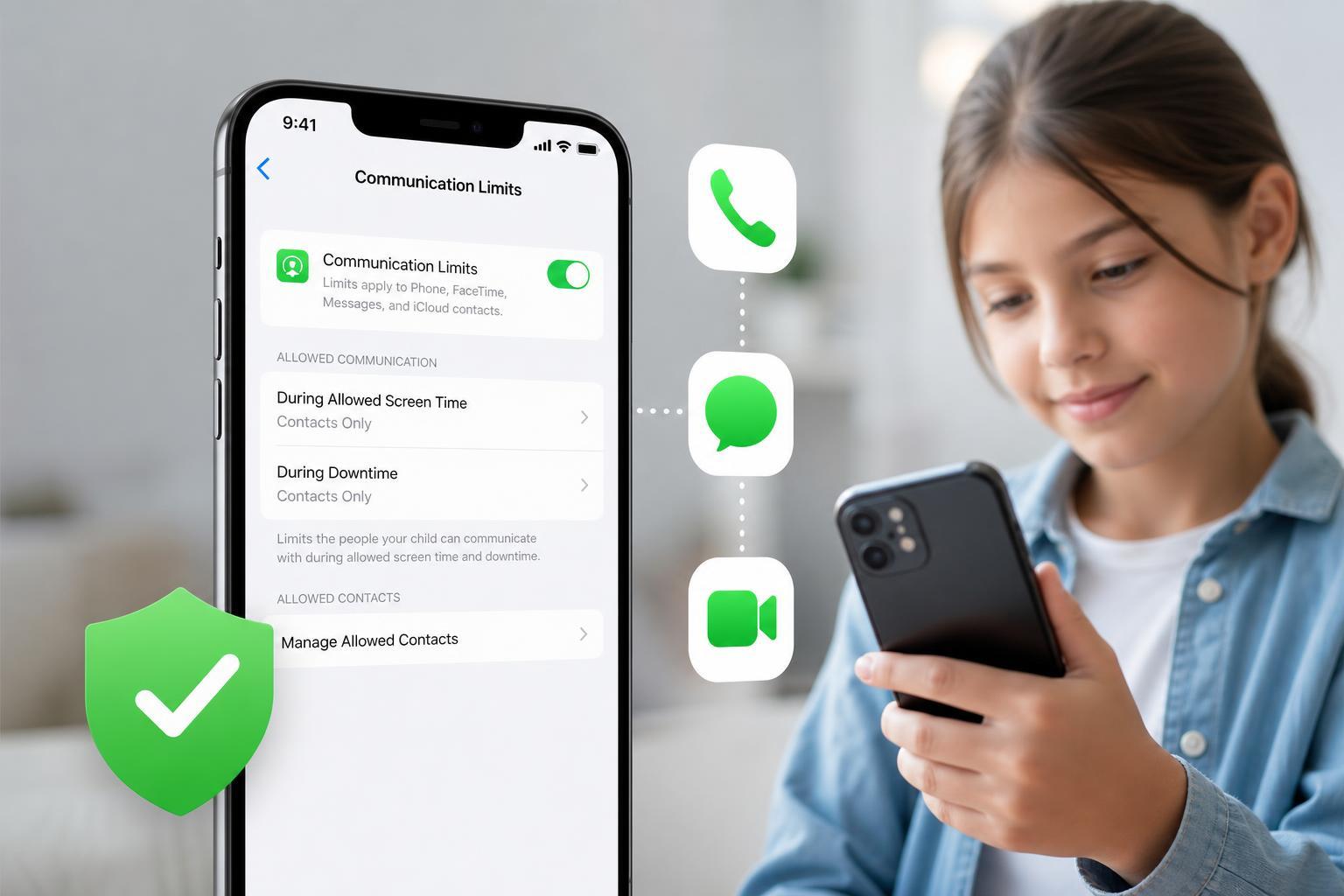
Apple does not offer a single switch that blocks every possible communication path, but it does provide useful controls for calls, Messages, and FaceTime through Screen Time. These controls let you decide who your child can communicate with at different times, such as during downtime or always.
- Limit communication to contacts only
- Allow communication only with specific people
- Set different rules during Screen Time downtime
- Prevent changes without the Screen Time passcode
- Control who can be added as a contact more easily
Set Up Screen Time for Your Child’s iPhone
- Open Settings on the child’s iPhone.
- Tap Screen Time.
- If Screen Time is not already on, tap Turn On Screen Time.
- Choose This is My Child’s iPhone if prompted.
- Set a Screen Time passcode that your child does not know.
- If you use Family Sharing, you can also manage these settings from your own iPhone.
Limit Who They Can Contact During Screen Time
This setting controls who your child can call, message, or FaceTime while Screen Time rules are active. It is the main setting to use if you want communication limited to approved people instead of the full contacts list.
- Open Settings and tap Screen Time.
- Tap Communication Limits.
- Tap During Screen Time.
- Choose Contacts Only or Specific Contacts Only, depending on the options shown on your iPhone version.
- If you choose Specific Contacts Only, select the people your child is allowed to contact.
Set Separate Rules for Downtime
If your child’s phone should still work normally during the day but become more restricted at night or during study hours, use Downtime. During Downtime, you can make communication even more limited than it is during regular Screen Time.
- Go to Settings > Screen Time > Downtime.
- Turn on Downtime and set the schedule.
- Return to Communication Limits.
- Open During Downtime.
- Choose who can be contacted during that restricted period.
Make Sure Contacts Are Clean and Accurate
Screen Time rules depend heavily on the Contacts app. If a person is saved under multiple names or with more than one number, the restriction may not behave the way you expect. It also helps to remove old numbers so your child cannot reach people you no longer want them to contact.
- Open the Contacts app.
- Review each trusted contact and confirm the phone number or FaceTime address is correct.
- Delete old or duplicate contacts that should no longer be available.
- Add only approved family members, caregivers, and emergency contacts.
- If needed, edit contact names so they are easy to recognize.
Use Family Sharing for Easier Management
If your child is part of Family Sharing, you can manage Screen Time settings from your own device. That is often easier than changing settings directly on the child’s iPhone, especially if you want to update rules later without borrowing the phone.
- See and adjust Screen Time settings remotely
- Approve changes with your own passcode
- Keep control even if the child changes device settings
- Manage multiple children from one place
Restrict Adding New Contacts
If you are trying to keep communication limited, it is also worth reducing the chance that your child can add new people on their own. iPhone does not provide a simple, perfect block on contact creation in every situation, but you can make it harder by protecting the device and Apple ID with passcodes your child does not know.
- Keep the Screen Time passcode private
- Use a strong device passcode
- Protect the Apple ID account
- Review shared family settings regularly
- Check whether the child can still edit contacts or account details
What to Check If the Limits Do Not Seem to Work
If your child can still reach someone you thought was blocked, the issue is usually a contact-list problem, a settings mismatch, or a communication method you did not restrict.
- The person is saved in Contacts under another number or email address
- The contact is allowed during both Screen Time and Downtime
- FaceTime is still allowed even if Messages is limited
- The Screen Time passcode was changed or removed
- The child is using another Apple device signed into the same account
- Check Communication Limits again for both During Screen Time and During Downtime.
- Review the full contact card for the person in question.
- Confirm the child is not signed into another iPhone, iPad, or Mac that can still communicate.
- Make sure all restrictions are being managed from the correct Family Sharing account.
A Practical Setup Most Parents Use
For many families, the simplest workable setup is to allow only parents, guardians, and a small group of trusted family members. Then keep that list locked during downtime and review it whenever the child’s routine changes.
- Create a short trusted-contact list.
- Turn on Screen Time with a private passcode.
- Set Communication Limits to Contacts Only or Specific Contacts Only.
- Apply stricter limits during Downtime.
- Review contacts every so often to remove old numbers or add approved people.
When You May Need a Different Approach
If you need very strict control over communication, Screen Time may not be enough on its own. It is good for family-friendly limits, but it is not designed as a full monitoring or enterprise-style restriction system.
- A dedicated child Apple ID under Family Sharing
- More careful supervision of the Contacts app
- Regular checks of shared accounts and linked devices
- A separate device policy solution in school-managed environments
A Quick Way to Remember the Key Settings
If you only want the essential path, focus on these three places: Screen Time, Communication Limits, and Contacts. Screen Time sets the rules, Communication Limits decides who is allowed, and Contacts determines how well those rules are applied.