Google has released Android 15 Beta 2, giving testers an early look at the next major Android update. This beta adds refinements, feature changes, and platform improvements that help shape the final release.
If you want to try it, it is important to know which devices are supported, what’s new in this build, and the risks that come with installing beta software on a phone you use every day.
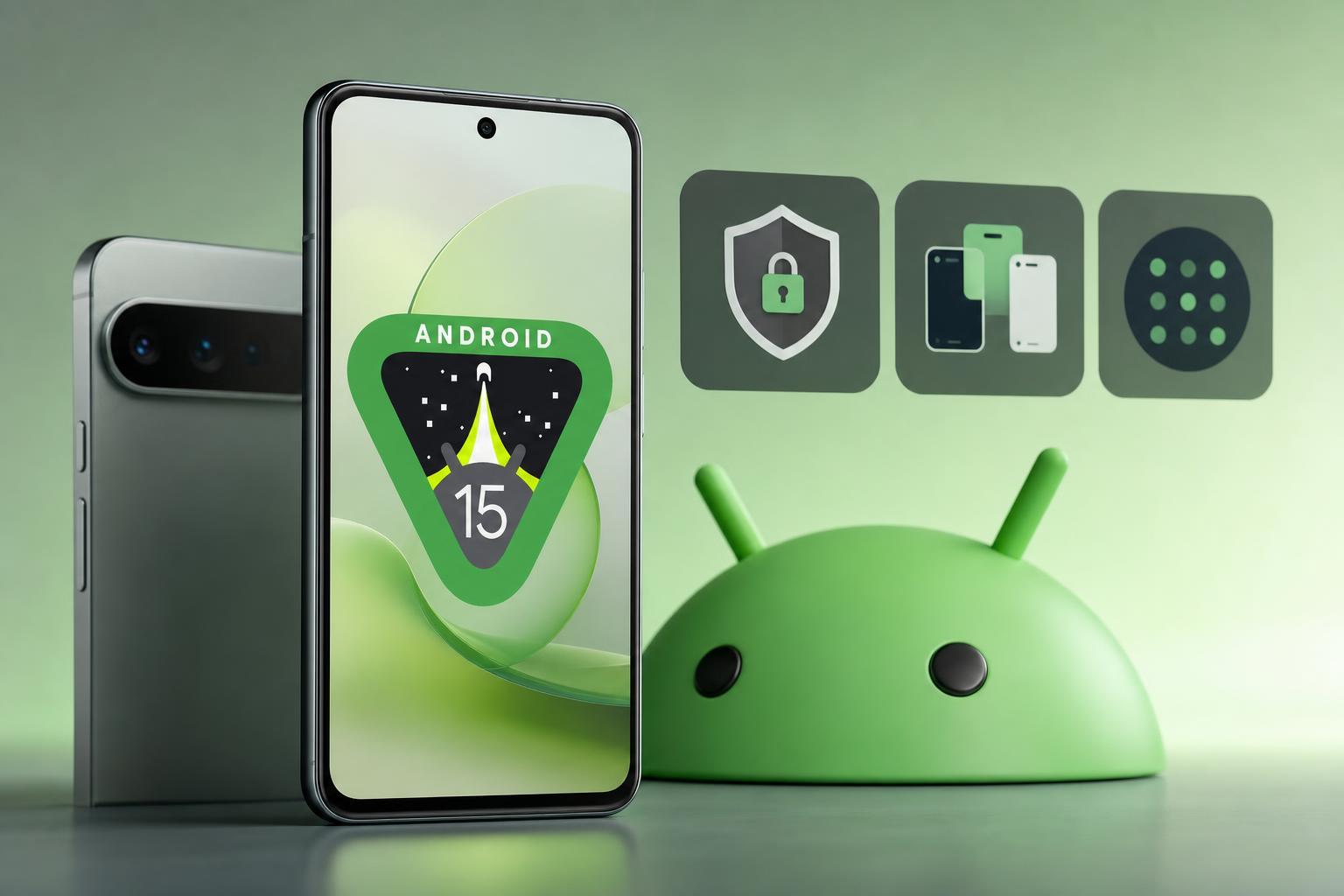
What Android 15 Beta 2 Is
Android 15 Beta 2 is part of Google’s public beta program. It is meant for developers, testers, and enthusiasts who want to try upcoming Android features before the final release. Like other beta builds, it is not expected to be completely stable.
What’s New in Android 15 Beta 2
Beta 2 usually focuses on polishing the platform while adding or refining features that are still under active development. The exact set of changes can vary by device and build, but this release is part of the broader push toward the finished Android 15 experience.
- Feature refinements and user interface adjustments
- System stability improvements
- Behavior changes for app compatibility testing
- Privacy, security, and background activity updates
- Developer-facing platform updates for the final Android 15 release
Supported Devices for Android 15 Beta 2
Android beta releases are typically limited to Google Pixel devices first, with support varying depending on the model. In general, newer Pixel phones are the most likely to be included in the beta program.
- Pixel 6 and newer Pixel phones are commonly supported
- Some Pixel Tablet builds may also be included
- Availability can change as Google expands or adjusts the beta program
- Carrier and regional restrictions may affect enrollment in some cases
How to Check Whether Your Phone Can Install It
- Open Google’s Android Beta Program page on a browser signed into the Google account used on your Pixel.
- Look for your device in the list of eligible phones or tablets.
- If your device appears, enroll it in the beta program.
- After enrollment, check for the over-the-air update on the device.
- Download and install the update only if you are comfortable using beta software.
Things to Know Before Installing
A beta update is not the same as a stable public release. Even if the phone seems to work normally, you may run into issues with banking apps, Bluetooth accessories, mobile data, fingerprint unlock, or battery life.
- Apps may crash or behave unpredictably
- Battery life can be worse than on the stable channel
- Some system features may be incomplete or change again later
- Leaving the beta program can trigger a data wipe in some cases
- Customer support for beta issues is usually limited
Who Android 15 Beta 2 Is Best For
If you just want a stable phone experience, it is usually better to wait for the final version. If you are testing apps or want to see where Android is heading, Beta 2 can be useful as long as you understand the trade-offs.
What to Expect Next
Beta 2 is usually not the last stop. Google typically follows with more beta updates, each one refining behavior, fixing problems, and adding final touches before the stable launch. As the release cycle continues, app compatibility should improve and major bugs should become less common.
Should You Install Android 15 Beta 2?
Install it if you want early access to Android 15 and you are comfortable troubleshooting issues. Skip it if you rely on your phone for work, travel, payments, or anything else where stability matters more than new features.