If you want to use DuckDuckGo in Chrome on Android, you do not usually need to install anything special. In most cases, you can change Chrome’s search engine setting so searches from the address bar use DuckDuckGo by default.
This guide shows how to do that, explains what Chrome can and cannot change on Android, and covers a few common issues if DuckDuckGo does not appear in the list.
What You Need to Know First
Chrome on Android does not work exactly like Chrome on desktop. You usually cannot manually type in a custom search URL as the default inside Chrome mobile. Instead, Chrome lets you choose from a built-in list of search providers, and DuckDuckGo is normally one of them.
How to Set DuckDuckGo as the Default in Chrome on Android
- Open Chrome on your Android phone or tablet.
- Tap the three-dot menu in the top-right corner.
- Select Settings.
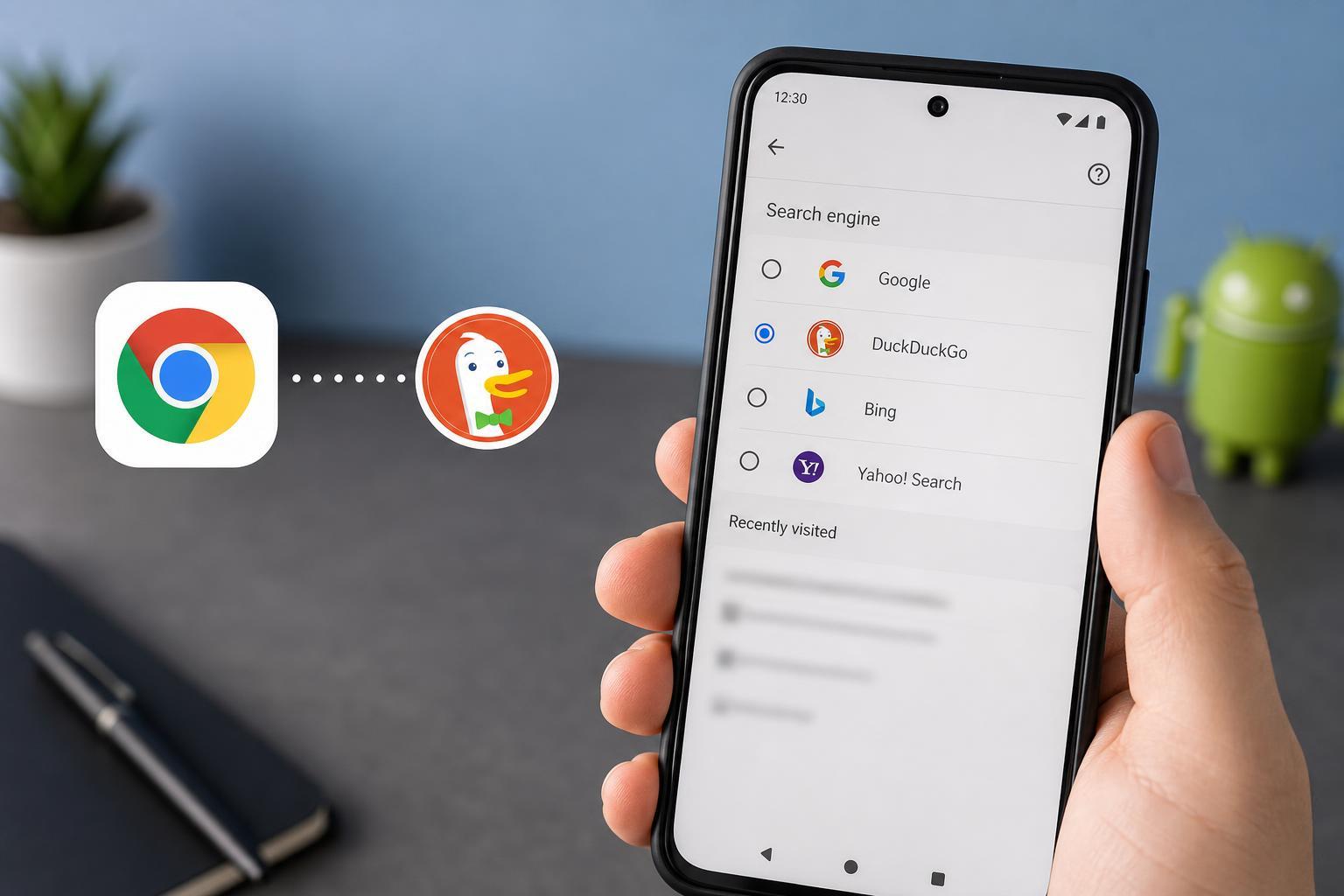
- Tap Search engine.
- Choose DuckDuckGo from the list.
- Go back to the main Chrome screen and type a search into the address bar to confirm it uses DuckDuckGo.
Once you switch the search engine, any search you type directly into Chrome’s address bar should go through DuckDuckGo instead of Google. Opening a full website address still works normally.
If DuckDuckGo Is Not Showing Up
If DuckDuckGo is missing from Chrome’s search engine list, the most likely cause is an outdated Chrome version or a browser profile issue. Try the following in order:
- Update Chrome from the Google Play Store and check the list again.
- Make sure you are opening Chrome’s own Settings, not the Android system settings.
- Check whether your Chrome profile or device is managed by work or school policies that restrict browser settings.
- If needed, clear Chrome’s app cache from Android settings and reopen Chrome.
Can You Add a Custom DuckDuckGo Search Shortcut?
Chrome for Android is limited here. Unlike some desktop browsers, it does not normally let you create a custom default search provider by typing in a search URL. If you want more control, using the DuckDuckGo browser app may be easier than forcing Chrome to behave like a fully custom browser.
How to Make DuckDuckGo the Default More Broadly on Android
Setting DuckDuckGo inside Chrome only affects Chrome searches. If you want a more privacy-focused setup, you can also install the DuckDuckGo app or browser and use it for searching instead of Chrome when possible.
- Install the DuckDuckGo app from Google Play if you want a dedicated privacy search experience.
- Use DuckDuckGo as the home screen shortcut or default browser app if your Android version allows it.
- Check browser-specific settings in other apps, since some apps use their own in-app search or web view instead of Chrome.
How to Confirm the Change Worked
- Open a new tab in Chrome.
- Tap the address bar and type a simple search term, such as a movie title or weather query.
- Look at the results page and confirm it is from DuckDuckGo.
- If the browser still uses Google, return to Settings and recheck the search engine selection.
If you use bookmarks or typed website addresses, those will still open normally. Only search queries entered in the address bar should switch to DuckDuckGo.
Common Limitations to Expect
- Some Google services may still open if you visit them directly.
- Search inside specific apps may ignore Chrome’s setting.
- Managed work profiles can lock browser settings.
- Chrome updates may occasionally reset or rearrange available search options.
A Simple Way to Get the Privacy Setup You Want
For most Android users, the easiest solution is to set DuckDuckGo as Chrome’s default search engine and keep using Chrome as usual. If you want a stronger privacy-focused setup, add the DuckDuckGo app as well and use it when you want a more private search experience.