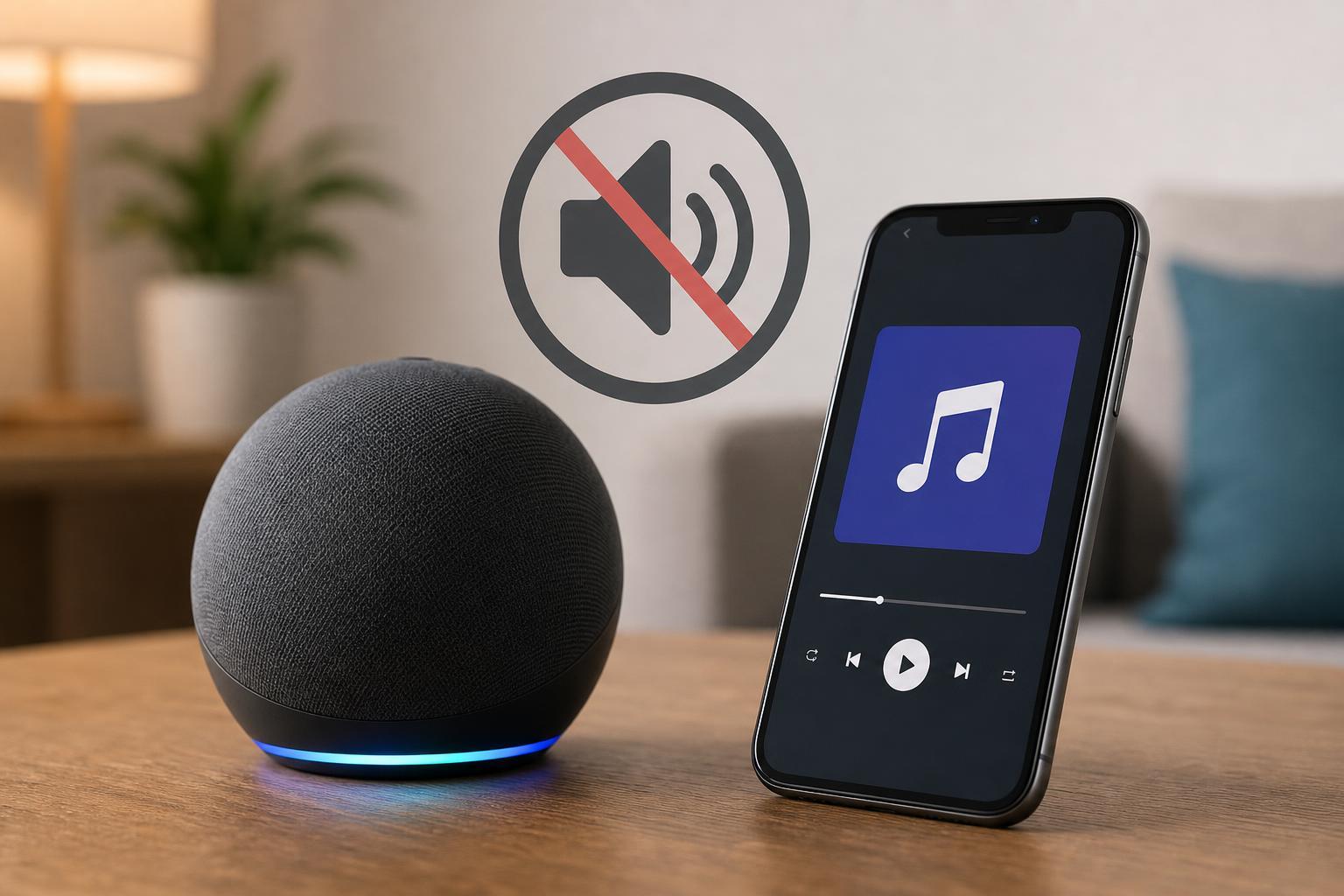
If Alexa refuses to play Amazon Music, the problem is usually caused by a lost account connection, the wrong default music service, a network issue, or a temporary glitch in the Alexa app or device. The good news is that most cases can be fixed without replacing anything.
This guide walks through the most useful checks first, then moves into settings and device-level fixes that can restore music playback on Echo speakers and other Alexa-enabled devices.
1. Check That Alexa Is Signed Into the Right Amazon Account
Alexa can only play Amazon Music if the device is linked to the Amazon account that has access to that music service. If you recently changed phones, accounts, or household profiles, Alexa may be signed into a different account than the one you expect.
- Open the Alexa app on your phone.
- Tap Devices, then choose your Echo or Alexa device.
- Check the account and profile information linked to the device.
- If needed, sign out of the Alexa app and sign back in with the correct Amazon account.
2. Make Amazon Music the Default Music Service
If Alexa is set to use another music provider by default, voice commands like 'play music' may go somewhere else or fail if that service is unavailable. Setting Amazon Music as the default helps ensure Alexa knows where to send requests.
- Open the Alexa app.
- Tap More, then Settings.
- Open Music & Podcasts.
- Select Default Services.
- Set Amazon Music as the default music service.
3. Confirm Your Amazon Music Subscription Is Active
Some Amazon Music features depend on the type of subscription attached to your account. If the subscription expired, was changed, or is attached to a different account, Alexa may not be able to start playback the way it usually does.
- Check your Amazon account subscription status in a browser or the Amazon app.
- Confirm that the subscription is tied to the same account Alexa is using.
- Look for billing issues, expired plans, or family plan changes.
- If you use multiple Amazon accounts, make sure the active subscription is on the correct one.
4. Make Sure the Echo or Alexa Device Has Internet Access
Music streaming needs a stable internet connection. If Alexa responds to commands but cannot play Amazon Music, the device may be connected to Wi-Fi poorly, may have lost internet access, or may be too far from the router.
- Check whether other devices on the same Wi-Fi network can reach the internet.
- Move the Echo closer to the router temporarily.
- Avoid placing the speaker near microwaves, cordless phones, or thick walls that can weaken the signal.
- If the device supports both 2.4 GHz and 5 GHz networks, test the other band if your router allows it.
5. Restart the Echo Device and the Router
Power cycling clears temporary connection and software problems that can stop Alexa from playing music. This is especially helpful if the issue started after a network change, power outage, or app update.
- Unplug the Echo device from power for about 30 seconds.
- If needed, unplug your router and modem as well.
- Plug the modem and router back in first and wait for the connection to fully return.
- Plug the Echo device back in and test Amazon Music again.
6. Check Alexa’s Volume, Mute, and Playback Permissions
Sometimes Amazon Music is working, but it seems broken because the device is muted, volume is too low, or the command is not being accepted as expected. This is easy to overlook on speakers with physical buttons or touch controls.
- Raise the volume on the Echo device using the buttons, ring, or voice command.
- Make sure the microphone is not muted.
- Test a simple command such as 'Alexa, what time is it?' to confirm the device is responding normally.
- If using Bluetooth speakers or headphones, disconnect them and try playback on the Echo itself.
7. Update the Alexa App and Check for Device Updates
Outdated app software can cause account sync problems, broken music settings, or device communication issues. Keeping the Alexa app current helps ensure it works correctly with your Amazon account and music services.
- Update the Alexa app from the App Store or Google Play.
- Open the Alexa app and check whether your device appears online.
- If your Echo supports updates, leave it connected to power and internet so it can receive firmware updates automatically.
- Test Amazon Music again after the app has been updated.
8. Remove and Re-Add the Alexa Device if Nothing Else Works
If Amazon Music still will not play, the device may have a corrupted connection to your account or app settings. Removing and adding the device again can clear out broken configuration data and force Alexa to rebuild the link.
- Open the Alexa app.
- Go to Devices and select the affected Echo or Alexa device.
- Remove the device from your account.
- Set it up again as a new device.
- Test Amazon Music once the setup is complete.
If Amazon Music Still Won’t Play
If none of the steps above help, the issue may be specific to your account, the Amazon Music service, or the Alexa device itself. At that point, it helps to narrow down where the failure is happening.
- Try Amazon Music on another device using the same account.
- Test a different Alexa device if you have one.
- Look for error messages in the Alexa app or on the Echo screen, if available.
- Check whether the problem happens with all music requests or only certain playlists, stations, or songs.
How to Narrow Down the Cause Quickly
A simple way to diagnose the issue is to test the same Amazon account in two places: on Alexa and on another device. If Amazon Music works elsewhere but not on Alexa, the problem is usually the device, app, or account-linking setup. If it fails everywhere, the subscription or Amazon account itself is more likely to be the cause.