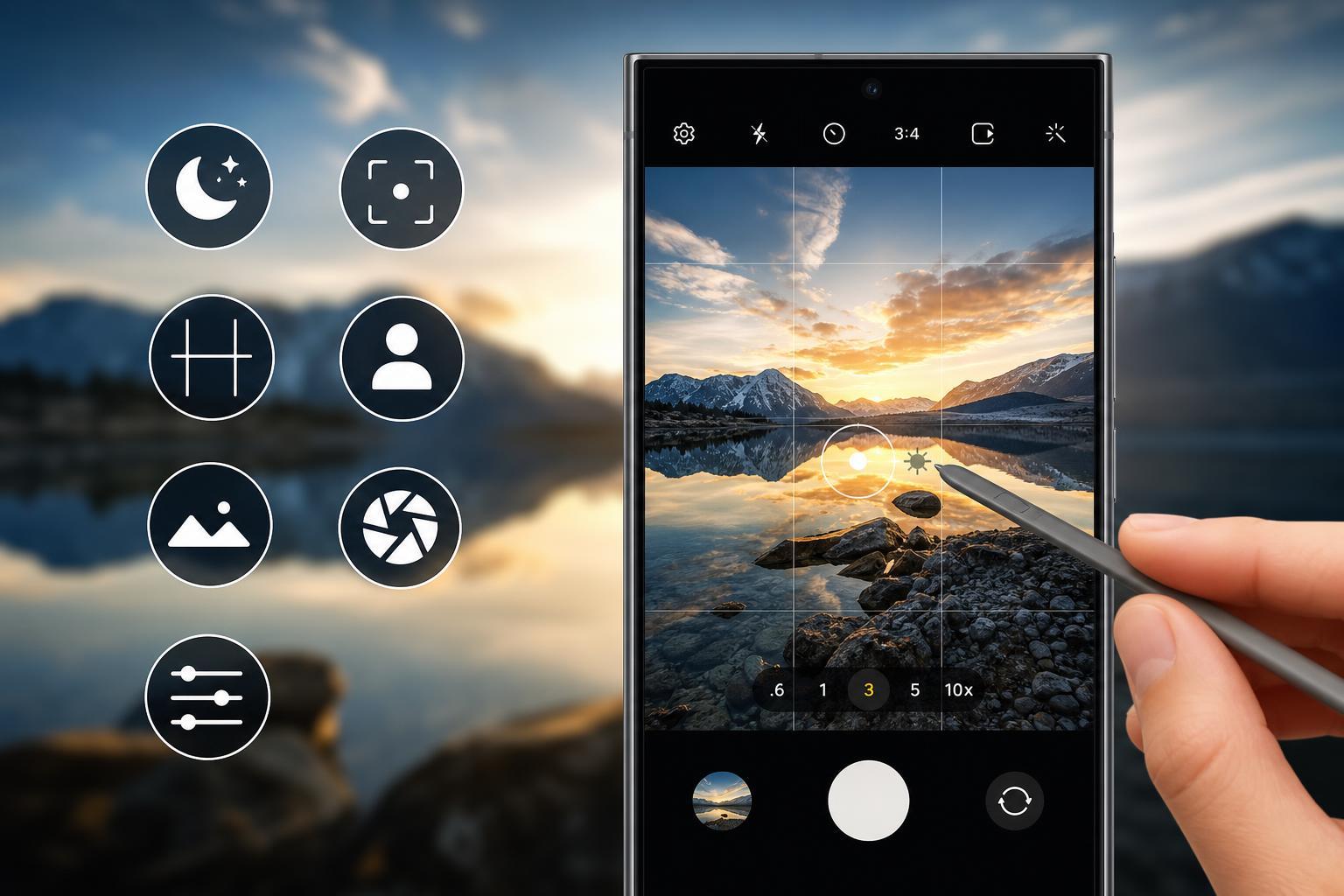
The Samsung Galaxy S24 Ultra has a powerful camera system, but getting the best results takes more than just pointing and shooting. A few built-in settings and shooting habits can make a big difference in sharpness, color, zoom quality, low-light performance, and video stability.
These seven tips focus on the most useful things you can do right away, whether you want cleaner everyday photos, better portraits, or more control over the camera’s advanced features.
1. Turn on the Full 200MP Mode Only When It Makes Sense
The S24 Ultra’s high-resolution main camera can capture a huge amount of detail, but that does not mean you should use the full 200MP mode for every shot. In many situations, the standard mode is better because it combines pixels for improved low-light performance and smaller file sizes.
- Use 200MP for bright daylight scenes with lots of fine detail, such as landscapes, buildings, or city views.
- Stick to the default mode for indoor shots, moving subjects, and low-light scenes.
- If you plan to crop heavily later, 200MP can give you extra room to work with.
2. Use 3x and 5x Zoom Instead of Pinching at Random
The Galaxy S24 Ultra has dedicated telephoto cameras, which usually produce cleaner zoomed photos than digital zoom. When you zoom to 3x or 5x, the phone can use hardware designed for those focal lengths instead of stretching a wider image too far.
- Use 3x for portraits, street photography, and moderately distant subjects.
- Use 5x when you want a tighter view without stepping too close.
- Avoid jumping to extreme zoom levels unless the subject is well lit and steady.
3. Lock Focus and Exposure Before Taking the Shot
The camera can sometimes change exposure or refocus at the wrong moment, especially if your subject is moving or the scene has strong backlighting. Tapping and holding on the subject can help lock focus and exposure so the shot stays consistent.
- Open the Camera app and frame your shot.
- Tap the subject you want to keep sharp.
- Press and hold briefly if needed to lock focus and exposure.
- Recompose the shot if necessary, then take the photo.
4. Try Pro Mode When Auto Mode Is Not Enough
Auto mode is usually the fastest choice, but Pro mode gives you manual control over settings like ISO, shutter speed, white balance, and focus. That can help in scenes where you want more creative control or when the automatic camera behavior is not giving you the look you want.
- Lower ISO for cleaner images in good light.
- Use a faster shutter speed for moving subjects.
- Slow the shutter only when the phone is steady, or use a tripod.
- Adjust white balance if indoor lighting makes colors look too warm or too cool.
5. Use Night Mode for Dark Scenes, But Don’t Force It Everywhere
Night Mode can brighten dark scenes and pull out more detail, but it works best when the phone has enough time to process the image. It is most helpful for static scenes such as streets, buildings, and low-light indoor shots with limited movement.
- Use Night Mode for dim rooms, evening city shots, and low-light landscapes.
- Avoid it for fast-moving people, pets, or action scenes unless you can keep them still.
- Hold the phone steady until capture finishes, because the camera may take longer than usual.
6. Make the Most of Portrait and Subject Separation
Portrait-style photos can look much more polished when the background blur is controlled well. The S24 Ultra can do a strong job separating the subject from the background, but results improve when you choose the right distance and background.
- Stand a comfortable distance from the subject instead of getting too close.
- Use a background with some depth, such as trees, lights, or a room with space behind the subject.
- Check the edges of hair, glasses, and hands for blur errors.
- Adjust the blur effect after taking the photo if the camera app allows it.
7. Improve Video Quality by Choosing the Right Stabilization and Framing
The S24 Ultra can record very capable video, but the best-looking results usually come from matching the mode to the situation. If you are walking, stabilization matters more. If you are filming something at rest, image quality and framing may matter more than extreme stabilization.
- Use standard video for most everyday recording.
- Use stronger stabilization when filming while walking or moving.
- Keep the subject centered if you expect to crop or share vertically later.
- Check lighting before recording, because video quality drops quickly in very dark scenes.
A Few Extra Habits That Help Every Shot
A few simple habits can improve nearly any photo or video you take on the S24 Ultra:
- Clean the camera lenses regularly with a soft microfiber cloth.
- Watch for fingerprints or pocket lint, which can soften images and add haze.
- Take a second shot if the first one has motion blur or awkward framing.
- Use the screen grid if you want straighter horizons and better composition.
Which Tip Should You Try First?
If you only want the biggest immediate improvement, start with zoom discipline and lens cleaning. Using the proper 3x or 5x zoom point, keeping the lens clean, and locking focus when needed will improve more photos than most advanced settings alone.
After that, experiment with 200MP mode, Night Mode, and Pro Mode only when the scene really benefits from them. That approach keeps the camera simple for everyday use while still giving you access to the S24 Ultra’s most powerful features when it counts.