If your iPhone alarm appears to go off but no sound plays, the problem is usually caused by a setting rather than a faulty alarm app. In many cases, the alarm is still triggering correctly, but the volume, tone, or audio routing is preventing you from hearing it.
This guide walks through the most common fixes, starting with the simplest checks and moving to less obvious causes.
1. Check the Alarm Volume and Ringer Settings
On iPhone, alarm volume is tied to the ringer and alerts volume, not the media volume you use for music or videos. That means your alarm can be silent even if videos and songs sound normal.
- Open Settings and tap Sounds & Haptics.
- Under Ringer and Alerts, move the slider to a higher level.
- If you want the buttons on the side of the iPhone to change alarm volume, turn on Change with Buttons.
- Set the alarm again and test it to see if the sound returns.
2. Make Sure the Alarm Has a Sound Selected
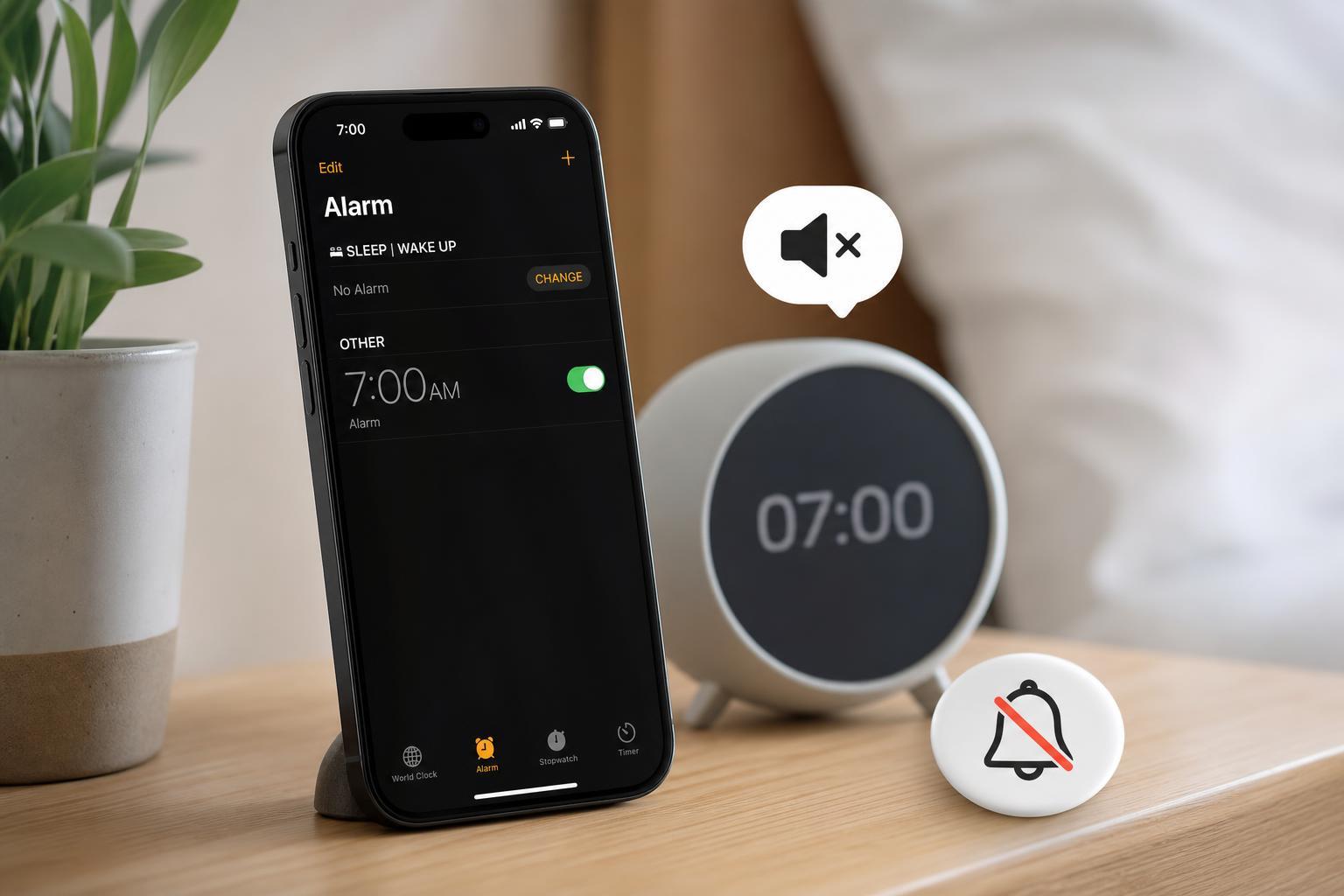
An alarm can be set to play no sound at all if the tone was changed accidentally. This is one of the most common reasons an alarm seems to go off silently.
- Open the Clock app and tap Alarm.
- Tap Edit, then choose the alarm that is not making sound.
- Tap Sound.
- Pick a ringtone or alarm tone instead of None.
- Save the alarm and test it again.
3. Turn Off Silent Mode, Focus, or Sleep-Related Settings That May Be Confusing the Issue
Silent Mode does not normally mute alarms by itself, but other alert-related settings can make it seem like the alarm is not working. Focus modes and sleep schedules can also change how notifications behave, which makes it worth checking your setup.
- Check whether Silent Mode is enabled on the side switch, if your iPhone has one.
- Open Control Center and look for any active Focus mode.
- If you use Sleep Focus, review its schedule in Health or Focus settings.
- Make sure the alarm is not being dismissed automatically by an accessory or automation you set up.
4. Disconnect Bluetooth Devices and Check Audio Output
If your iPhone is connected to Bluetooth headphones, a speaker, or a car system, audio can sometimes route in unexpected ways. Even though alarms usually play through the iPhone speaker, a connected audio device can still complicate troubleshooting.
- Turn off Bluetooth temporarily from Control Center or Settings.
- Unplug any wired headphones or adapters.
- If your alarm sound returns, reconnect devices one at a time to find the cause.
- If needed, forget the problematic Bluetooth device in Bluetooth settings.
5. Test the Speaker and Alarm Tone with a Different Sound
A weak or failing speaker can make an alarm sound extremely quiet or seem absent altogether. Testing with a different alarm tone helps you separate a sound setting problem from a hardware issue.
- Open Clock and choose an alarm.
- Change the tone to a louder, more recognizable sound.
- Play a song, ringtone, or alert sound from another app to check speaker output.
- If the speaker crackles, sounds muffled, or stays silent, the hardware may need service.
If the Problem Still Continues
If none of the above fixes solve the issue, the problem may be caused by an iOS glitch, an automation, or a deeper hardware fault. At that point, check for a software update and review any custom shortcuts, alarm apps, or sleep automations that might be interfering.
- Update iOS to the latest version available for your device.
- Delete the problem alarm and create a new one from scratch.
- Try the built-in Clock app instead of a third-party alarm app.
- Check whether your speaker works in other apps and system sounds.
- Contact Apple Support if the speaker itself appears to be failing.
What Usually Fixes a Silent iPhone Alarm Fastest?
In most cases, the quickest fix is to raise the ringer and alerts volume, then make sure the alarm tone is not set to None. If the alarm still goes off silently after that, Bluetooth audio routing and speaker problems are the next things to check.