Copying and pasting text on Android is simple once you know where to tap, but the exact steps can vary a little depending on the app, keyboard, and phone you are using. Whether you want to move a phone number, save a link, or reuse a message, these five methods will help you do it quickly.
1. Use the Standard Android Copy and Paste Menu
This is the most common method and works in most apps, including Messages, Chrome, Notes, email, and many social apps.
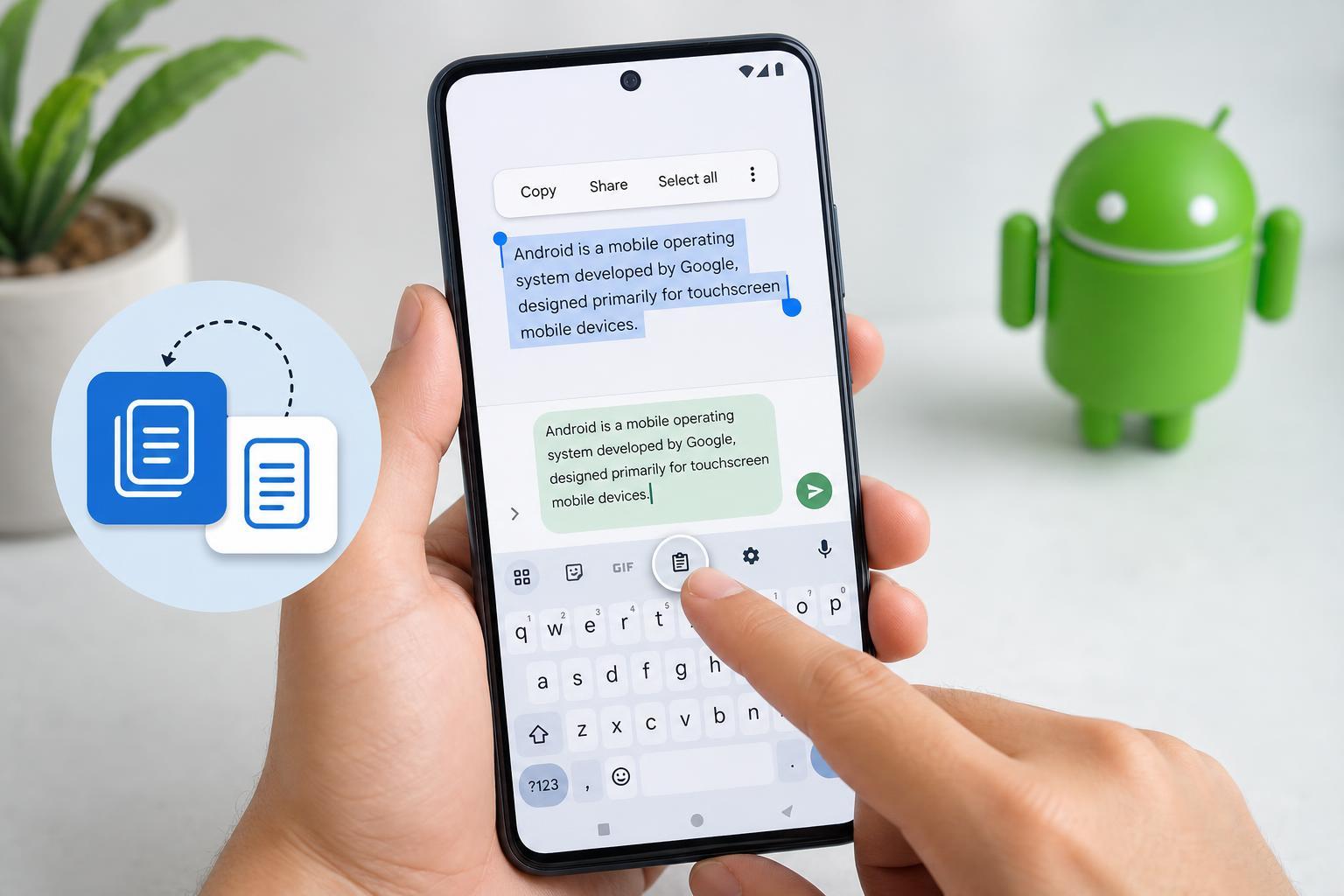
- Tap and hold the text you want to copy.
- Drag the selection handles if you need to highlight more or less text.
- Tap Copy when the menu appears.
- Open the app or field where you want to place the text.
- Tap and hold in the target field, then tap Paste.
2. Copy Text in a Browser or Web Page
Web pages often let you copy text the same way as other apps, but some sites make selection harder because of formatting, pop-ups, or page design.
- Long-press the word or paragraph you want to copy.
- Adjust the selection if needed using the handles.
- Tap Copy from the pop-up menu.
- Open the app where you want to use the text.
- Long-press the input box and choose Paste.
3. Use Your Keyboard’s Clipboard Tools
Many Android keyboards, especially Gboard and Samsung Keyboard, include clipboard features that make copying and pasting faster.
- Copy text normally using the selection menu.
- Tap into a text field so the keyboard appears.
- Look for the Clipboard or clipboard icon on the keyboard toolbar.
- Select a recent copied item if it appears there.
- Paste it into the field or tap a saved clipboard entry.
4. Copy and Paste Between Apps with Drag Selection
Some apps make text selection feel a little different, especially on larger phones, tablets, and split-screen views. You may be able to select text more comfortably by switching views or keeping both apps open.
- Open the source app and select the text you need.
- Copy it.
- Switch to the destination app, or use split screen if your device supports it.
- Tap the input field where the text should go.
- Paste the copied text.
5. Use Voice Typing or Assistant Features to Reuse Text
When the text is something you want to reuse quickly, such as an address, note, or message draft, voice typing and assistant features can sometimes be faster than manual retyping. This is not traditional copy and paste, but it can solve the same problem when you are moving text between apps.
- Use voice typing to insert text into a field instead of typing it again.
- Dictate a note into a Notes app, then copy it from there if needed.
- Use saved snippets or text shortcuts in your keyboard settings if available.
- Some apps let you share text directly instead of copying it first.
Common Problems and Quick Fixes
If copy and paste is not working as expected, the issue is usually one of a few common problems.
- The app may not allow text selection in that field.
- You may be trying to paste into a search bar or form that does not accept the copied format.
- The copied text may have been cleared if too much time passed.
- A keyboard clipboard may only keep recent items, not everything you copied earlier.
- Some apps strip formatting or special characters when text is pasted.
How to Copy More Than Just Plain Text
Some Android apps let you copy links, formatted text, images, or content cards, but the result depends on the app and the destination. For example, a copied web address may paste as a clean link, while text copied from a document may keep bold or spacing that you do not want.
- For clean text, copy from a plain text source when possible.
- For links, make sure the full URL is selected before copying.
- For long passages, double-check that every line was selected.
- For formatting issues, paste into a plain text app first, then copy again.
Which Method Should You Use?
For most people, the standard long-press copy and paste method is the easiest and most reliable option. If you copy text often, your keyboard clipboard is usually the next best tool because it saves time and reduces repeated steps. The other methods are useful when you are working in a browser, switching between apps, or dealing with text that is harder to select.