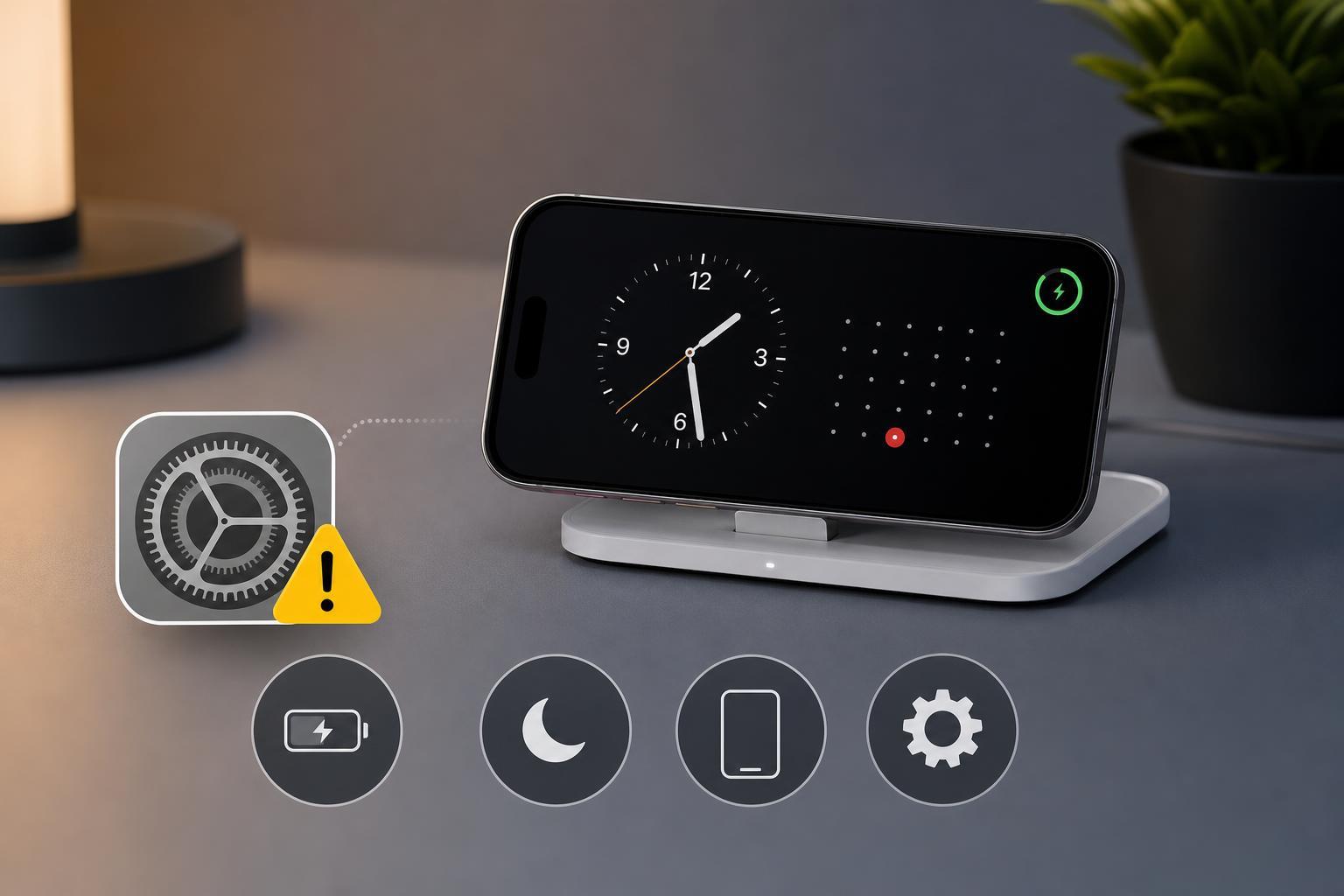
StandBy mode is meant to turn your iPhone into a helpful bedside display when it is charging in landscape orientation, but it does not always activate the way it should. If StandBy is not working, the cause is usually a setting, an incompatible charging setup, or a condition that prevents the feature from staying active.
The fixes below cover the most likely reasons StandBy fails to appear and the steps that usually solve it without unnecessary trial and error.
1. Make Sure StandBy Is Enabled
The first thing to check is whether StandBy is turned on in iPhone settings. If the feature is disabled, your phone will never enter StandBy no matter how you charge it.
- Open Settings on your iPhone.
- Tap StandBy.
- Turn on the StandBy switch.
- If available, review any related options such as notifications or screen behavior while in StandBy.
2. Use a Charging Setup That Supports StandBy
StandBy only works when the iPhone is charging and placed sideways in landscape orientation. If the phone is not getting stable power, or if it is not positioned correctly, the mode may never appear.
- Connect the iPhone to a reliable power source.
- Use a cable or wireless charger that keeps the phone steadily powered.
- Place the iPhone in landscape orientation with the screen facing you.
- Avoid loose charging connections that may briefly disconnect power and cancel StandBy.
3. Check Whether Your iPhone Is Locked and Idle
StandBy is meant to appear when the iPhone is locked and not being actively used. If you are interacting with the phone, or if the display is turning off too quickly for another reason, the feature may not stay on screen.
- Disconnect and reconnect the charger if needed.
- Lock the iPhone and leave it untouched for a moment.
- Make sure the screen is not being kept awake by another app or action.
- Test StandBy again after the phone has been idle for a short period.
4. Update iOS and Check for Conflicting Settings
If StandBy still will not work, the issue may be tied to an outdated iOS version or a setting that changes how the screen behaves while charging. Apple has refined StandBy through software updates, so running the latest version can make a difference.
- Open Settings.
- Tap General.
- Tap Software Update and install any available update.
- After updating, test StandBy again with the phone charging in landscape orientation.
- Low Power Mode can sometimes affect how aggressively the screen behaves.
- Always On Display settings on supported Pro models can change how StandBy looks and when it dims.
- Focus modes or notification settings may make StandBy seem like it is not working even when it is active.
How to Narrow Down the Cause
If StandBy still fails after the main fixes, use the symptoms to narrow it down. That can save time and help you avoid changing settings that are not related to the problem.
- If StandBy never appears at all, check that it is enabled and that your iPhone model and iOS version support it.
- If it appears briefly and then disappears, the charger or orientation is often the problem.
- If the screen stays dark, look at Low Power Mode, display brightness, or whether the phone is actually locked and idle.
- If only certain StandBy views are missing, review the related display or notification settings.