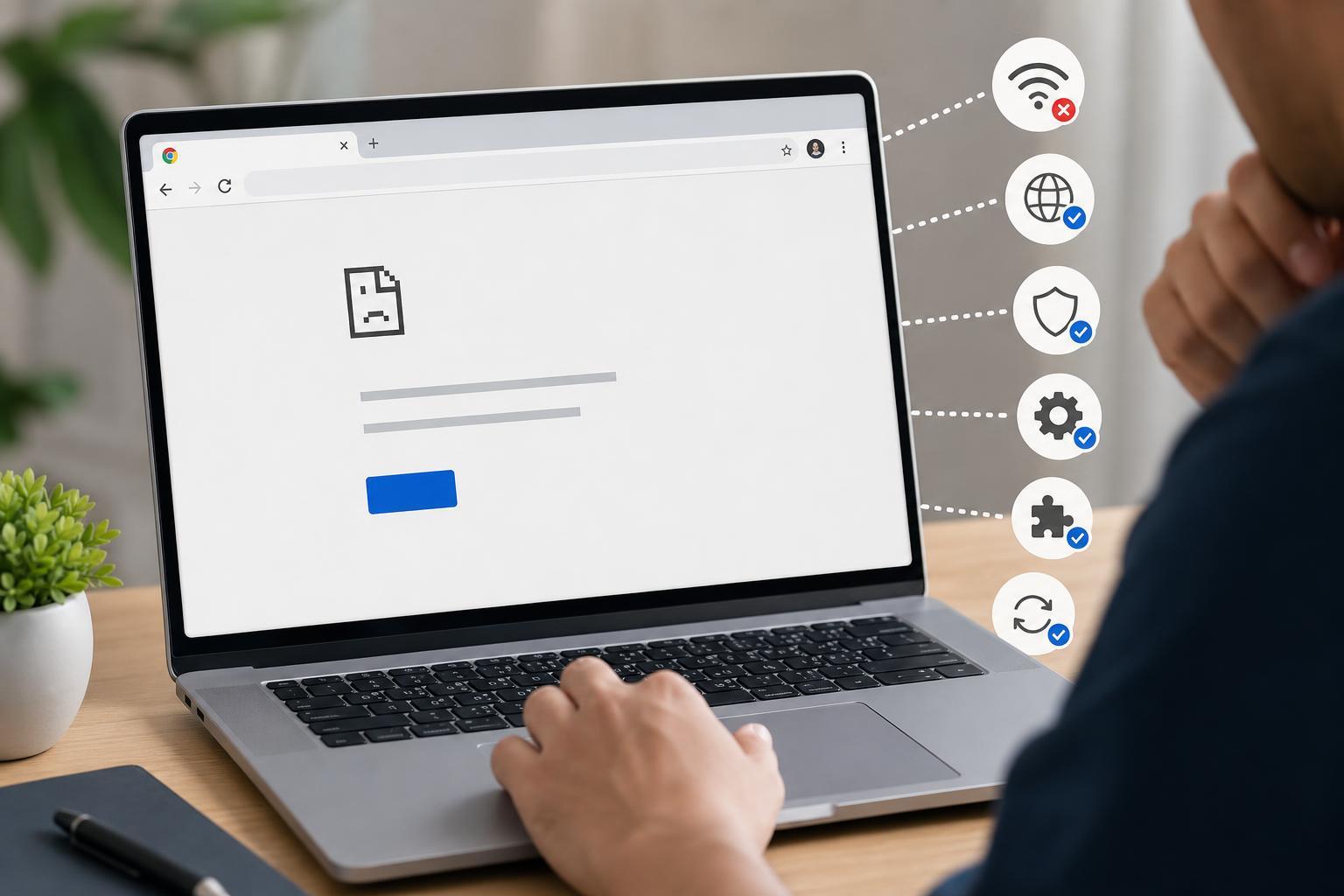
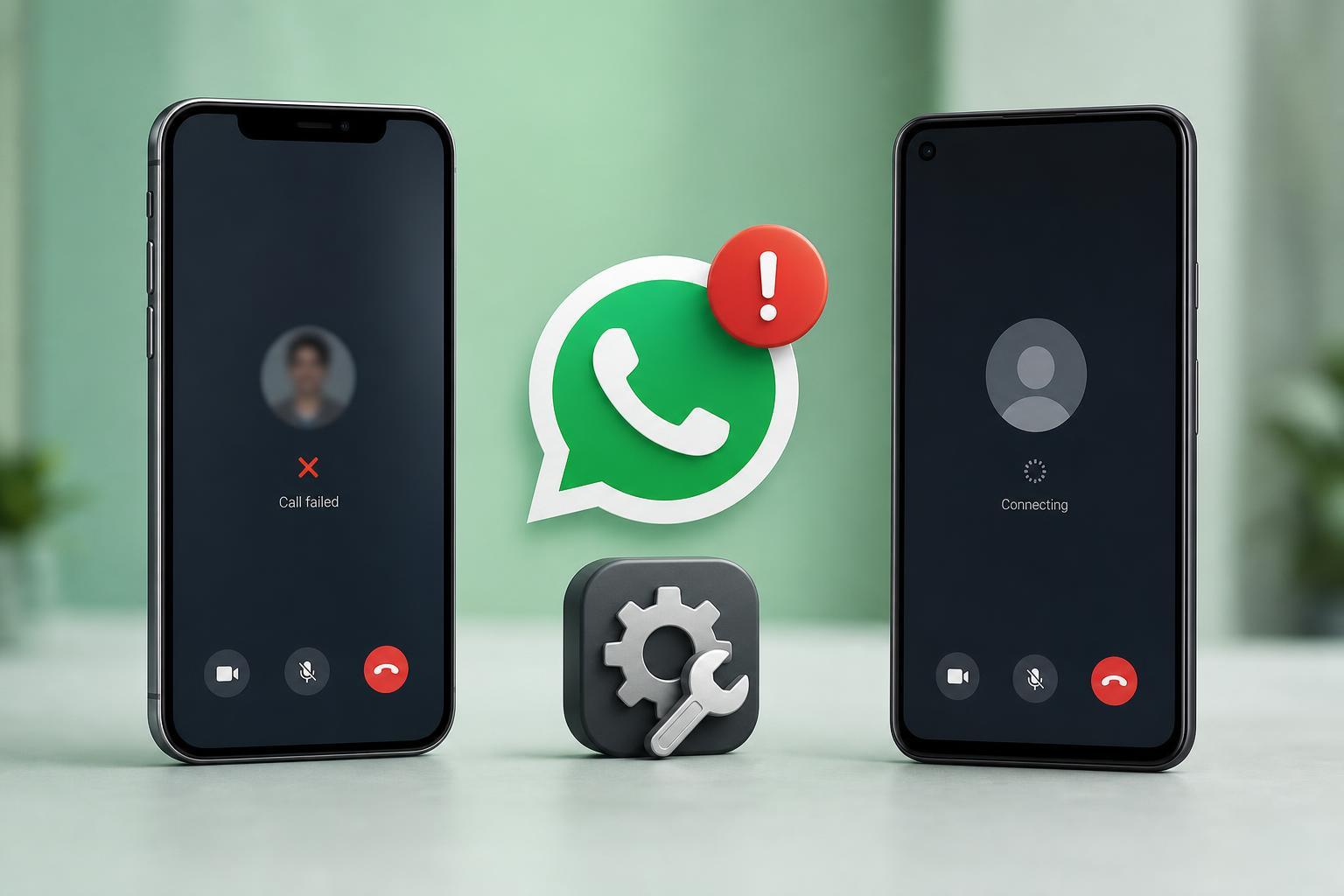
When WhatsApp video calls fail to connect, freeze, or show a black screen, the cause is often a simple setting or connection issue rather than a serious problem with your phone. On iPhone and Android, the most common fixes involve checking your internet connection, confirming WhatsApp has the right permissions, and making sure the app is up to date.
This guide focuses on three practical fixes that solve most WhatsApp video call problems without unnecessary steps.
1. Check Your Internet Connection and Switch Networks
WhatsApp video calls need a stable internet connection. If the call won’t start, keeps dropping, or the video is constantly breaking up, your Wi-Fi or mobile data connection is the first thing to check.
- Try loading a website or streaming a short video to see whether your connection is stable.
- Switch from Wi-Fi to mobile data, or from mobile data to Wi-Fi, and test the call again.
- If you are on Wi-Fi, move closer to the router and make sure other devices are not using most of the bandwidth.
- If mobile data is slow, check whether WhatsApp has permission to use cellular data on your phone.
2. Make Sure WhatsApp Has Camera and Microphone Access
If the other person can hear you but cannot see you, or the video call opens to a black screen, WhatsApp may not have permission to use your camera or microphone.
- On iPhone, open Settings, scroll to WhatsApp, and check that Camera and Microphone are enabled.
- On Android, go to Settings, open Apps, select WhatsApp, and review Permissions.
- Make sure both the camera and microphone permissions are allowed.
- If permissions were already enabled, turn them off and back on again, then try the call once more.
3. Update WhatsApp and Check for System Updates
An outdated version of WhatsApp can cause call problems, especially if the app is no longer matching the latest iPhone or Android system changes.
- Open the App Store on iPhone or the Play Store on Android.
- Search for WhatsApp and install any available update.
- After updating WhatsApp, check whether your phone has a pending iOS or Android update.
- Install the system update if one is available, then test another video call.
Updating both the app and the operating system can fix bugs, improve compatibility, and restore features that stopped working after a recent change.
How to Narrow Down the Cause
If the three fixes above do not solve the problem, the issue is usually more specific. Use the clues below to decide where to look next.
- Calls fail on both Wi-Fi and mobile data: the issue is more likely with WhatsApp permissions, app corruption, or a device-level problem.
- Only one contact cannot be reached: the other person may have poor connectivity, restricted permissions, or a WhatsApp issue on their phone.
- The screen goes black but audio works: camera access or a camera app conflict is more likely.
- Video works on another app but not WhatsApp: the problem is probably inside WhatsApp rather than with the phone hardware.
When the Problem May Not Be Your Phone
Sometimes WhatsApp video calling problems come from the other person’s device, a temporary server issue, or a network block on one side of the call. If your calls work with some contacts but not others, the problem may not be on your phone at all.
What to Try First
Start with the simplest checks: test your internet connection, confirm camera and microphone permissions, and update WhatsApp. Those three steps solve many iPhone and Android video call problems without needing more advanced troubleshooting.