If Facebook feels laggy, takes forever to load posts, or freezes while you scroll, the problem is usually caused by the app, your connection, or a temporary cache issue. The good news is that you can often speed it up without doing anything complicated.
This guide covers three effective fixes that work on both Android and iPhone, plus a few quick checks to help you figure out what is actually slowing Facebook down.
1. Check Your Connection Before You Blame the App
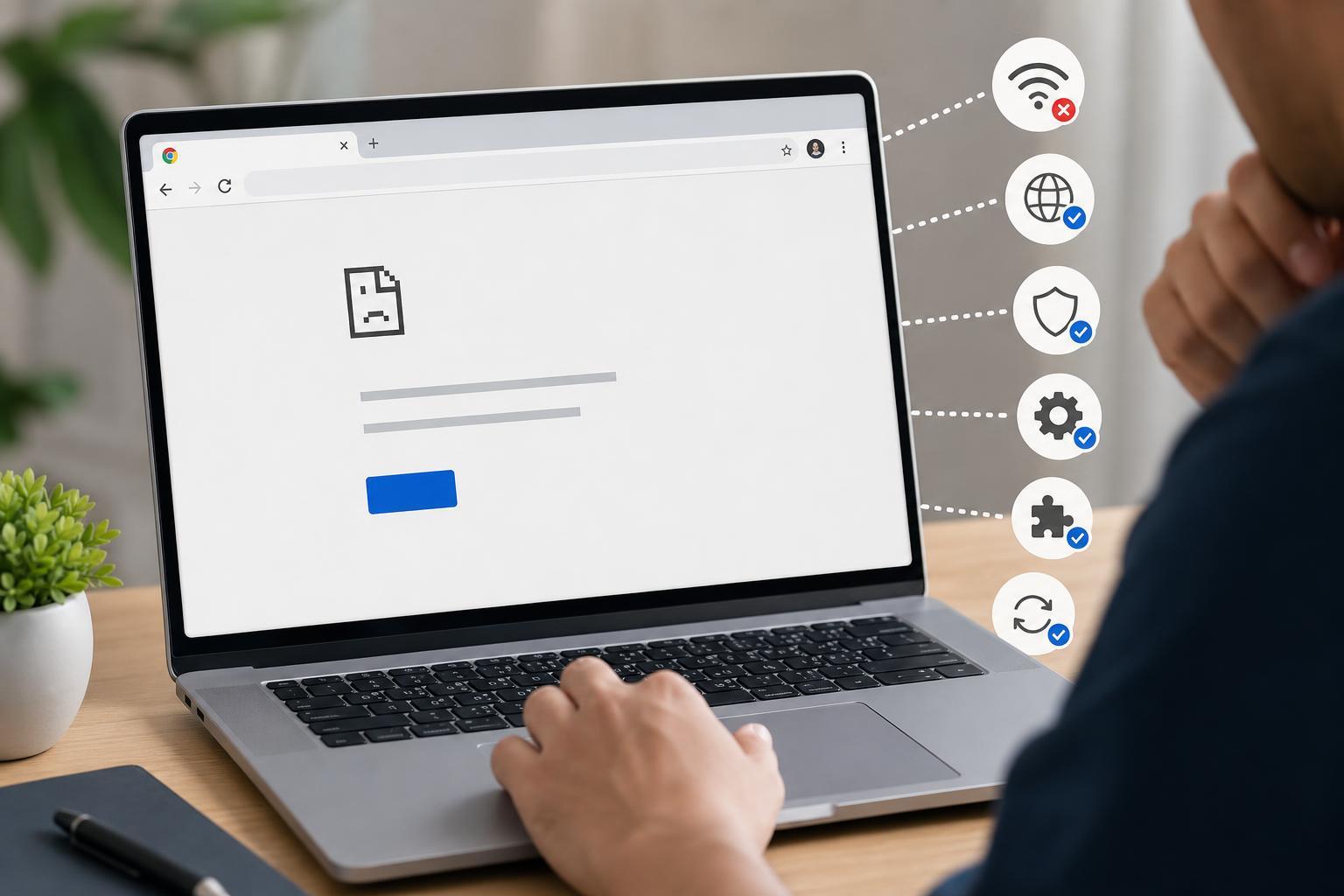
Facebook can seem slow even when the app is fine. If photos, videos, or comments load slowly, start by checking whether the connection itself is the problem.
- Switch between Wi-Fi and mobile data to see which one performs better.
- Open another app or website to check whether everything is slow or only Facebook.
- Move closer to your Wi-Fi router if the signal is weak.
- Turn off any VPN or content filter temporarily if you use one.
2. Clear Facebook’s App Cache or Offload the App
Over time, Facebook stores temporary data to help pages load faster. If that data becomes bloated or corrupted, the app can start behaving slowly instead.
- On Android, open Settings and go to Apps, then Facebook.
- Tap Storage and cache, then choose Clear cache.
- Open Facebook again and test whether it feels faster.
- On iPhone, go to Settings, then General, then iPhone Storage.
- Find Facebook and choose Offload App if available, or delete and reinstall the app if needed.
3. Update or Reinstall Facebook
An outdated or damaged app installation can cause slow loading, freezing, or random delays. Updating Facebook is the easiest fix, and reinstalling it is the best next step if updates do not help.
- Open the Google Play Store or App Store and check for a Facebook update.
- Install any available update and reopen the app.
- If Facebook is still slow, delete the app and reinstall it from the official store.
- Sign back in and test the app again.
How to Narrow Down the Cause
If Facebook is still slow after those three fixes, the problem may be outside the app itself.
- Your phone is low on storage, which can slow apps down.
- Battery saver mode is limiting background activity.
- Facebook servers are having a temporary outage.
- Your phone’s operating system needs an update.
- Another app on the device is using too much memory or network bandwidth.
What to Try First
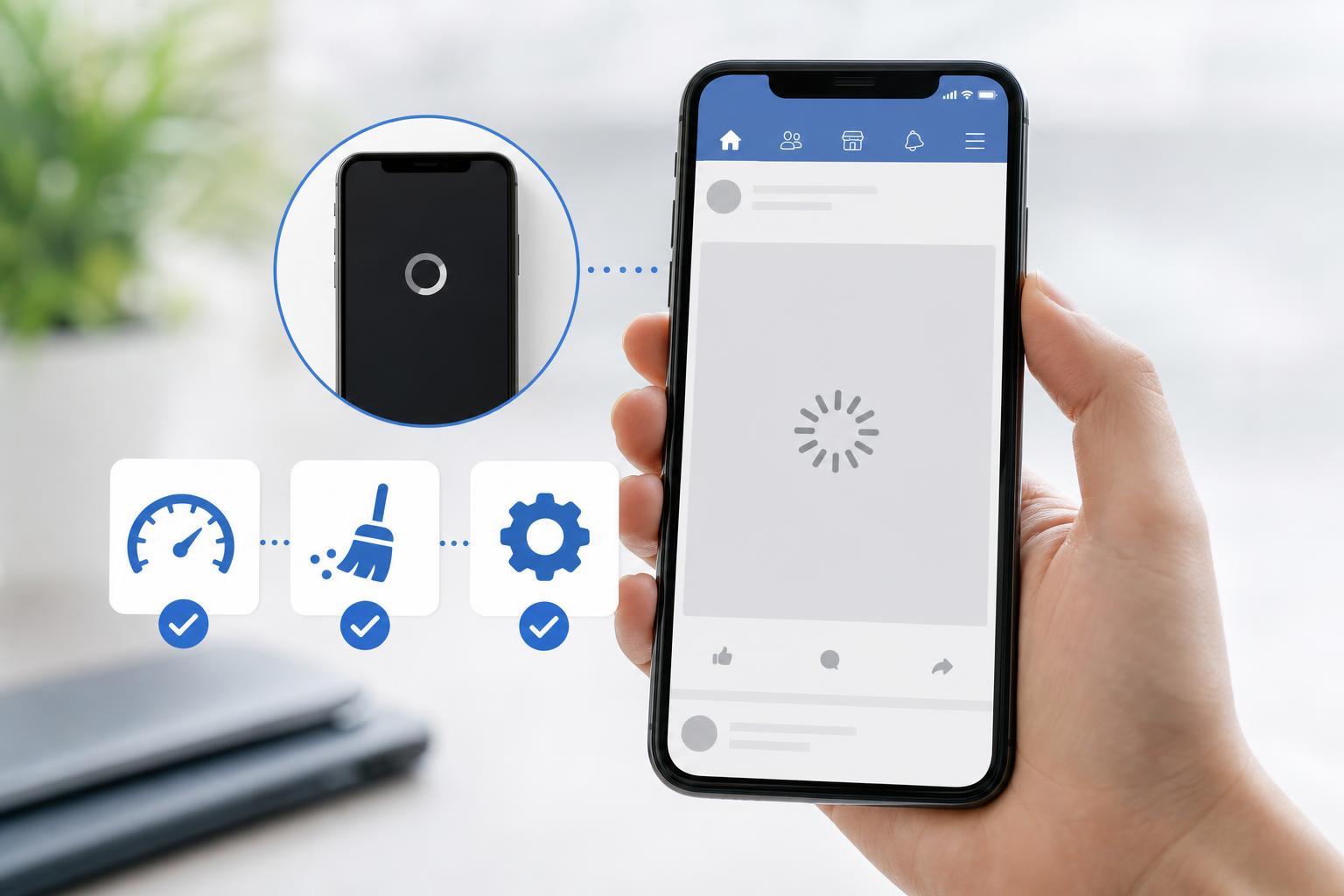
For most people, the best order is: check your connection, clear cache or offload the app, then update or reinstall Facebook. That sequence fixes the most common causes without making unnecessary changes.