Your Google Play country affects which apps, games, movies, books, and payment methods you can access. If you move to a new country or need to use a different regional store, Google gives you a couple of ways to update it—but there are important limits you should know first.
This guide explains the two main ways to change your country in the Google Play Store, when each method works, and what happens to your existing Play balance, subscriptions, and content.
Before You Change Your Google Play Country
Not everyone can switch countries at will. Google usually requires that you are physically in the new country and that you have a payment method issued there. In many cases, you can only change your Play country once per year.
- You may need a local payment method for the new country.
- You can usually change the Play country only if you are actually in that country.
- Existing Google Play balance may not transfer to the new country.
- Some subscriptions may be affected or unavailable after the change.
- The Play Store may take up to 48 hours to fully update after the switch.
Method 1: Change Your Country in the Google Play Store App
This is the normal method if you have moved to another country and Google allows the switch on your account.
- Open the Google Play Store app on your Android device.
- Tap your profile icon in the top-right corner.
- Go to Settings, then expand General.
- Select Account and device preferences.
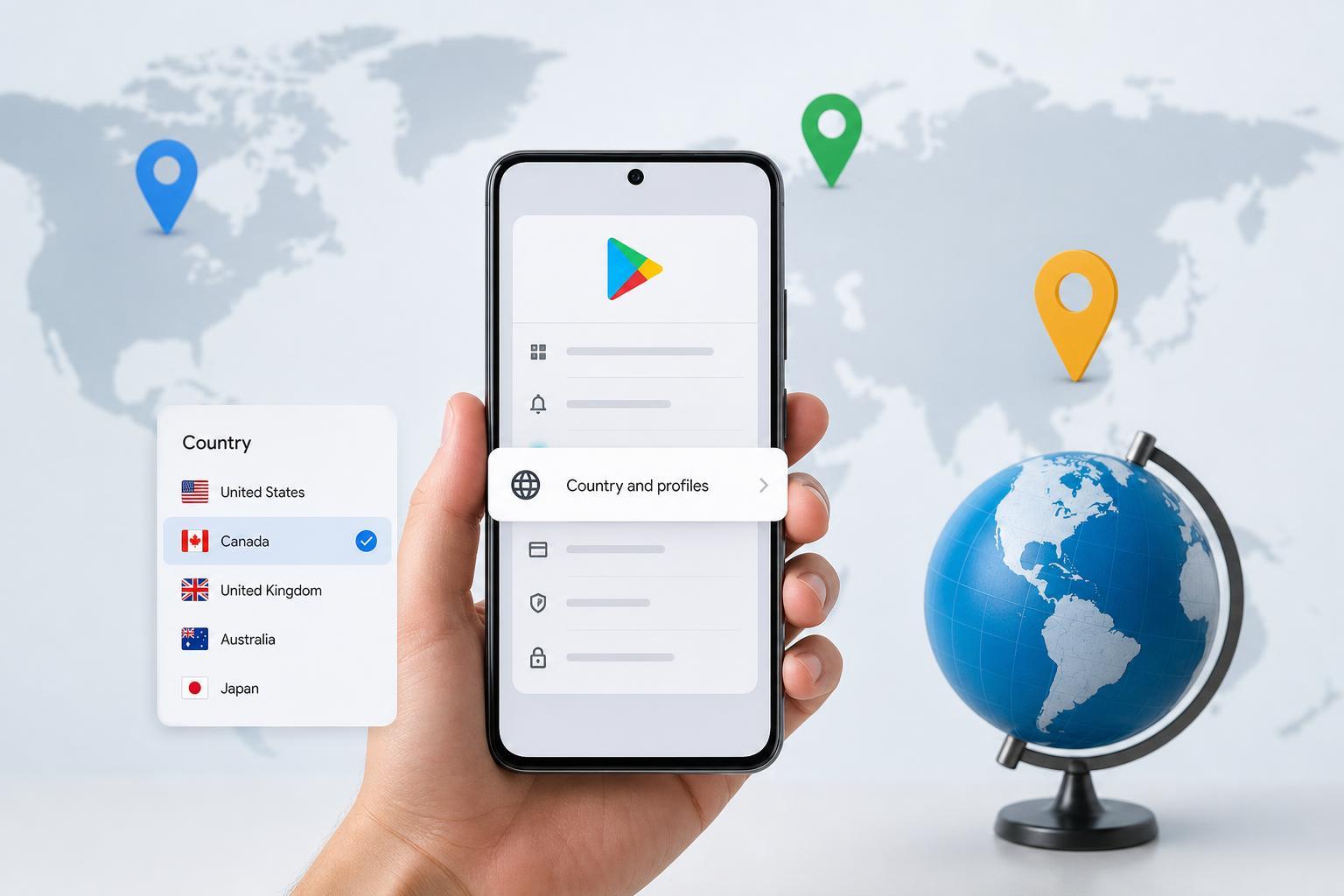
- Look for the Country and profiles section.
- If Google detects a new country, you should see an option to switch to the local Play Store.
- Choose the new country and follow the on-screen prompts.
- Add a payment method for the new country if Google asks for one.
Method 2: Use a New Google Account for the New Country
If you cannot change the country on your current account, the simplest workaround is often to create a separate Google account and set it up with the correct country from the start.
- Create a new Google account while you are in the target country, or after connecting to a payment method and billing address in that country.
- Sign in to the Google Play Store with the new account.
- Add the local payment method when prompted.
- Download apps and content through the new account instead of your old one.
- If needed, switch between accounts in the Play Store to access content from each region.
This method does not move purchases from your old account. It simply gives you a separate Play Store profile for the new country.
What Changes After You Switch Countries
Once your Play country is updated, the store starts showing content for that region. That includes different apps, pricing, subscriptions, gift card availability, and sometimes different versions of the same app.
- App availability may change depending on local licensing rules.
- Prices and currencies will update to the new region.
- Payment methods from the old country may no longer work.
- Google Play balance may remain tied to the old country.
- Some subscriptions may need to be canceled or re-signed depending on availability.
If the Country Option Does Not Appear
If you do not see a country switch option in the Play Store, the issue is usually eligibility rather than a software problem.
- You are not currently in the new country.
- Google has not detected a qualifying payment method.
- You changed countries recently and must wait.
- Your account has not yet been fully updated.
- Your device or Play Store app needs time to refresh the available profile options.
If you have just moved, give Google some time to detect your location and payment details. In some cases, signing into the Play Store from a local network and reopening the app later can help the new country option appear.
Which Method Should You Use?
Use the built-in Play Store country switch if Google already offers it on your account. It is the cleanest way to move your store region and keep your existing account structure intact.
Use a second Google account if the country switch is unavailable, if you need access to another region temporarily, or if you want to keep your main account unchanged.
Things to Check Before You Switch
- Cancel or review subscriptions that may not transfer cleanly.
- Spend any remaining Google Play balance if it is tied to your old country.
- Make sure your payment method matches the new region.
- Confirm that the apps you rely on are available in the new country.
- Back up important app data if you are switching accounts.
A Quick Way to Avoid Problems
If your goal is only to install one app that is unavailable in your region, changing the Play country may be more disruptive than necessary. In that case, a separate Google account is often the safer option. If you have permanently relocated, the built-in country change is usually the better long-term choice.