If Spotify is not working on your Apple TV, the problem is often caused by a temporary app glitch, a sign-in issue, or a network problem rather than a major hardware fault. In many cases, you can get music streaming again with a couple of targeted fixes instead of trying a long list of random troubleshooting steps.
This guide focuses on two practical fixes that solve the most common Spotify issues on Apple TV, along with a few quick checks that help you identify the real cause before you waste time.
Before You Start: What the Problem Usually Looks Like
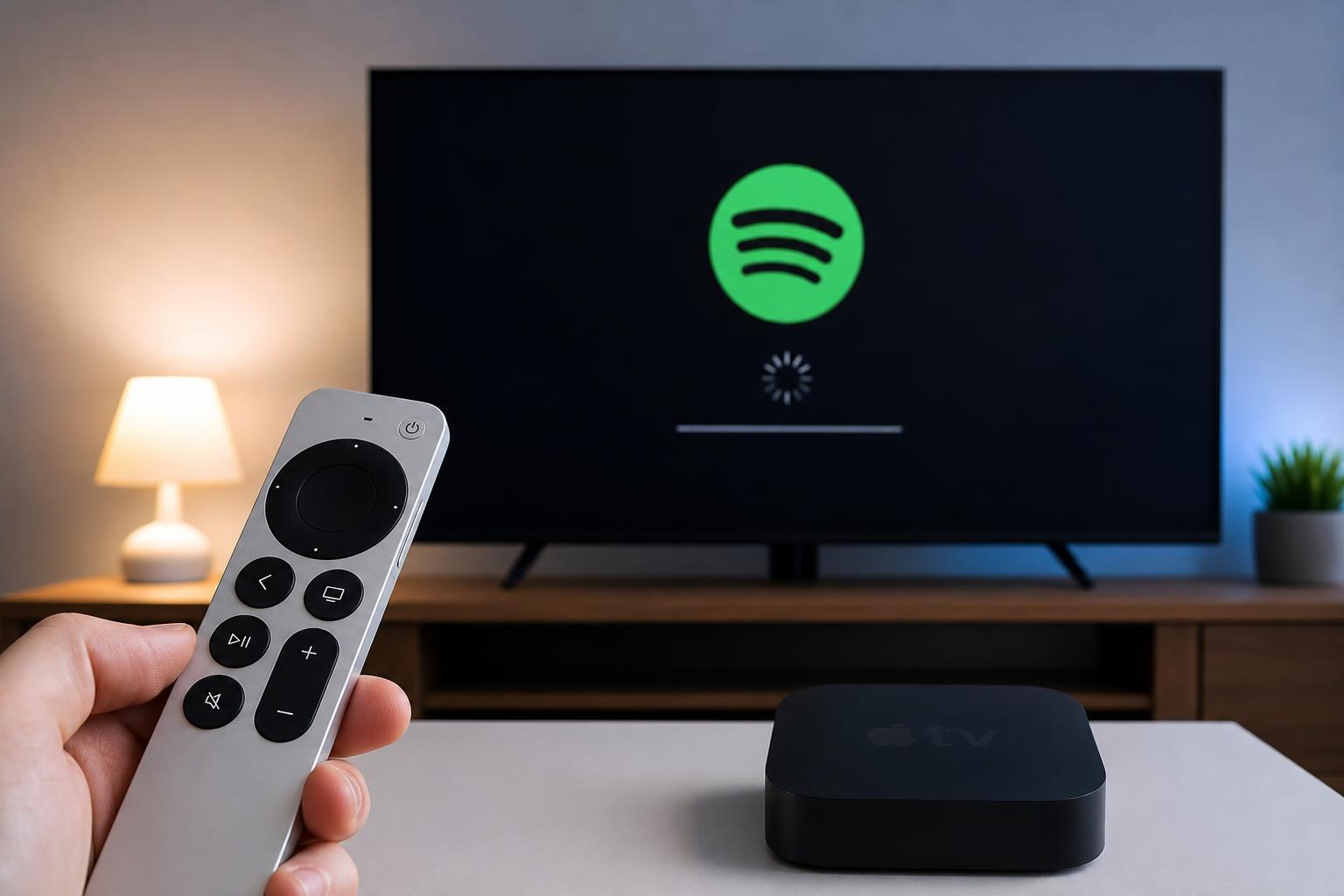
Spotify issues on Apple TV can show up in a few different ways. The app may refuse to open, music may not play, the app may freeze, or it may keep asking you to sign in again. Sometimes Spotify opens normally but cannot connect to your account or stays stuck on a loading screen.
- Spotify crashes or closes immediately
- Tracks will not play or skip properly
- The app gets stuck loading
- You are signed out unexpectedly
- Spotify shows a connection or playback error
Fix 1: Force Quit Spotify and Reopen It
A bad app session is one of the most common reasons Spotify stops working on Apple TV. If the app has become stuck in memory or lost its connection to Spotify’s servers, closing it completely and reopening it can clear the problem.
- Press and hold the TV button on the Apple TV remote to open the app switcher.
- Find Spotify in the list of open apps.
- Swipe up on Spotify to force it closed.
- Return to the Home screen and open Spotify again.
- Try playing a track or starting a playlist.
If Spotify works after reopening it, the issue was likely a temporary app state problem. If it still fails, move on to the next fix.
Fix 2: Sign Out of Spotify and Sign Back In
If Spotify keeps failing on Apple TV even after reopening the app, the login session may be the problem. Signing out refreshes the connection between your Apple TV and your Spotify account, which can fix playback errors, loading issues, and account sync problems.
- Open Spotify on Apple TV.
- Go to your account or settings menu inside the app.
- Choose Sign Out.
- Close Spotify completely after signing out.
- Open Spotify again and sign back in with your account details.
- Test playback after signing in.
This fix is especially useful if Spotify was working before but suddenly started showing account errors or would not recognize your login properly.
If Spotify Still Will Not Work
If neither fix solves the problem, the cause may be outside the app itself. At that point, check a few basics that can affect streaming on Apple TV.
- Make sure Apple TV is connected to the internet
- Check whether other streaming apps work normally
- Confirm Spotify is working on your phone or computer
- Look for an Apple TV software update
- Check whether Spotify has a service outage in your region
How to Narrow Down the Cause
A few quick observations can save time. If Spotify opens but will not play anything, the app may be connected badly to your account or network. If it crashes as soon as you launch it, the app itself is more likely at fault. If nothing streams properly on Apple TV, the problem may be broader than Spotify.
- App closes immediately: likely app glitch
- App opens but music will not play: likely login or network issue
- App loads forever: likely stalled session or server connection issue
- Other apps also fail: likely internet or Apple TV network issue
What This Means for Most Users
For most Apple TV users, the fastest path to a fix is to close Spotify completely and then sign out and back in. Those two steps solve many of the common playback and loading problems without needing deeper troubleshooting.