Action Center in Windows 10 is the place where you check notifications and access useful quick settings in one panel. It helps you see alerts from apps and Windows, then respond to them without digging through menus.
If you have used a phone notification shade, Action Center will feel familiar. It collects messages, reminders, security alerts, and shortcut buttons such as Wi-Fi, Bluetooth, and airplane mode.
What Action Center Does in Windows 10
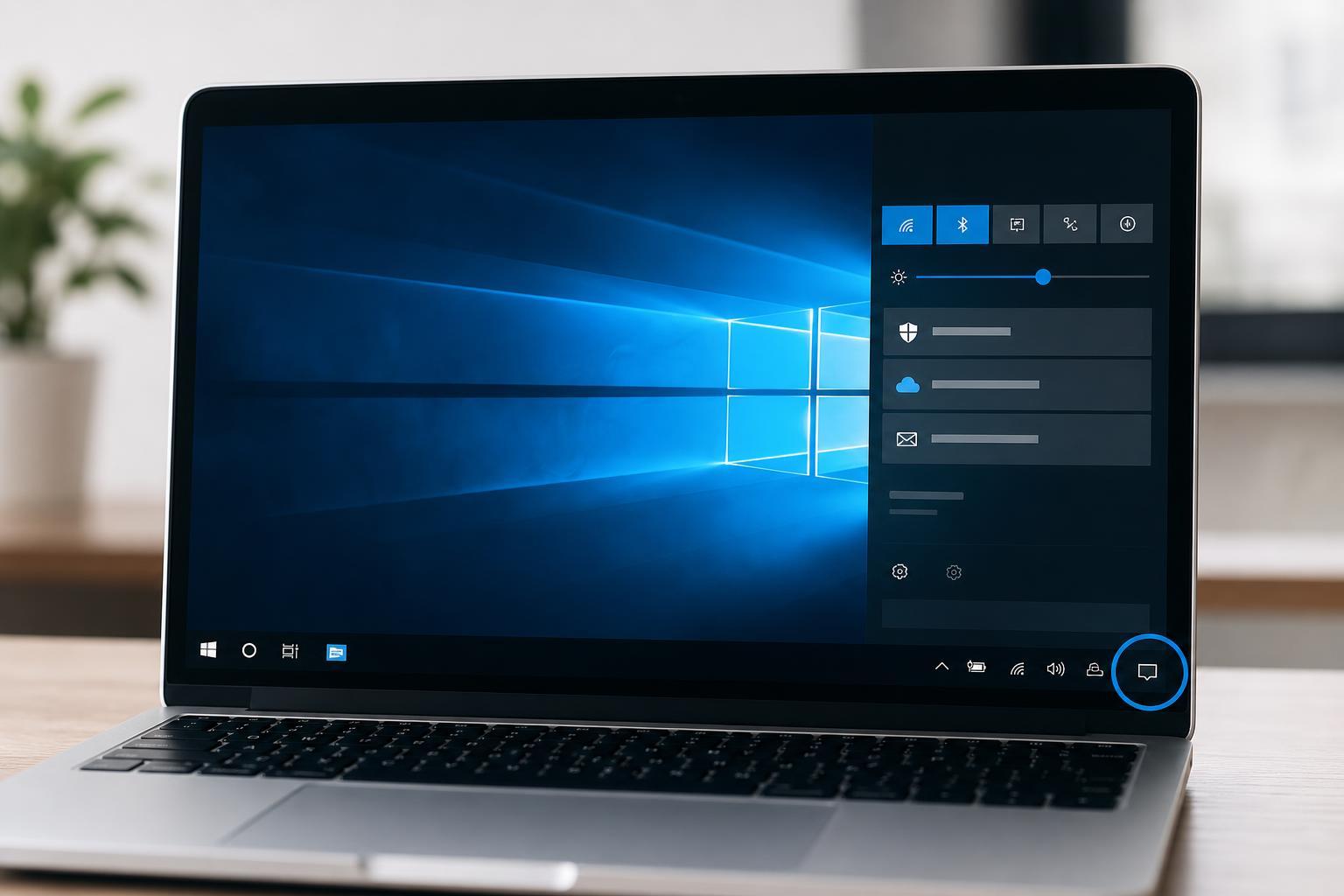
Action Center has two main jobs. First, it shows notifications from Windows and your apps, such as email alerts, update messages, calendar reminders, and security notices. Second, it provides Quick actions, which are buttons for turning common features on or off or opening related settings.
How to Open Action Center
- Click the Action Center icon at the far right of the taskbar, next to the clock and date.
- Press Windows + A on the keyboard.
- On a touchscreen, swipe in from the right edge of the screen.
If the panel is already open, using the same shortcut or clicking the icon again will close it.
Using Notifications
Notifications appear in the upper part of Action Center. Each one usually shows the app name, a short message, and sometimes buttons for quick replies or actions.
- Click a notification to open the related app or message.
- Use any action buttons shown inside the notification to respond quickly.
- Click the X on a notification to remove it from the list.
- Choose Clear all notifications to remove everything at once.
Using Quick Actions
Quick actions appear at the bottom of Action Center. These are the shortcuts you use for common settings and features.
- Wi-Fi or network connection
- Bluetooth
- Tablet mode
- Airplane mode
- Rotation lock
- Nearby sharing
- Focus assist
- Location
- Night light
- Project or screen mirroring
Not every PC shows the same buttons. The available Quick actions depend on your device, Windows 10 version, and hardware support.
How to Customize Quick Actions
You can choose which buttons appear in Action Center so the panel matches the way you use your PC.
- Open Settings and go to System.
- Select Notifications & actions.
- Under Quick actions, click Edit your quick actions.
- Choose the buttons you want to add, remove, or rearrange.
- Save your changes when you are done.
Managing Notifications From Apps
Windows 10 also lets you control which apps are allowed to send notifications. This is useful if Action Center is too noisy or if certain alerts are not important to you.
- Open Settings and select System.
- Go to Notifications & actions.
- Under Get notifications from these senders, find the app you want to change.
- Turn notifications on or off for that app.
- Open the app’s notification options if you want to change banners, sounds, or lock screen alerts.
Helpful Ways to Use Action Center
- Check missed notifications after a meeting or game session.
- Turn on Focus assist when you need fewer interruptions.
- Switch on Bluetooth or Wi-Fi without opening full Settings.
- Use Night light in the evening to reduce blue light.
- Project your screen quickly when connecting to a monitor or TV.
If Action Center Is Missing or Not Working
If you do not see Action Center, or clicking the icon does nothing, the issue may be related to taskbar settings, system behavior, or Windows Explorer. In many cases, the problem is not serious and only affects the notification panel.
- Make sure the Action Center icon is enabled in taskbar settings.
- Check whether notifications are turned off in Windows 10.
- Confirm that Focus assist is not hiding alerts.
- Look for updates if Action Center behaves strangely after a Windows change.
- If the panel fails to open at all, Windows Explorer may need to be refreshed.
Action Center vs. Notification Center
In Windows 10, Action Center combines both notifications and quick settings in one place. In newer versions of Windows, Microsoft has changed the design and terminology, so guides for Windows 11 may look different.
What to Remember
- Action Center is the Windows 10 panel for notifications and quick settings.
- Open it from the taskbar icon, Windows + A, or a right-edge swipe.
- Use notifications to review alerts and Quick actions for common toggles.
- Customize the buttons and notification sources in Settings.
- If it stops working, check taskbar settings and notification preferences first.