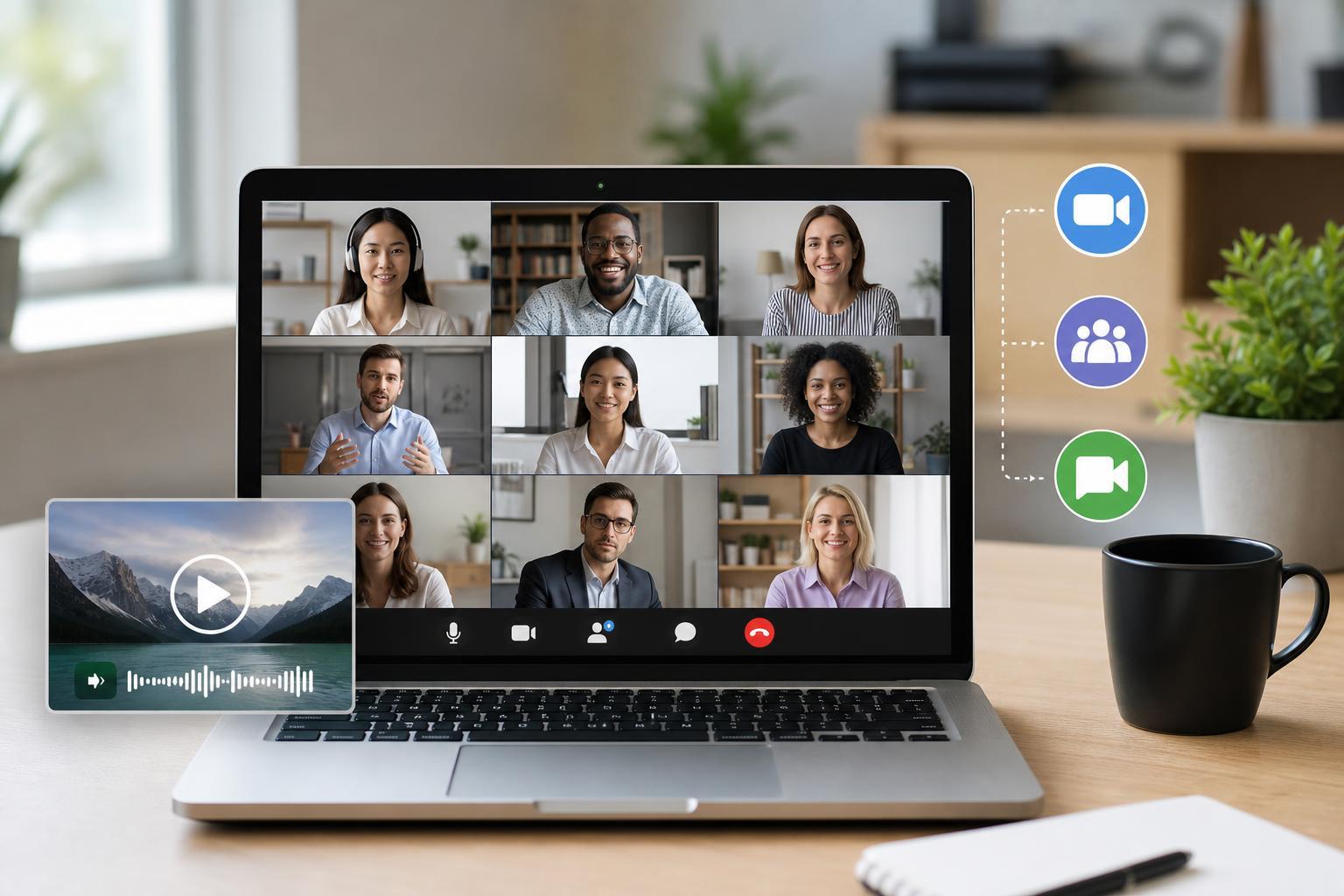
If you need to play a video during an online meeting, sharing the screen is only half the job. The other half is making sure the meeting app also sends the video’s sound so everyone can hear it clearly.
The exact steps differ between Zoom, Microsoft Teams, and Google Meet, but the basic idea is the same: choose the right sharing option, enable computer audio, and test before you start presenting.
Before You Start
A few checks can save time later. In most cases, video audio fails because the meeting app is sharing the screen but not the system sound, or because the wrong tab, window, or device is selected.
- Use the desktop app if possible, since browser versions may have more audio limitations.
- Make sure the video file can play sound locally on your computer before joining the meeting.
- Close any apps that might grab your microphone or audio device unexpectedly.
- If you are sharing from a browser, check whether the site has permission to play audio and use your microphone.
How to Share Video With Sound in Zoom
Zoom has one of the easiest ways to share audio from a video or other media on your computer.
- Join or start your Zoom meeting.
- Click Share Screen.
- Select the window, app, or desktop that contains the video.
- At the bottom of the share window, check Share sound.
- If you are sharing a video clip with lots of movement or sound, also enable Optimize for video clip if that option appears.
- Click Share, then start playing the video.
How to Share Video With Sound in Microsoft Teams
In Microsoft Teams, the key is to share your screen or window and turn on computer audio before you begin playback.
- Join your Teams meeting.
- Select Share in the meeting controls.
- Choose the screen, window, or browser tab that contains the video.
- Turn on Include computer sound before starting the share.
- Start the video playback after the share begins.
If you are sharing a browser tab, Teams may treat the audio differently depending on the browser and meeting setup. Sharing the full window or desktop is often more reliable for saved video files and media players.
How to Share Video With Sound in Google Meet
Google Meet can share audio, but the best method depends on whether you are sharing a tab, a window, or your whole screen.
- Join the Meet call.
- Click Present now.
- Choose A tab, A window, or Your entire screen.
- If you are sharing a browser tab, look for the Share tab audio option and enable it.
- Select the content to share and begin playback.
Sharing a browser tab is usually the simplest way to send video audio in Google Meet when the video is playing in a web page such as YouTube or another streaming site. For local video files, sharing the full screen or a window may work better, but audio support can vary depending on the browser and operating system.
Which Sharing Method Works Best?
The best method depends on where the video is playing and which app you are using to present it.
- Zoom: Share Screen with Share sound enabled is usually the most reliable option.
- Microsoft Teams: Share screen or window and enable Include computer sound.
- Google Meet: Share a browser tab when the video is in the browser, especially for web videos.
If the Video Has No Sound in the Meeting
If participants can see the video but cannot hear anything, work through the most likely causes first.
- The audio-sharing option was not enabled before sharing began.
- Your system volume is muted or set too low.
- The video player inside the shared app is muted.
- The wrong output device is selected in Windows or macOS.
- You are sharing a window that does not pass audio reliably.
- A browser tab is being shared without tab audio enabled.
- Stop sharing.
- Check the meeting app’s audio-sharing option.
- Confirm the video plays sound on your own computer.
- Verify the correct speaker output device is selected.
- Start a new share and test with a short clip before presenting the full video.
Best Practices for Smooth Playback
Even when audio works, video sharing can stutter if your connection or device is under load. A little preparation helps the presentation feel more polished.
- Use a wired connection if possible for a more stable call.
- Close unnecessary apps and browser tabs before presenting.
- Keep the video file local on your computer when you can, instead of streaming it from a slow connection.
- Use headphones if your microphone is sensitive and may pick up echo from your speakers.
- Pause notifications so pop-ups do not appear while sharing.
Quick Troubleshooting by Platform
If you are still stuck, these platform-specific checks usually solve the problem faster than general audio troubleshooting.
- Zoom: Make sure Share sound is checked before you begin sharing.
- Microsoft Teams: Confirm Include computer sound is turned on in the share menu.
- Google Meet: Prefer a browser tab share for web videos and enable tab audio.
- All platforms: Check the computer’s speaker selection and volume mixer settings.
When to Use a Different Approach
Sometimes sharing the video directly is not the best option. If the video is critical and the meeting platform keeps dropping sound, consider sending the file or link in advance so participants can open it locally. That avoids many sharing and playback issues.