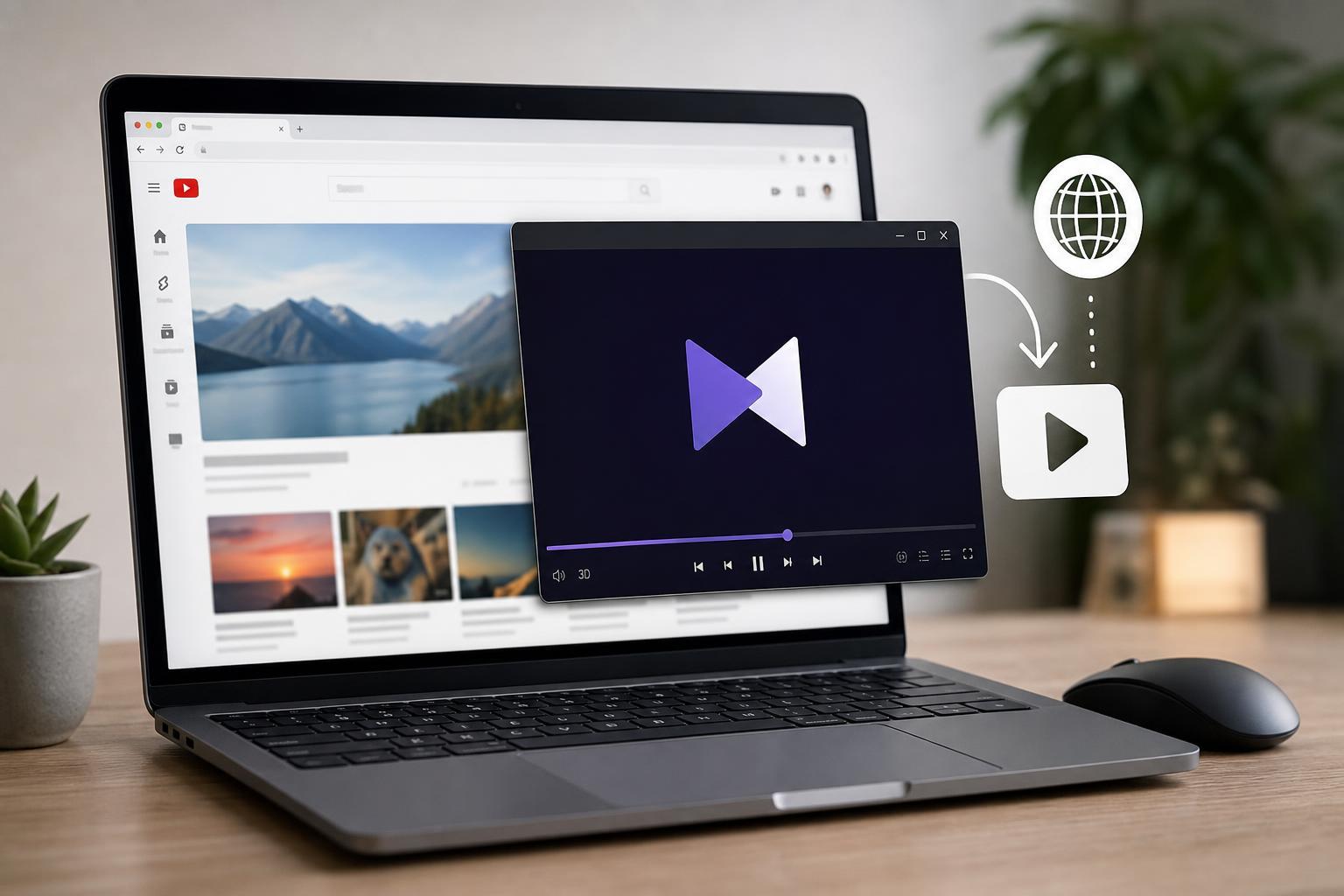
KMPlayer can play more than just files stored on your PC. In some cases, it can also open online video links, including YouTube videos and streams from other websites. The exact steps depend on the type of link you have and whether the site still allows direct playback inside a media player.
This guide explains how to try online video links in KMPlayer, what kind of URLs usually work, and what to do when a link refuses to play.
What KMPlayer Can and Cannot Play
KMPlayer is a local media player first, but it has support for opening certain network streams and direct video links. That means it may be able to play a video if you have a direct media URL or a compatible stream address.
- Direct video stream links such as .mp4, .m3u8, or other supported network streams
- Some website-hosted videos if the site provides a direct playback URL
- Live streams that KMPlayer can access as a network source
- YouTube links only when the link format or embedded playback method is supported
Try Opening a Video Link in KMPlayer
If you already have a direct URL, the quickest method is to open it from KMPlayer’s network or URL feature.
- Copy the video link you want to play.
- Open KMPlayer.
- Look for an option such as Open URL, Open URL/File, or Open Network Stream in the menus.
- Paste the link into the URL field.
- Choose Play or Open to start loading the stream.
If the link is a true direct media source, KMPlayer should begin buffering and then play the video. If the link leads to a webpage rather than a media stream, the player may fail, show an error, or load nothing useful.
How to Handle YouTube Links
YouTube links are often the most confusing case because the normal video page URL is not the same thing as a direct playable stream. A standard YouTube watch link may open in KMPlayer only if the player or its built-in online features can extract a stream from it.
- Try pasting the full YouTube watch link into KMPlayer’s Open URL option
- If that fails, the video may not be accessible as a direct stream from the player
- Some versions of KMPlayer may support online playback features better than others
- Browser changes and YouTube delivery changes can break older player methods
Playing Videos From Other Sites
For other websites, the same rule applies: KMPlayer usually needs a direct media source, not just a webpage. Sites that expose a plain .mp4 file, an HLS stream, or another standard media address are more likely to work.
- Direct file links usually work best
- Embedded players on web pages often do not
- Live streams may require a compatible stream format
- Some sites protect video URLs with tokens or expiry times
If the Video Does Not Play
If KMPlayer does not open the video, the issue is usually one of a few common causes.
- The link is a webpage instead of a direct media URL
- The site blocks external players
- The stream format is not supported by your version of KMPlayer
- The video requires browser-only scripts, login, or DRM protection
- The URL has expired or needs to be refreshed
- Test the same link in a browser to confirm the video still works.
- Check whether the link is a direct media file or only a webpage.
- Try another video from the same site to see whether the problem is site-wide.
- Use a supported direct link if the site provides one.
- Update KMPlayer if the player is outdated and missing newer stream support.
Better Alternatives When KMPlayer Won't Open the Link
If KMPlayer cannot handle the video source, the most practical option is often to play it in a browser or use a player designed for network streams. This is especially true for modern streaming sites that change their delivery methods often.
- Use the browser for normal streaming sites and DRM-protected content
- Use KMPlayer for direct media URLs, local files, and compatible streams
- Try a different media player if you regularly work with network streams
- Save the video only if the site allows offline access or download
A Practical Way to Decide Whether a Link Will Work
A simple rule helps save time: if the link points directly to a media file or stream, KMPlayer has a fair chance of playing it. If it points to a normal webpage, especially a modern streaming page, the browser is usually the right tool.
- Direct media file or stream link: likely to work
- Standard video page link: may or may not work
- Protected streaming site: often will not work
- Live stream with a standard format: sometimes works