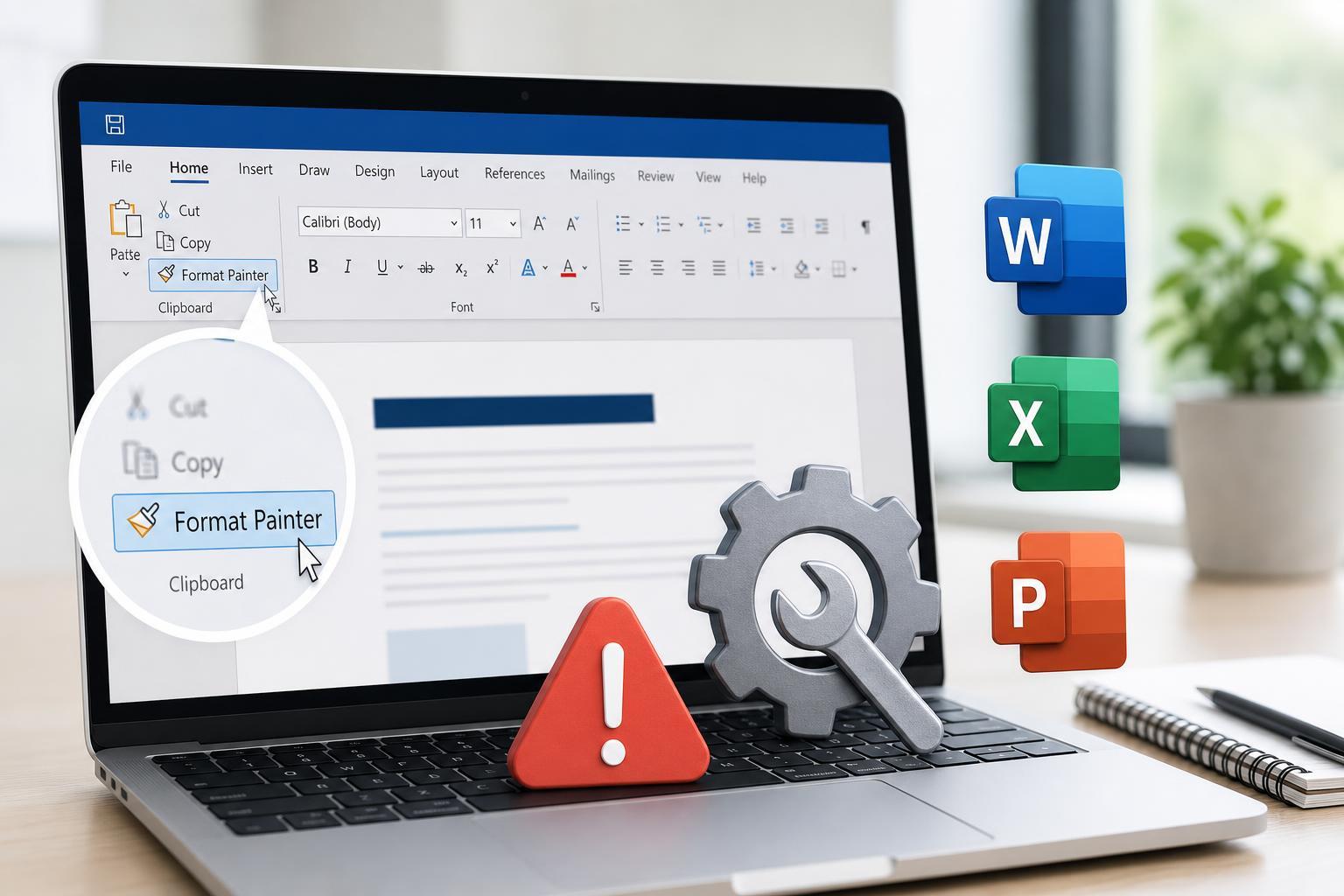
Strikethrough is a simple way to mark text as deleted, outdated, or no longer needed without actually removing it from a document. In Google Docs, you can add or remove strikethrough with a few quick actions on desktop, and the process is just as easy once you know where to look.
This guide shows you how to format text with strikethrough, remove it when you no longer need it, and choose the fastest method for your device.
What Strikethrough Does in Google Docs
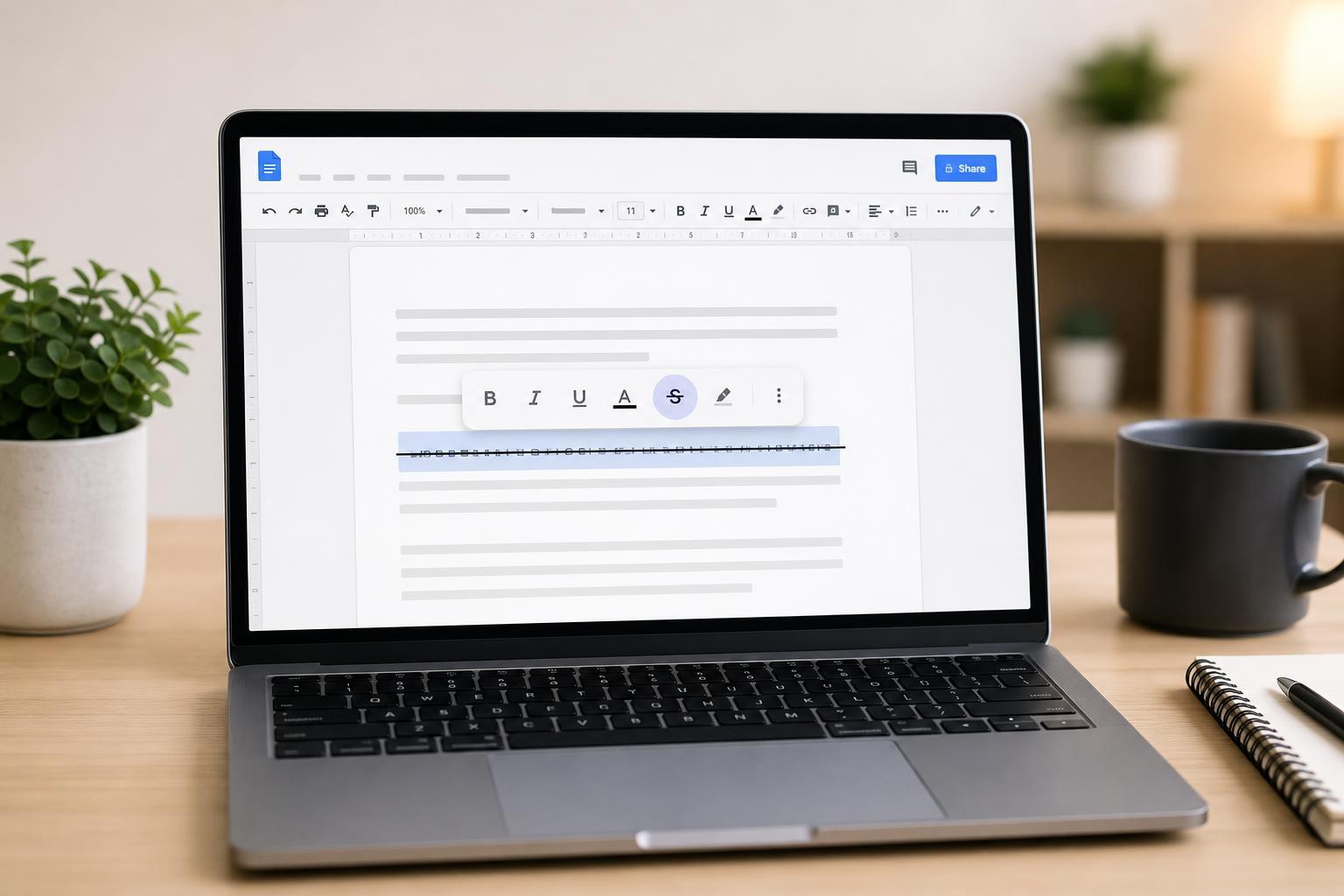
Strikethrough draws a line through selected text. It is commonly used for edits, task lists, revisions, and notes where you want to keep the original text visible but show that it has been crossed out.
Add Strikethrough in Google Docs on a Computer
- Select the text you want to cross out.
- Open the Format menu at the top of Google Docs.
- Point to Text, then choose Strikethrough.
- The selected text will now have a line through it.
Use the Keyboard Shortcut for Strikethrough
- Select the text.
- Press Alt + Shift + 5 on Windows or ChromeOS.
- On Mac, press Command + Shift + X.
- The selected text will be crossed out immediately.
Remove Strikethrough Text
To remove strikethrough, select the crossed-out text and use the same command again. In Google Docs, formatting shortcuts and menu options usually toggle the style on and off.
- Highlight the text with strikethrough.
- Open Format > Text > Strikethrough again, or use the same keyboard shortcut.
- The line through the text should disappear.
Add or Remove Strikethrough on Mobile
The Google Docs mobile app also supports strikethrough, but the option is tucked inside the formatting tools rather than being as immediate as the desktop shortcut.
- Open the document in the Google Docs app.
- Select the text you want to edit.
- Tap the Format icon, usually shown as an A with lines or a similar text-formatting button.
- Find Strikethrough and tap it to apply or remove the effect.
When Strikethrough Is Most Useful
- Editing drafts where you want to show removed wording
- Collaborative documents with suggestions or revision notes
- Shared task lists where completed items should remain visible
- Notes where you want to preserve old information for reference
If the Strikethrough Option Is Missing
If you do not see strikethrough in the menu, make sure text is selected first. Google Docs only shows many formatting actions when there is active text to format.
- Select actual text instead of placing the cursor in an empty area
- Check that you are editing in Google Docs and not viewing the document in a limited preview mode
- Try the keyboard shortcut if the menu option is hard to find
- Refresh the page if the editor appears to be loading incorrectly