Microsoft Edge can translate foreign-language web pages directly in the browser, which is useful when you need to read an article, shop on an overseas site, or follow instructions without copying text into a separate translator. The translation feature is built into Edge, but you may need to enable it, choose your preferred languages, or adjust a few settings first.
How to Translate a Web Page in Edge
- Open the web page you want to read in Microsoft Edge.
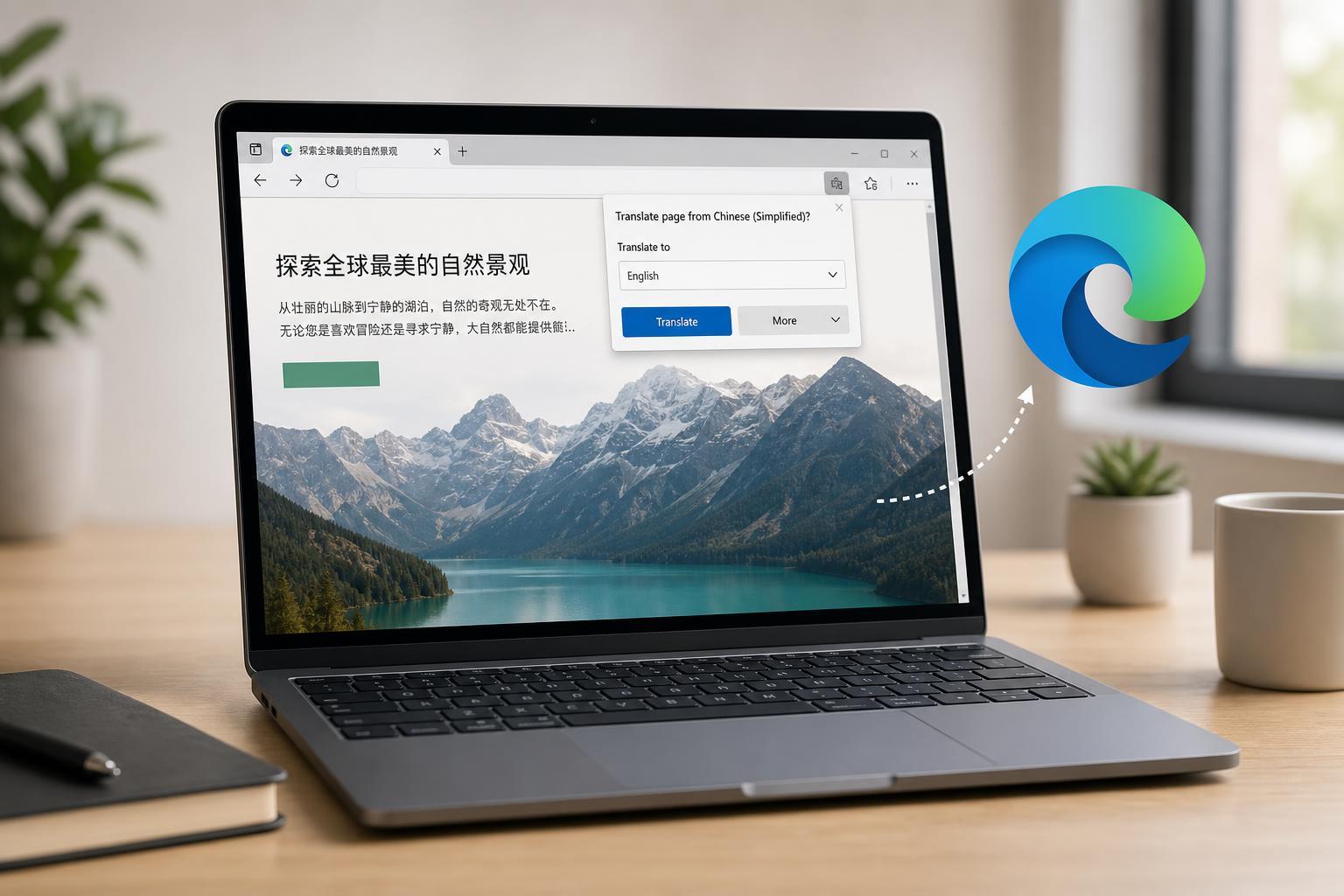
- If Edge detects a language different from your preferred language, a translation prompt usually appears in the address bar or near the top of the page.
- Select the language you want to translate to, such as English.
- Choose Translate to display the page in your selected language.
If the prompt does not appear, you can still try manually. Right-click on the page and look for a translate option, or use the Edge menu if translation is available there. The exact wording can vary slightly depending on your version of Edge and the language of the page.
Change the Translation Language
- When the translation prompt appears, open the language drop-down menu.
- Pick the language you want the page translated into.
- If you want Edge to always translate a certain language, look for an option such as Always translate pages in this language.
- If you only want to translate this one page, choose Translate once instead of saving the preference.
Turn Translation On or Off in Edge
- Open Edge settings from the three-dot menu in the top-right corner.
- Go to Languages or the language section under Settings.
- Find the option for offering to translate pages that aren't in a language you read.
- Turn the setting on if you want translation prompts, or off if you do not want Edge to offer them.
Useful Translation Options
- Always translate this language: helpful if you often visit sites in the same foreign language.
- Never translate this language: useful if Edge keeps offering to translate pages you want to leave unchanged.
- Never translate this site: best when one site is bilingual or you prefer its original wording.
- Choose another target language: useful if you read more comfortably in a language other than your browser language.
If Edge Does Not Offer to Translate a Page
- The page may already be in one of your preferred languages.
- The site may block translation prompts or use a layout Edge does not detect well.
- Your translation setting may be turned off in Edge settings.
- The page may contain mostly images, videos, or dynamically loaded text instead of standard web text.
If translation still does not appear, try another page in a different language to confirm the feature is working. You can also check whether Edge is up to date, since browser updates can improve built-in translation support.
Tips for Better Results
- Translate the page first, then refresh only if the text looks broken or incomplete.
- Use translation as a reading aid, not as a perfect replacement for the original text.
- If you only need a short section, select the text and use a separate translation tool if the page translation is not enough.
- For important content such as legal, medical, or financial information, compare the translated text with the original if possible.
When to Use Edge Translation and When Not To
Edge’s built-in translator is ideal for quick reading and casual browsing. It saves time because you do not need to copy and paste text into another service. However, it is not a substitute for a human translation when accuracy matters, especially on pages with technical, legal, or sensitive content.