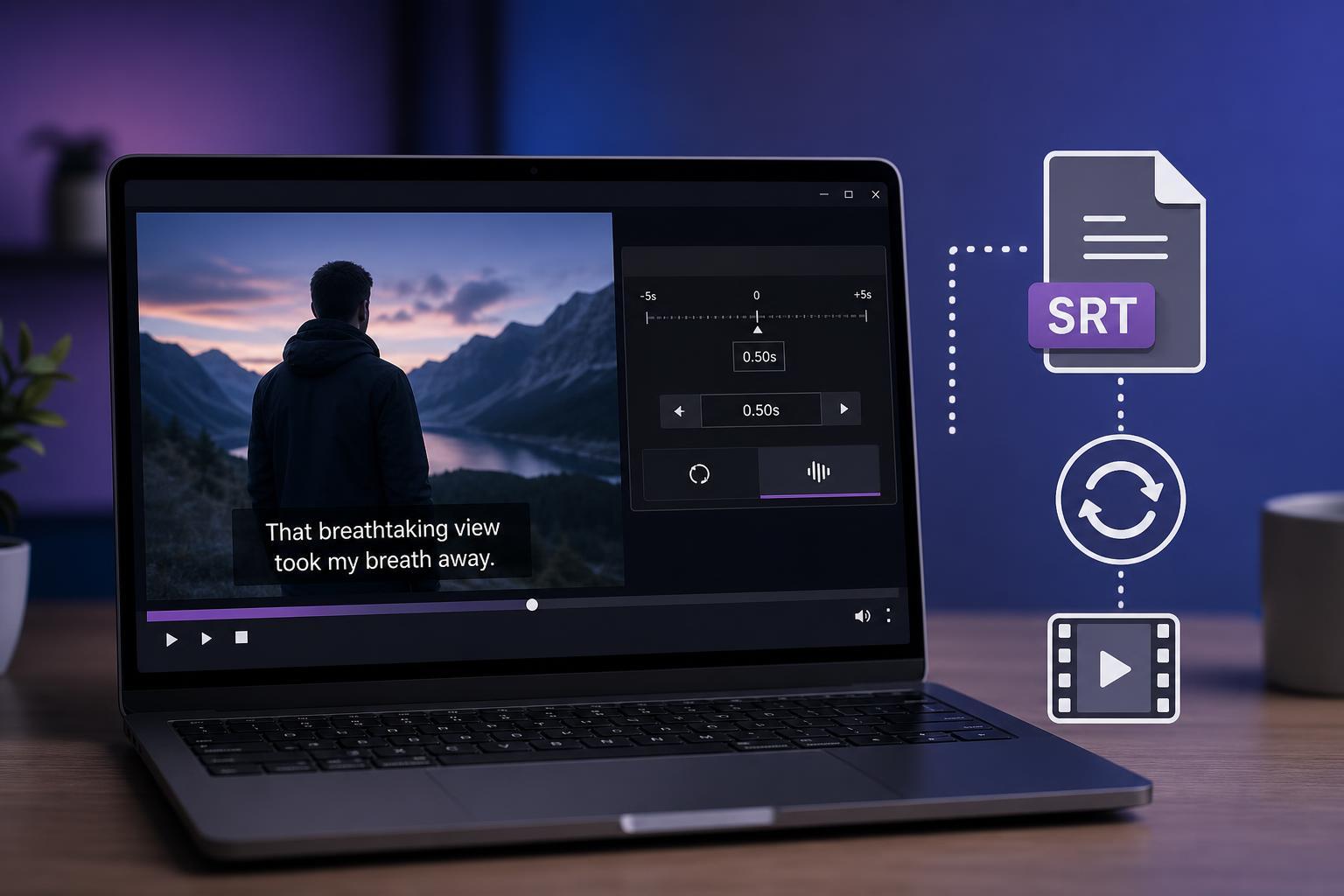
If subtitles are arriving too early or too late in KMPlayer, you do not need to guess your way through the problem. KMPlayer includes simple subtitle timing controls that let you shift subtitles until they match the audio and video properly.
This guide shows the easiest ways to sync subtitles and videos in KMPlayer, including temporary playback adjustments and a more permanent fix when the subtitle file is consistently out of time.
What Usually Causes Subtitle Delay
Subtitle problems in KMPlayer are usually caused by one of two things: the subtitle file was created for a different version of the video, or the video playback itself is slightly delayed because of system performance, encoding differences, or a bad rip.
- The subtitle file was made for a different release of the movie or episode
- The subtitles were created for a different cut or runtime
- Audio starts earlier or later than expected
- The video is stuttering, which makes subtitle timing feel off
- The subtitle file has a built-in timing offset
The Fastest Way to Sync Subtitles in KMPlayer
The simplest fix is to adjust subtitle timing while the video is playing. This is the best option when subtitles are only slightly out of sync and you want to correct them immediately.
- Open the video in KMPlayer and make sure the subtitle track is enabled.
- Start playback and watch a few lines of dialogue to judge whether subtitles are early or late.
- Use KMPlayer’s subtitle timing controls to shift the subtitles forward or backward until they match the spoken audio.
- Keep testing for a few more lines to confirm the timing feels right.
Using Subtitle Timing Controls
KMPlayer includes subtitle delay controls that let you move subtitles in small increments. You can usually access them from the subtitle menu, playback menu, or a keyboard shortcut while the video is running.
- If subtitles appear too late, move them earlier by reducing the subtitle delay
- If subtitles appear too early, move them later by increasing the subtitle delay
- Make small changes first, then fine-tune as needed
- Test the same scene a few times before making a bigger adjustment
How to Match Subtitles More Accurately
For the most accurate result, use a part of the video where the speaker’s mouth movements and spoken words are easy to follow. This helps you judge whether the subtitle line is early, late, or correctly timed.
- Pause at a clear dialogue scene.
- Play a short section and compare the subtitle line to the spoken words.
- Adjust the timing a small amount.
- Repeat the same scene until the subtitle appears naturally in sync.
- Move to another section of the video to confirm the correction still holds.
If the Subtitles Drift Out of Sync Later
If the subtitles start in sync but become worse over time, the problem is often not a simple delay offset. In that case, the subtitle file may have been created for a different frame rate, cut, or release of the video.
- Try a subtitle file made for the exact same release name
- Check whether the video has a different runtime than the subtitle file expects
- Look for subtitles that mention the same frame rate or version
- If the drift is gradual, the subtitle file may need more advanced retiming than a simple offset
Saving the Corrected Subtitle Sync
If you plan to watch the video again, it is worth saving the corrected subtitle timing if KMPlayer allows it for your subtitle format and setup. This prevents you from repeating the adjustment every time you open the file.
- Use this when you keep a local copy of the subtitle file
- Useful for downloaded videos you may rewatch later
- Not always practical for streaming or temporary playback
- May depend on whether KMPlayer can write changes back to the subtitle file
Tips for Getting Better Subtitle Sync in KMPlayer
- Use the correct subtitle file for the exact video release whenever possible
- Check whether the subtitle language track is the one you intended to load
- If the video stutters, close other heavy apps and test playback again
- Compare the subtitle delay on more than one scene before deciding the fix is done
- If the file seems badly mismatched, try another subtitle version instead of forcing a large correction
When a Subtitle File Is the Wrong Match
Sometimes KMPlayer is not the problem. If the subtitle file was made for a different edition of the movie or show, timing adjustments may only help a little before the sync breaks again.
- The subtitles start near the right time but quickly drift away
- Lines appear too early in one section and too late in another
- Dialogue gaps do not match the subtitle pacing
- The runtime of the subtitle file and video are clearly different
When that happens, the fastest solution is usually to find a subtitle file that matches the same release, encoding, or runtime more closely.
A Simple Way to Think About the Fix
If the subtitles are only offset, shift them. If they slowly drift, replace them with a better-matched subtitle file. That distinction saves a lot of time and keeps you from over-adjusting a file that was never the right match in the first place.