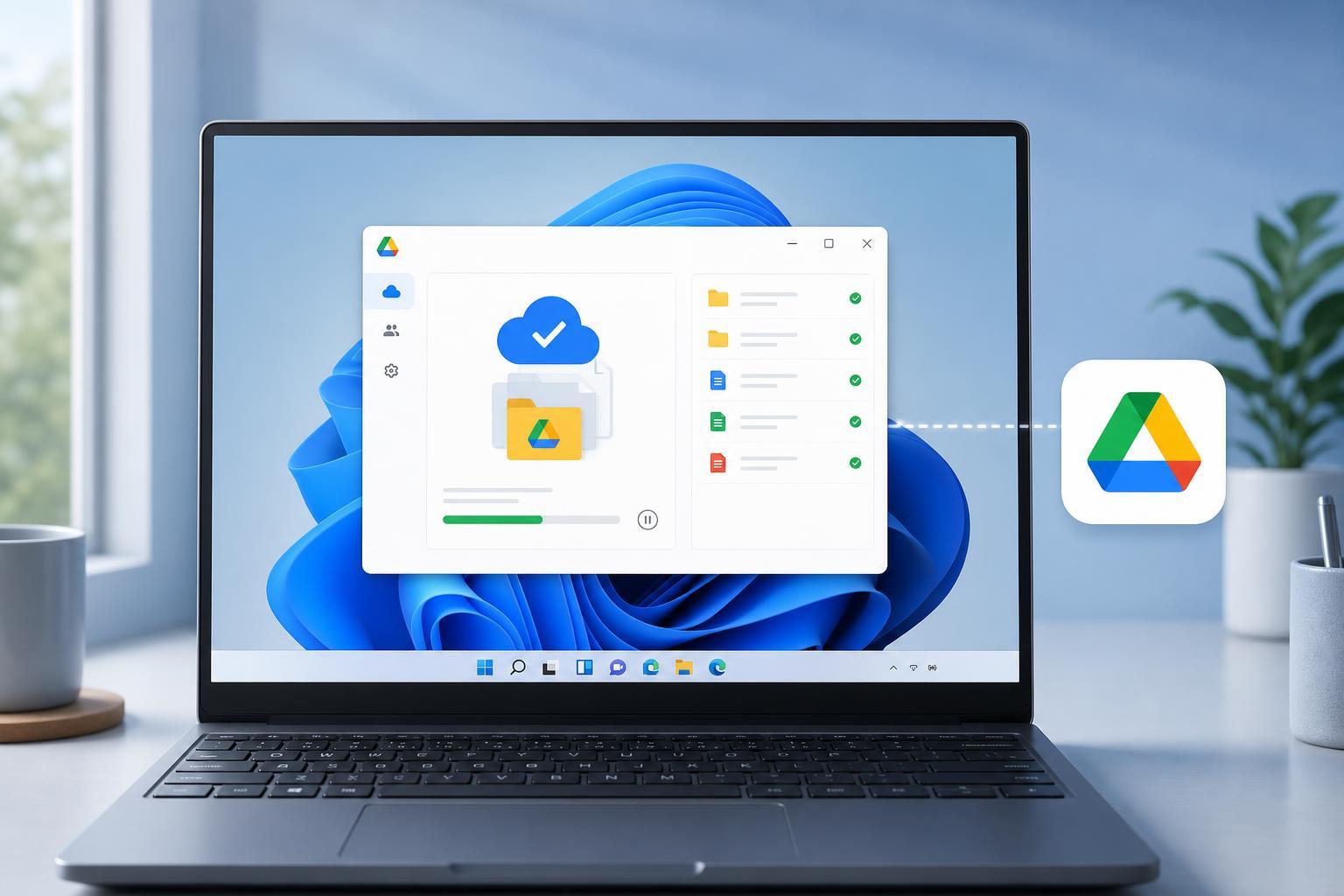
Google Drive for desktop lets you use your Drive files directly from Windows 11 and keep selected folders synced between your PC and Google Drive. It is a practical way to access cloud files without constantly opening a browser.
This guide walks through installing Google Drive for desktop on Windows 11, signing in, choosing the right sync mode, and checking that everything is working properly.
What You Need Before You Start
- A Google account
- Windows 11 with an active internet connection
- Enough free storage space if you plan to mirror files locally
- Administrator access if your PC requires permission to install software
Install Google Drive for Desktop
- Go to the official Google Drive for desktop download page in your web browser.
- Download the Windows version of the app.
- Open the downloaded installer file.
- If Windows asks for permission, choose Yes to allow the installation to continue.
- Wait for the setup to finish. The app will usually launch automatically after installation.
Sign In to Your Google Account
- When Google Drive for desktop opens, click Sign in.
- Choose or enter the Google account you want to use.
- Complete any verification steps, such as two-factor authentication, if prompted.
- Allow the app to access your Google Drive when Windows or your browser asks for permission.
After sign-in, the app may open a small settings window where you can choose how Drive should appear on your PC. This is the point where you decide whether you want files streamed from the cloud or mirrored locally.
Choose Between Streaming and Mirroring
- Stream files: Files stay primarily in Google Drive and appear in File Explorer as cloud-accessible items. This uses less local storage.
- Mirror files: A copy of your Drive files is stored on your PC and kept in sync. This uses more storage but gives you offline access to more content.
Finish the Setup in Windows 11
- Confirm the folders and Drive options you want to use.
- Select any additional folders from your PC that you want backed up to Google Drive, such as Documents, Desktop, or Pictures.
- Click Save or Done to apply the settings.
- Open File Explorer and look for Google Drive in the left sidebar or under This PC, depending on the setup mode.
- Check that the files and folders you expect are visible.
If you selected backup folders from your PC, Google Drive for desktop may begin uploading them in the background. Large folders can take time, especially on slower connections.
Set Up Folder Backup from Your PC
Google Drive for desktop can also back up common Windows folders so they are stored in the cloud and available from other devices.
- Open Google Drive for desktop from the system tray if it is not already visible.
- Go to Settings or Preferences.
- Look for the Backup section.
- Choose folders such as Desktop, Documents, or Pictures.
- Confirm whether you want folder contents to sync to Google Drive.
- Save your changes.
How to Access Your Files in File Explorer
Once setup is complete, Google Drive should appear in File Explorer. You can browse your Drive just like a local folder, but the app manages whether files are stored online, offline, or both.
- Open File Explorer and select Google Drive.
- Double-click folders to browse your cloud files.
- Right-click files to make them available offline if you are using streaming mode.
- Copy files into Drive folders to upload them to your account.
Common Setup Problems and Fixes
- The installer will not open: check that the download finished correctly and try again from the official Google page.
- You cannot sign in: confirm your internet connection and make sure the Google account is working in a browser.
- Drive does not appear in File Explorer: open Google Drive for desktop from the system tray and make sure it is running.
- Files are not syncing: check storage space, pause/resume sync, and confirm that the files are not restricted by another app.
- Upload is very slow: large folders can take time, and sync speed also depends on your connection and Google Drive activity.
Useful Settings to Review After Setup
- Startup behavior: decide whether Google Drive should launch when Windows starts.
- Bandwidth limits: useful if you want to reduce network usage.
- Offline access: mark important files so they are available without an internet connection.
- Notifications: turn alerts on or off depending on how much sync feedback you want.
When to Use Google Drive for Desktop on Windows 11
Google Drive for desktop is most useful if you work across multiple devices, share files often, or want cloud backup without relying only on a browser. It is also a good fit if you want Drive files to behave more like part of Windows itself.
Managing the App Later
You can change your sync preferences at any time by opening Google Drive for desktop from the system tray and going into its settings. That lets you switch between streaming and mirroring, add or remove backed-up folders, or adjust startup and bandwidth options without reinstalling anything.