If Windows 11 is acting up, you may be able to reinstall it without wiping your apps and personal files. The safest method is usually a repair install, which refreshes Windows system files while keeping your data in place.
This guide explains the options that preserve files and apps, when each method makes sense, and what to check before you start so you do not lose anything important.
What You Can Keep When Reinstalling Windows 11
Windows 11 gives you a few different repair and reinstall paths, but they do not all preserve the same things. Before starting, it helps to understand the difference between keeping personal files and keeping installed apps.
- Repair install / in-place upgrade: keeps Windows settings, personal files, and most installed apps.
- Reset this PC with Keep my files: keeps personal files, but removes installed apps and many system settings.
- Clean install: removes everything unless you back it up first.
Best Option: Perform a Repair Install of Windows 11
A repair install reinstalls Windows over your existing installation. It is often used to fix corrupted system files, update a damaged Windows install, or clear up persistent glitches without starting from scratch.
- Download the latest Windows 11 ISO or use the Windows 11 Installation Assistant from Microsoft.
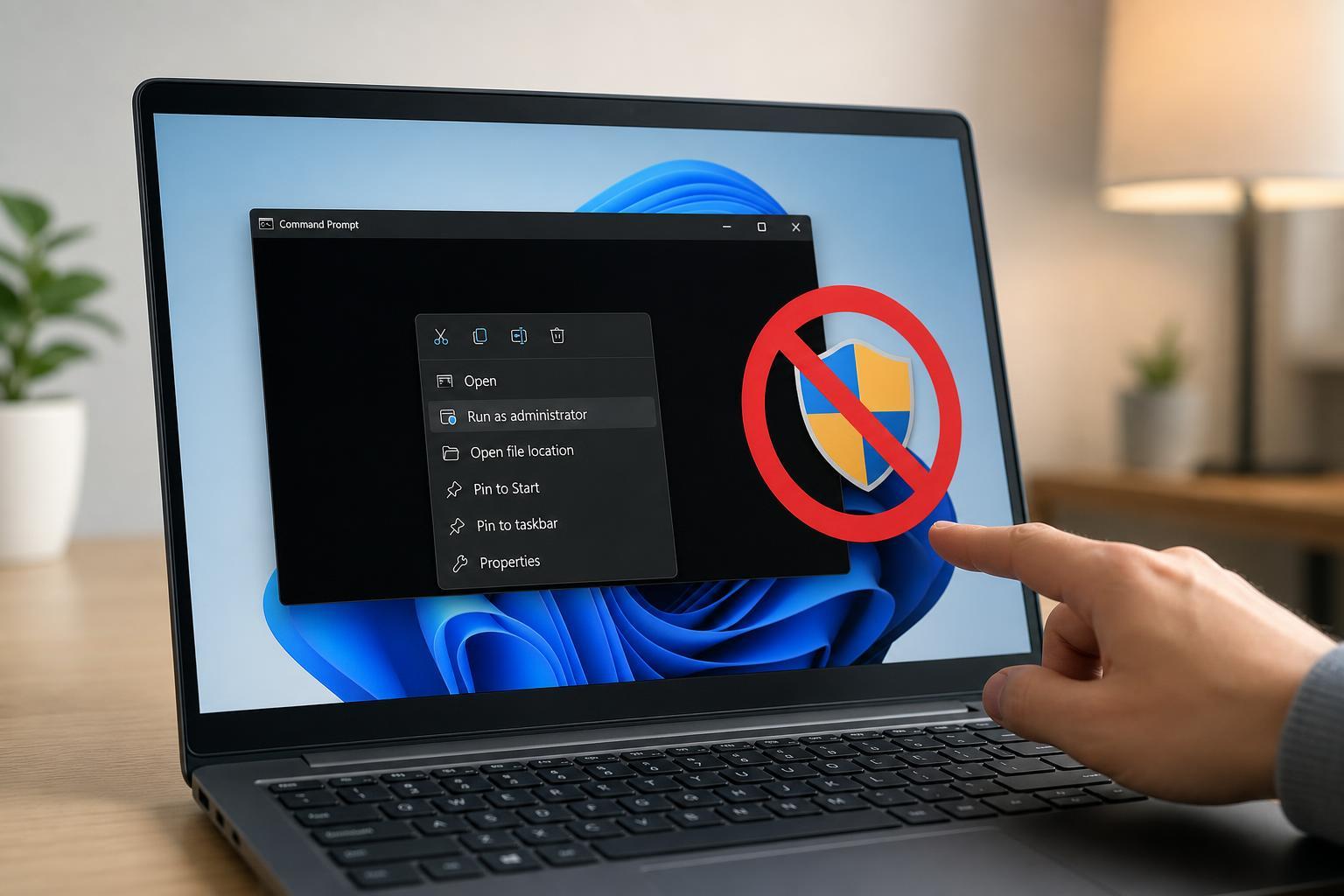
- If you download an ISO, right-click it and choose Mount.
- Open the mounted drive and run setup.exe.
- When Setup starts, choose the option to keep personal files and apps if prompted.
- Follow the on-screen instructions and let Windows complete the installation.
- After setup finishes, check that your apps, files, and settings are still present.
Before You Start
A repair install is straightforward, but a few checks can prevent setup errors and reduce the risk of losing data.
- Make sure you have enough free disk space for Windows Setup to run.
- Confirm that the Windows 11 language and edition match your current install.
- If possible, plug in a laptop so power is not interrupted during setup.
- Close apps and save open files before starting.
- Back up important documents, photos, browser data, and game saves anyway.
How to Reinstall Windows 11 Without Losing Apps and Files
If your system still boots into Windows normally, the repair install method is the most direct way to reinstall Windows 11 while preserving your existing software and data.
- Sign in to Windows with an administrator account.
- Download the Windows 11 ISO from Microsoft, or open the Windows 11 Installation Assistant if that is the method you prefer.
- If using an ISO, right-click the file and select Mount.
- Open the mounted virtual drive and double-click setup.exe.
- When prompted, choose the option to download updates if you want the installer to fetch the latest setup files.
- Accept the license terms.
- If you see the choice screen, select Keep personal files and apps.
- Continue through the prompts and wait for Windows to reinstall itself.
- After the PC restarts, sign in and verify that your applications, documents, and desktop items are still there.
This process replaces Windows system components while leaving installed programs in place. It is not the same as resetting the PC, and it is not a full clean install.
If You Only See the Option to Keep Files, Not Apps
Sometimes Windows Setup will not allow a full repair install. That usually happens when the installer does not match your current system closely enough, or if the install media is not suitable for an in-place upgrade.
- The Windows edition does not match your installed edition.
- The language of the installer does not match the current Windows language.
- The architecture is different, such as trying to use the wrong build type.
- The installation media is too old or not appropriate for the current system.
If this happens, stop and check the installer source instead of forcing the process. A mismatched installation often blocks the keep-apps option.
Using Reset this PC: What It Keeps and What It Removes
Windows 11 also includes Reset this PC, which is useful if you want a fresher system but do not need to keep installed programs.
- Open Settings.
- Go to System, then Recovery.
- Under Reset this PC, choose Reset PC.
- Select Keep my files if you want to preserve personal data.
- Follow the prompts to complete the reset.
This option keeps your personal files but removes installed desktop apps and many settings. It can solve deeper Windows problems, but it is not the right choice if keeping applications matters.
What to Back Up Anyway
Even when you choose a method that keeps your files, a backup is still smart. Some data is stored in places that are easy to overlook, and some apps store important settings outside the Windows folder.
- Documents, Pictures, Videos, and Downloads folders
- Desktop files and shortcuts
- Browser bookmarks and saved passwords
- Game saves and launcher data
- Project folders from creative or work apps
- License keys or sign-in information for important software
When a Clean Install Is the Better Choice
A clean install wipes the Windows partition and installs a fresh copy of Windows 11. It is more disruptive, but it can be the best choice if the system is badly damaged or the repair install option fails.
- Windows will not boot properly
- Repair install keeps failing
- The system is heavily corrupted or unstable
- You want to remove years of clutter and start over
How to Tell Whether the Reinstall Worked
After Windows finishes reinstalling, check a few things right away so you can catch problems early.
- Open a few familiar apps and make sure they still launch.
- Check your Documents and Desktop folders.
- Review your display, sound, and network settings.
- Look for Windows Update notifications and let updates finish if needed.
- Confirm that any licensed software still shows as activated if applicable.
Which Method Should You Choose?
If you want to keep both apps and files, start with a repair install. If you only need to keep personal files, Reset this PC may be enough. If Windows is too damaged to repair cleanly, a clean install may be the last resort.
- Keep apps and files: repair install
- Keep files only: Reset this PC
- Start over completely: clean install