Windows updates are important, but an automatic restart at the wrong time can interrupt work, downloads, gaming, or presentations. The good news is that Windows gives you several ways to reduce or prevent unexpected restarts after updates.
This guide explains the practical settings that control update restarts in Windows 10 and Windows 11, along with the limits you should know before making changes.
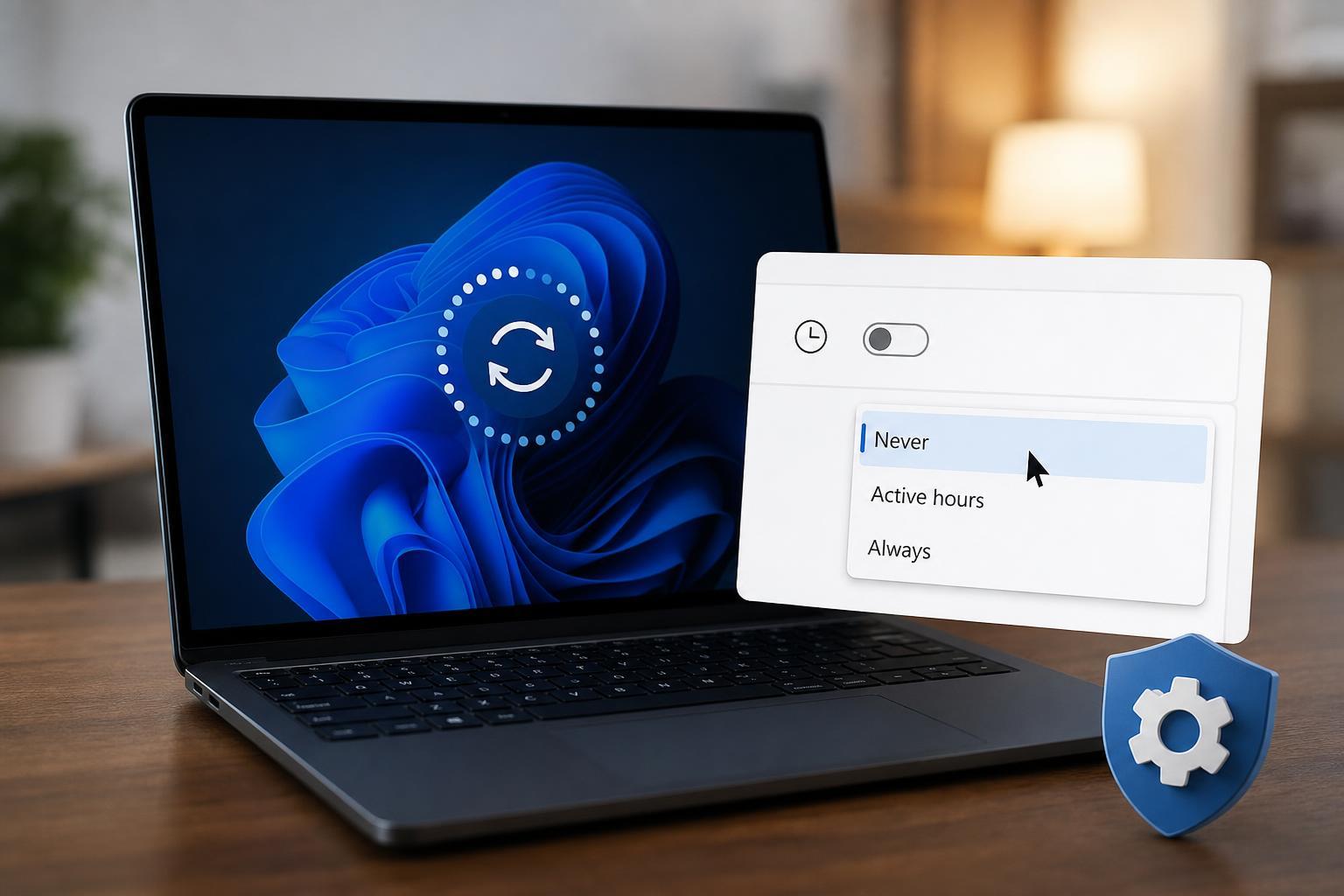
Check Windows Update Restart Settings First
The simplest fix is usually built into Windows Update itself. Microsoft expects many systems to stay current, so Windows tries to restart only when it thinks the computer is idle or outside your active hours. If that timing is wrong, the restart can seem random.
- Open Settings and go to Windows Update.
- Look for Restart options or Advanced options.
- Check whether a restart has been scheduled after an update.
- Adjust Active hours so they match the times you normally use the PC.
- If Windows offers a restart notification setting, enable it so you can choose when to restart yourself.
Use Active Hours to Delay Restarts
Active hours tell Windows when you are most likely to be using the computer. During those hours, Windows tries harder not to restart automatically after installing updates.
- Open Settings.
- Select Windows Update.
- Open Advanced options.
- Choose Active hours.
- Set it to Manual if you want full control, then define your usual usage window.
- Save the changes.
Turn On Restart Notifications
Restart notifications can give you a warning before Windows reboots. This does not stop updates, but it gives you a chance to save work and postpone the restart.
- Open Windows Update settings.
- Find the option related to restart notifications or notify me when a restart is required.
- Turn it on if available.
- Watch for the notification and restart manually when it is convenient.
Use Group Policy to Control Automatic Restarts
If you are using Windows Pro, Enterprise, or Education, you can use Group Policy to reduce automatic restart behavior after updates. This is more flexible than the basic Settings app, but it is not available in every edition of Windows.
- Press Windows + R, type gpedit.msc, and press Enter.
- Go to Computer Configuration > Administrative Templates > Windows Components > Windows Update.
- Look for policies related to restart behavior or no auto-restart with logged-on users.
- Enable the policy that prevents automatic restarts when someone is signed in, if available.
- Apply the change and close the editor.
This approach is especially useful on work PCs, shared computers, or systems that stay logged in for long periods.
Set an Update Grace Period or Restart Reminder
Some Windows builds offer options that delay a restart for a limited time after an update is ready. If your version includes a grace period, use it to keep Windows from rebooting immediately after installation.
- A grace period gives you more time to finish tasks before the restart happens
- A reminder helps you restart manually instead of being forced into one
- These options are useful when you want updates installed but not applied at an inconvenient moment
If Restarts Keep Happening, Check for Other Causes
If your PC restarts shortly after updates but not because of Windows Update itself, the cause may be different. A crash, driver problem, overheating issue, or scheduled task can look like an update restart from the outside.
- Blue screen or crash before restart points to a driver or hardware problem
- Restarts at the same time every day may indicate a scheduled task or maintenance job
- Restarts only during gaming or heavy workloads can suggest overheating or power issues
- A message about updates being installed usually points back to Windows Update
What You Should Avoid
It is possible to block updates entirely, but that is usually not the best long-term solution. Security updates help protect the PC, and turning them off can create bigger problems than an occasional restart.
Which Method Should You Try First?
For most people, the best order is simple: set Active hours, turn on restart notifications, and then only move to Group Policy if you need more control. That gives you the least disruptive fix while still keeping Windows updated.
- Home users: Active hours and restart notifications
- Power users with Pro editions: Group Policy settings
- Business or shared PCs: Group Policy plus clear restart scheduling
- If the PC still reboots unexpectedly: check for crashes, overheating, or scheduled maintenance