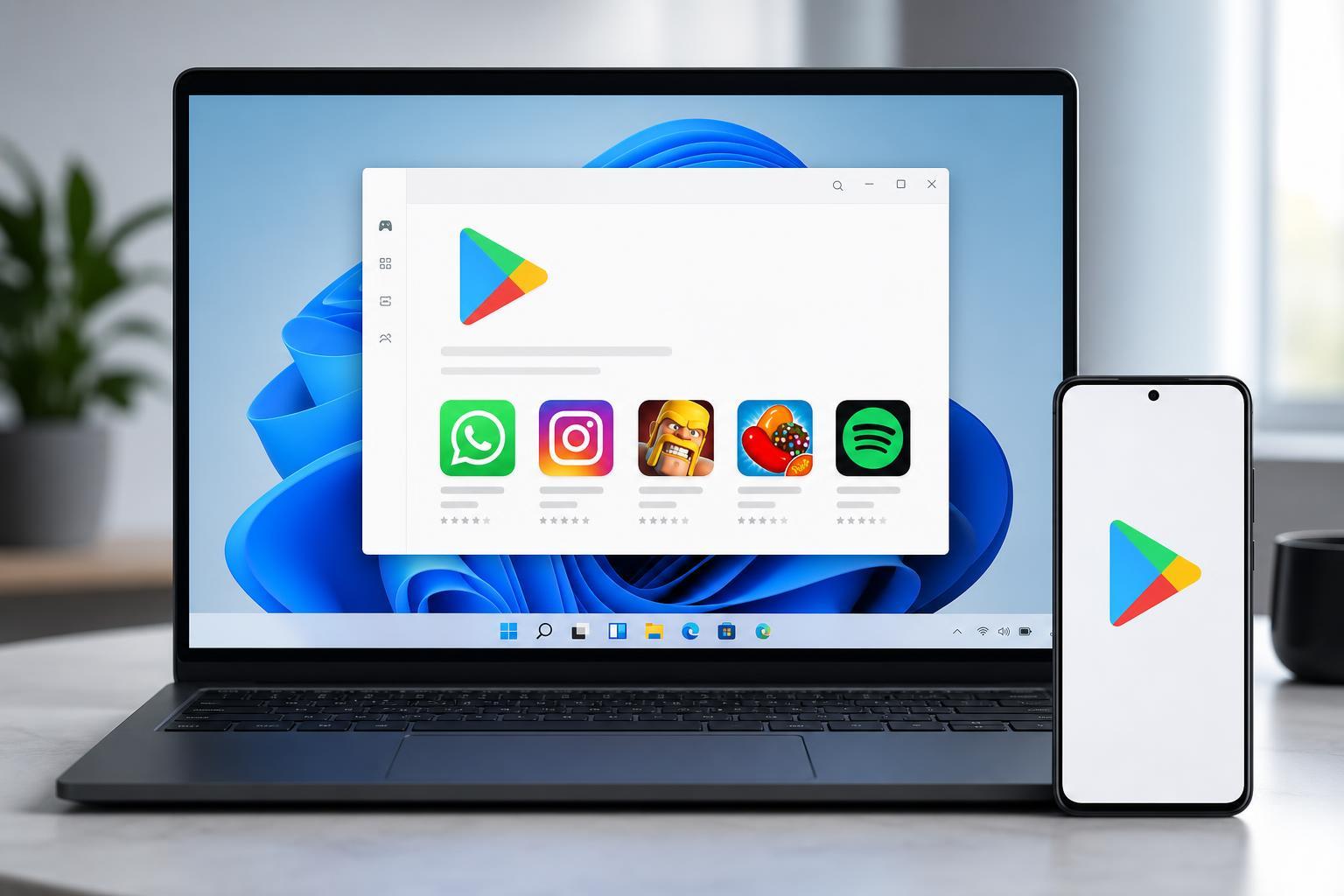
Windows 11 can run Android apps through Microsoft’s Android support features, but getting the Google Play Store itself installed is not as simple as downloading a normal Windows program. In most cases, the Play Store is only available through specific third-party Android app environments, not through Microsoft’s built-in app tools.
This guide explains the practical ways people try to use the Google Play Store on Windows 11, what works, what does not, and the important limitations you should know before starting.
What You Need to Know First
Windows 11 does not include native Google Play Store support. Microsoft’s official Android app support used Windows Subsystem for Android, which relied on Amazon’s app store rather than Google Play. That means if you want Play Store access, you usually need a separate Android runtime or emulator that supports it.
- A computer running Windows 11 with virtualization enabled
- Enough free storage for an Android environment or emulator
- A Microsoft account for Windows features and updates
- A Google account if you plan to use Play Store services
- Administrator access on the PC
The Most Common Way: Use an Android Emulator
For most people, an Android emulator is the simplest way to access the Google Play Store on Windows 11. An emulator creates a virtual Android device inside Windows, and many popular emulators include Play Store support or let you add Google services during setup.
- Choose a reputable Android emulator that explicitly supports Google Play Store or Google services.
- Download it only from the official website.
- Install the program in Windows 11 and allow any virtualization prompts if requested.
- Launch the emulator and sign in with your Google account.
- Open the Play Store inside the emulator and install Android apps as you would on a phone or tablet.
If You Want Google Play Store on Windows Subsystem for Android
Some advanced users try to add Google services to Windows Subsystem for Android. This is more technical and less reliable than using an emulator, especially now that Microsoft’s official Android app path has changed significantly over time. It may involve modified packages and community-maintained tools.
- Confirm whether your Windows 11 version still supports the Android environment you plan to use.
- Back up important data before making system changes.
- Follow only a current, trusted guide from a reputable source.
- Install the required Android runtime or subsystem components.
- Add Google Play services and the Play Store only if the method is known to work with your version.
- Test with a small app before relying on it for regular use.
Check These Settings Before Troubleshooting
If the Play Store does not open, apps fail to install, or the emulator will not start, these are the first things to check.
- Virtualization is enabled in BIOS/UEFI
- Your PC meets the emulator’s minimum CPU and RAM requirements
- Windows Update is current
- The Microsoft Store or emulator files were installed completely
- Your antivirus is not blocking the emulator’s network or virtual machine components
- You are signed in to the correct Google account
Common Problems and What They Usually Mean
- The emulator will not start: virtualization may be disabled or another hypervisor feature may be conflicting.
- The Play Store keeps closing: Google services may not be installed correctly or the emulator image may be corrupted.
- Apps will not download: account sign-in, time/date settings, or network restrictions may be causing the issue.
- Games run poorly: the emulator may need more RAM, a different graphics mode, or a lighter Android environment.
- The app says the device is unsupported: some mobile apps are blocked on emulators or require hardware features not present on a PC.
When You Should Choose Another Option
If your goal is only to use one or two Android apps, an emulator may be enough. But if you want the simplest possible app access, the Play Store on Windows 11 may not be the best route. Some Android apps also have Windows versions, browser versions, or web apps that work better on a PC.
- Use the Windows version of the app if one exists
- Use the web version if the service offers it
- Use an emulator if you specifically need Android-only apps
- Avoid complicated subsystem tweaks unless you are comfortable troubleshooting them
A Practical Bottom Line
If you want the Google Play Store on Windows 11, the most reliable approach for most users is an Android emulator with Play Store support. Direct installation into Windows 11 itself is not an official, straightforward process, and subsystem-based methods are more technical and less predictable.
Before you begin, decide whether you need full Android app support or just access to a few apps. That choice will determine whether an emulator, a web app, or a different Windows app is the better solution.