Google Chrome can ask for your location when a website needs it for maps, local search results, weather, delivery tracking, and similar features. If you want more privacy, or if a site is using the wrong location, you can turn Chrome’s location access on or off and also control permission for individual websites.
This guide shows you how Chrome handles location permission, how to change it in the browser, and how to manage the setting on Windows, macOS, Android, and iPhone.
What Chrome Location Permission Actually Does
Chrome does not usually share your location automatically with every website. Instead, websites must request permission, and Chrome asks you whether to allow or block it. If you allow access, Chrome may use GPS, Wi-Fi signals, nearby networks, and other location data available on your device to estimate where you are.
How to Change Location Permission in Chrome on Windows or Mac
If you want to allow or block location access in Chrome on a computer, the easiest place to start is the site settings area in the browser.
- Open Google Chrome.
- Click the three-dot menu in the top-right corner.
- Select Settings.
- Open Privacy and security.
- Click Site settings.
- Under Permissions, select Location.
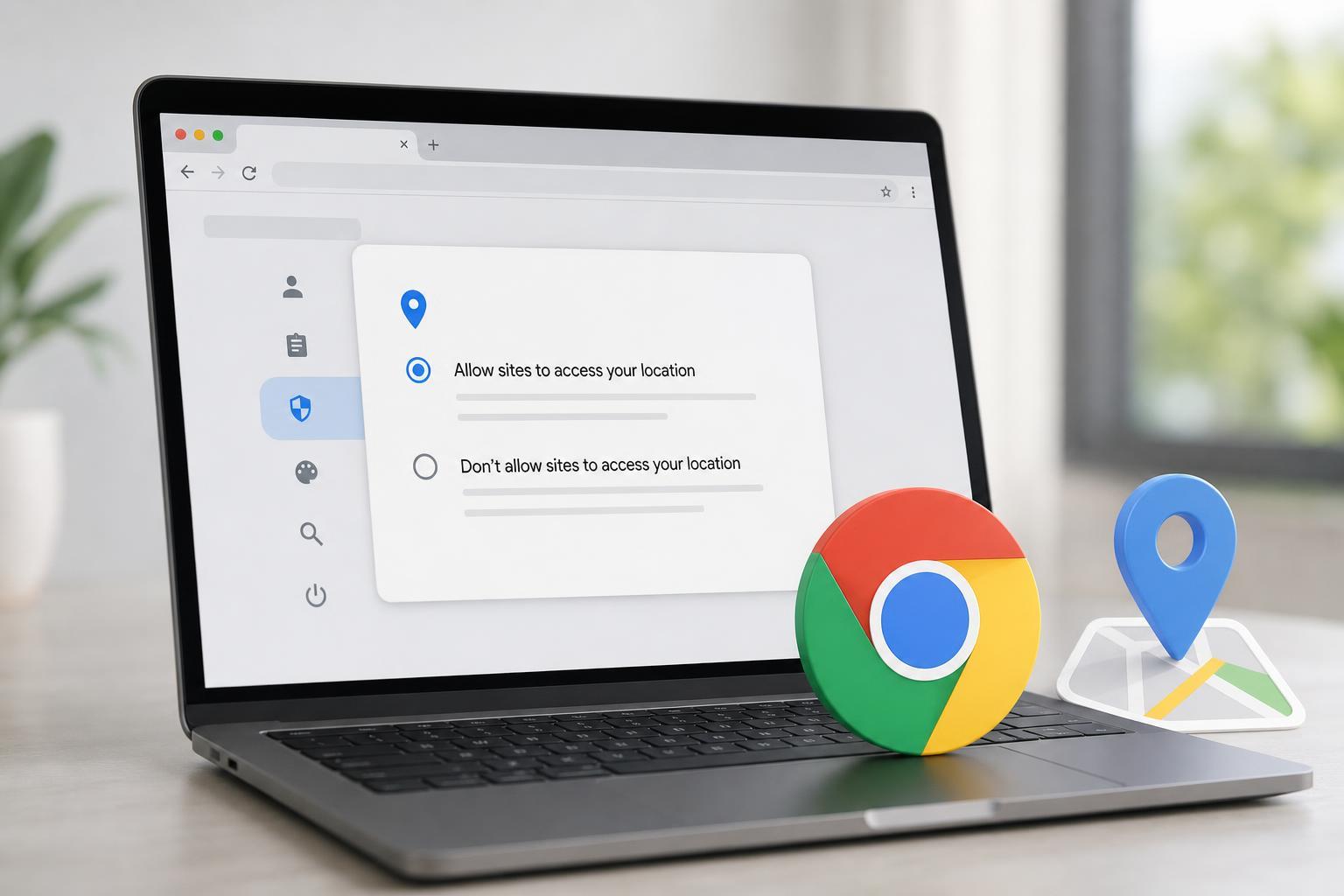
- Choose the default behavior you want: sites can ask to know your location, or sites are blocked from accessing it.
If you block location by default, websites can still ask for permission in some cases, but Chrome will deny access unless you change the setting or add an exception.
Allow or Block Location for a Specific Website
You do not always need to change Chrome’s global location setting. If only one site is causing problems, it is often better to change permission for that site only.
- Open the website in Chrome.
- Click the padlock icon or site controls icon next to the address bar.
- Choose Site settings.
- Find Location.
- Set it to Allow or Block.
- Reload the page so the change takes effect.
How to Disable or Enable Location Permission in Chrome on Android
On Android, Chrome can only use location if the app has permission from the phone itself and the website is allowed in Chrome.
- Open the Android Settings app.
- Go to Apps and find Chrome.
- Open Permissions.
- Tap Location.
- Choose Allow only while using the app, Ask every time, or Don’t allow.
- Then open Chrome if needed and check the site’s own permission prompt or site settings.
If Chrome does not have app-level location permission on Android, websites in Chrome usually cannot use your location even if the browser setting is otherwise enabled.
How to Disable or Enable Location Permission in Chrome on iPhone and iPad
On iPhone and iPad, Chrome depends on iOS location permissions. You may also need to adjust Safari-style site permissions in the browser only if a website asks for them separately.
- Open the Settings app on your iPhone or iPad.
- Scroll down and tap Chrome.
- Tap Location.
- Choose Never, Ask Next Time or When I Share, or While Using the App depending on the options shown.
- Open Chrome again and test the website you want to use.
How to Clear or Reset a Site’s Location Permission
If you previously allowed or blocked a site and want to start over, you can remove that saved permission from Chrome.
- Open Chrome and go to the site.
- Click or tap the padlock/site controls icon.
- Open Site settings or Permissions.
- Reset the Location permission.
- Refresh the page and respond to the new permission request.
This is useful when a site seems stuck with the wrong choice, or when you want Chrome to ask again instead of using an old decision.
If Chrome Says Location Is Blocked Even After You Change It
If location still does not work after you allow it in Chrome, the problem is usually elsewhere. Common causes include operating system privacy settings, browser extensions, VPNs, disabled device location services, or a website that is still using an old permission state.
- Chrome’s permission is still blocked for that site
- Your computer or phone has location services turned off
- Another browser profile is being used
- A VPN, privacy tool, or extension is interfering
- The site needs a refresh after permission changes
When to Keep Location Disabled
You may want to leave location off if you rarely use location-based services, share the device with other people, or prefer not to let websites estimate where you are.
You can still turn location on temporarily for a trusted site, then block it again afterward.
When Location Access Is Worth Enabling
Location permission is helpful when you regularly use maps, food delivery, ride-hailing, local shopping, weather sites, or services that need your area to work correctly.
Quick Check Before You Finish
- Use Chrome site permissions if only one website needs access.
- Use device permissions if Chrome cannot use location at all.
- Reload the page after changing permission.
- Reset the site permission if the browser seems stuck.
- Remember that VPNs and privacy tools can affect location accuracy.