If Spotify is taking up too much storage, acting sluggish, or showing playback issues, clearing the cache is often a safe first step. Spotify cache is temporary data the app saves to help music, podcasts, and pages load faster the next time you use them.
This guide explains how to clear Spotify cache on different devices and what actually happens when you do it, so you know what changes and what stays the same.
What Spotify cache is
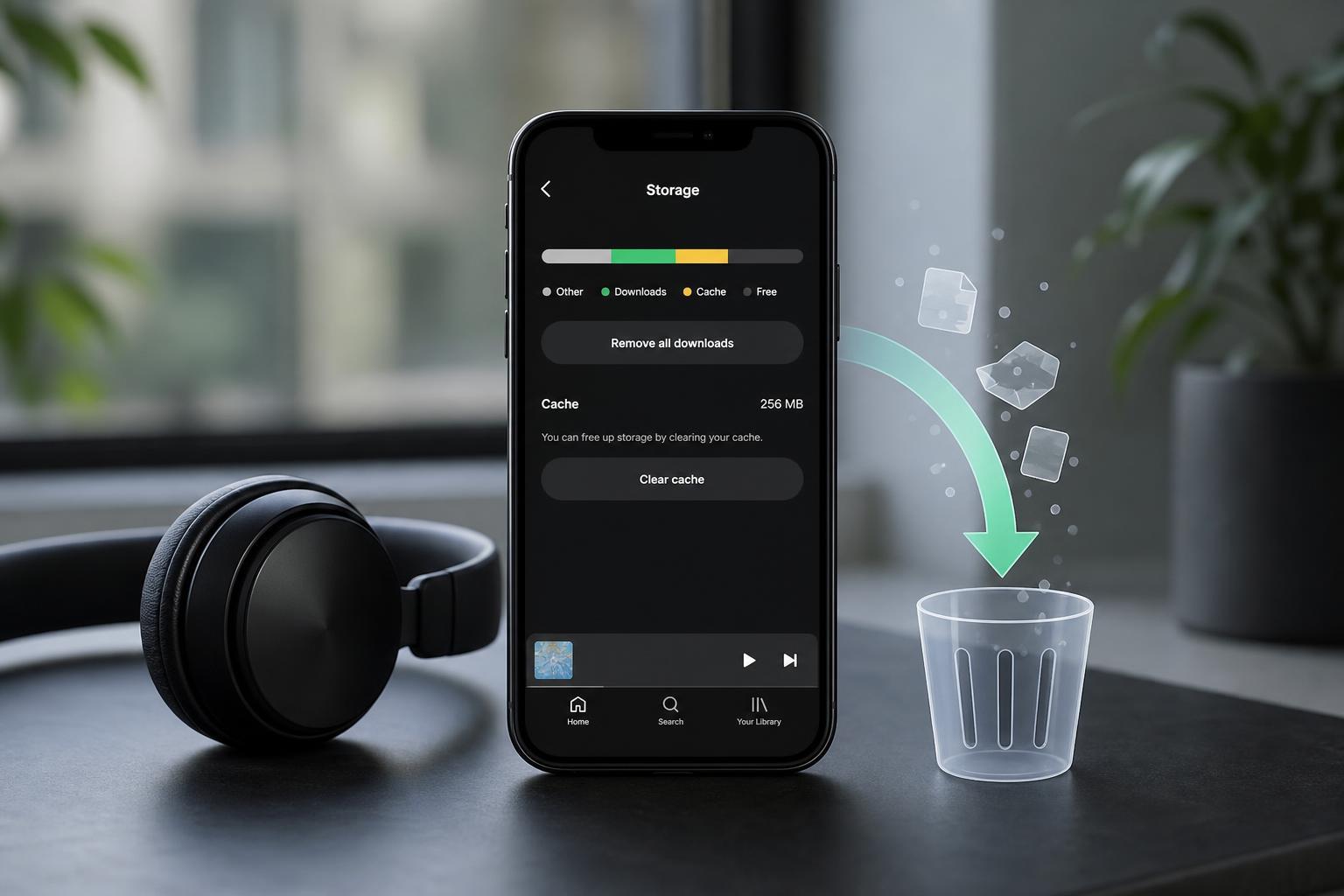
Spotify stores temporary files such as album artwork, recently played audio segments, and other app data on your device. This helps the app open faster and reduces how much data it has to download again.
How to clear Spotify cache on iPhone or iPad
- Open Spotify.
- Tap your profile picture or the Settings icon.
- Go to Storage or Data-saving and offline storage, depending on your app version.
- Tap Clear cache.
- Confirm if prompted.
How to clear Spotify cache on Android
- Open Spotify.
- Tap your profile picture or the Settings icon.
- Scroll to Storage.
- Tap Clear cache.
- Confirm the action if asked.
How to clear Spotify cache on Windows or Mac
- Open Spotify on your computer.
- Click your profile name or the menu icon.
- Open Settings.
- Scroll to the Storage section.
- Select Clear cache and confirm if prompted.
What happens when you clear Spotify cache
- Temporary files are removed from your device, which can free up storage space.
- Spotify may take a little longer to load artwork, playlists, and some sections the next time you open it.
- The app may need to re-download cached content as you keep using it.
- Playback problems caused by damaged cache files may be fixed.
- Your account, playlists, saved songs, and follows remain intact.
Cache vs. downloads: what is the difference?
Spotify downloads are songs, podcasts, or episodes you saved for offline listening. Cache is just temporary support data the app creates while you use it. If you clear cache, Spotify should keep your downloads, but if you delete the app or clear full app data, the result can be different.
When clearing the cache helps
- Spotify is using more storage than expected
- The app feels slow or unresponsive
- Artwork, playlists, or pages are loading strangely
- Songs skip, stutter, or fail to start properly
- You want to free up temporary space without changing your account
If clearing the cache does not fix the problem
If Spotify is still behaving badly after clearing the cache, the issue may be something else, such as a network problem, an outdated app version, corrupted downloads, or a device storage issue.
- Check whether Spotify has an available update.
- Make sure your internet connection is stable.
- Remove and re-download any offline content that seems corrupted.
- Check whether your device is low on storage.
- Sign out of Spotify and sign back in if the app still behaves oddly.
A quick way to think about it
Clearing cache is like removing Spotify’s temporary working files. It does not erase your collection, but it can make the app rebuild a few things the next time you use it. For many storage and performance issues, that is exactly what you want.