Excel can make phone numbers look wrong in a few different ways: it may remove leading zeros, drop the plus sign, or display long numbers in scientific notation. The good news is that you can usually fix this with the right format without changing the underlying data.
This guide shows the most useful ways to format phone numbers in Excel, from quick display-only formatting to formulas for standardizing messy data. It also explains when to treat phone numbers as text instead of numbers.
Why Phone Numbers Are Tricky in Excel
Phone numbers are not really numbers in the mathematical sense. They are identifiers. That matters because Excel tries to be helpful by treating numeric-looking entries as values it can calculate, which can create problems for phone numbers.
- Leading zeros can disappear, such as 01234 becoming 1234.
- Long numbers may turn into scientific notation, like 1.23457E+10.
- Plus signs and spacing can be removed or changed.
- Imported contact lists can mix text and numeric phone formats in the same column.
The Best Way to Format Phone Numbers in Excel
The right method depends on what your data looks like. If the numbers are already in Excel and you only want them to display in a phone-number style, custom formatting is usually the easiest option. If the data is messy or imported, you may need formulas or text cleanup first.
Use a Custom Number Format
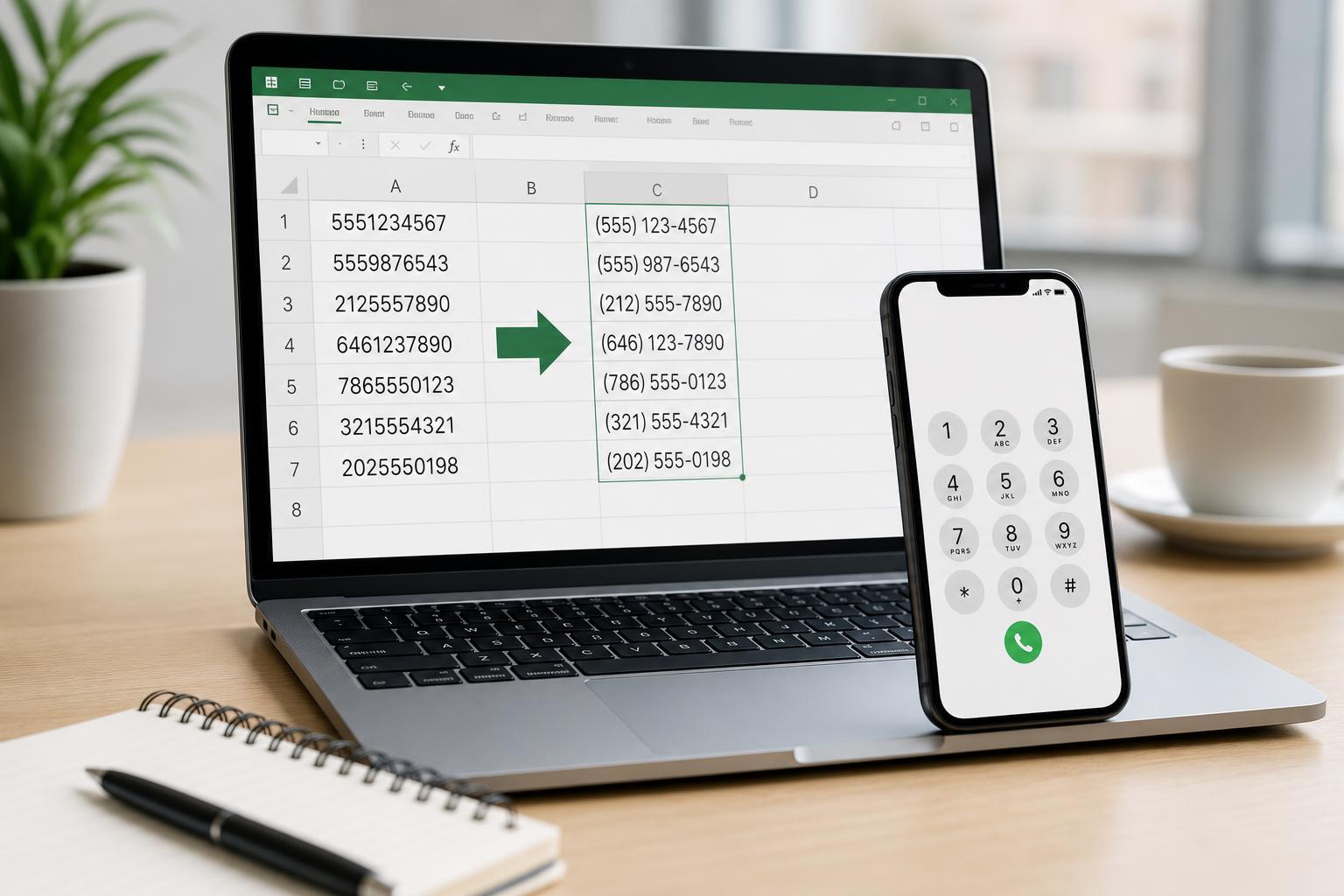
Custom number formats let Excel display phone numbers with dashes, parentheses, or spaces without changing the underlying value. This is ideal when the cells already contain clean digits and you want them to appear in a standard format.
- Select the cells that contain the phone numbers.
- Press Ctrl+1 to open the Format Cells dialog.
- Go to the Number tab and choose Custom.
- In the Type box, enter a format code that matches the style you want.
- Click OK.
Common custom formats include:
- 000-000-0000 for a 10-digit number like 4155552671
- (000) 000-0000 for a U.S.-style display like (415) 555-2671
- 00000 000000 for grouped spacing formats
- +00 000 000 0000 for basic international-style display when the country code is part of the digits
Enter Phone Numbers as Text When Needed
If you need to preserve leading zeros, plus signs, or nonstandard formatting, text is often the safest choice. This is especially useful for international numbers and exported contact lists.
- Select the cells or the entire column before entering data.
- Open Format Cells and choose Text, or type an apostrophe before the number.
- Enter the phone number exactly as you want it stored.
- If the number is already entered, re-enter it after changing the format to Text.
Format International Phone Numbers
International phone numbers often include a plus sign, country code, and spacing that vary by region. Excel does not have a built-in phone-number format for every country, so you usually need to use text or a formula-based format that matches the pattern you want.
- Use text if the exact written form matters more than calculation.
- Use a formula if you want to rebuild a messy imported number into a consistent layout.
- Use a custom format only when the number has a predictable length and structure.
For example, if a number is stored as digits only, you can use a formula to insert a plus sign and spaces. The exact formula depends on how your source data is structured.
Clean Up Numbers That Lost Their Formatting
Sometimes Excel has already stripped the formatting from a list of phone numbers. In that case, changing the cell format alone will not restore missing leading zeros or symbols if Excel already removed them from the value.
- Check whether the numbers still contain all required digits.
- If leading zeros are missing, decide whether the data should be text instead of numeric.
- Use a helper column and a formula to rebuild the display format if needed.
- Copy the results and use Paste Special > Values if you need to replace the original column.
A simple formula can help in situations where all phone numbers follow the same length. For example, you might use TEXT to force a fixed number of digits or combine LEFT, MID, and RIGHT to insert formatting characters.
Use Flash Fill for Repetitive Formatting
Flash Fill can be useful when you have a few sample phone numbers formatted the way you want and the rest of the list follows the same pattern. Excel may recognize the pattern and fill in the remaining cells automatically.
- Type the first phone number in the desired format in a neighboring column.
- Enter a second example if needed.
- Start typing the next entry and let Excel suggest the rest.
- Press Ctrl+E if Flash Fill does not trigger automatically.
Common Problems and What They Mean
- Leading zero missing: the number was treated as numeric instead of text.
- Scientific notation appears: the value is too long for normal display, or the column is too narrow.
- Format looks right but data is still wrong: the underlying digits may already have changed.
- Imported numbers have mixed spacing: the source file probably used inconsistent formatting.
How to Choose the Right Method
Use custom number formatting when the digits are already correct and you only want to change how they look. Use text when you need to preserve exact characters such as a plus sign or leading zero. Use formulas or Flash Fill when you need to rebuild or standardize messy imported data.
- Custom format: best for clean, fixed-length numbers.
- Text format: best for preserving exact phone-number characters.
- Formulas: best for cleaning inconsistent source data.
- Flash Fill: best for small or repetitive manual cleanup.
A Practical Example
Suppose you have a 10-digit U.S. number stored as 4155552671. If you want it to appear as (415) 555-2671, a custom format is the quickest solution. If the same file also contains numbers like +44 20 7946 0958, those are better handled as text or by a cleanup formula because they do not fit a single fixed pattern.
The main thing to remember is that formatting changes the appearance, not always the data itself. That is useful when you want reports to look tidy, but it can also be a problem if you need the exact original characters preserved for exporting or syncing with another app.
Choosing the Safest Approach for Your Spreadsheet
If the phone numbers will stay inside Excel and all follow the same pattern, custom formatting is simple and effective. If the list will be shared, imported, or exported to another system, storing the numbers as text is often the safer option.