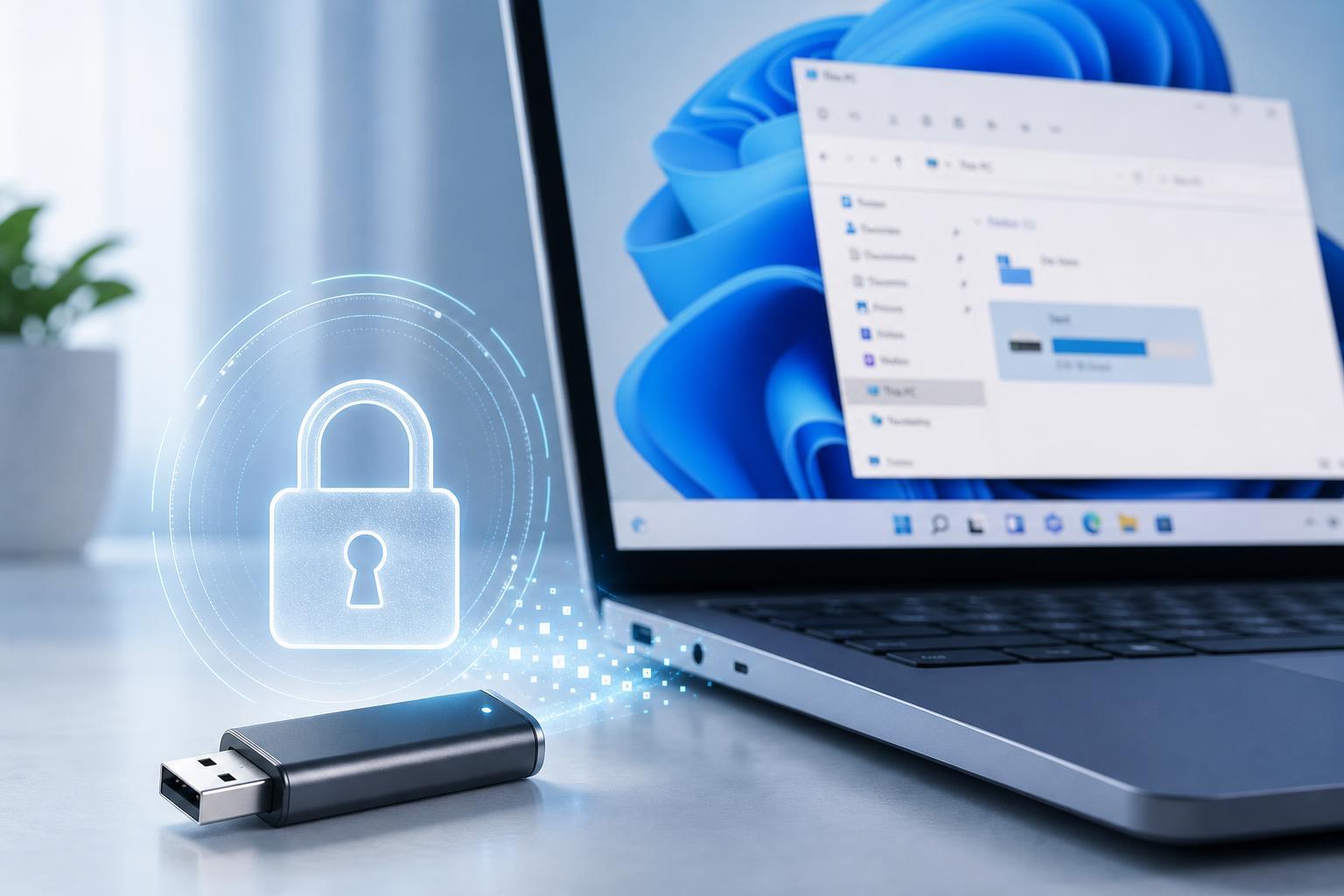
A USB flash drive can be easy to lose, and if it contains personal files, work documents, or saved passwords, anyone who finds it may be able to read them. Windows 11 includes BitLocker To Go, which lets you encrypt a removable drive so its contents stay protected until you enter the correct password or recovery key.
This guide shows how to encrypt a USB flash drive in Windows 11, how to open it later, and how to decrypt it when you want to remove protection.
What You Need Before You Start
- A USB flash drive you want to protect
- A Windows 11 PC with BitLocker support
- Permission to format or change the drive if it is already in use
- A safe place to store the recovery key
Encrypt a USB Flash Drive with BitLocker
- Insert the USB flash drive into your Windows 11 PC.
- Open File Explorer and right-click the USB drive under This PC.
- Select Turn on BitLocker.
- Choose how you want to unlock the drive. For most people, a password is the easiest option.
- Enter and confirm a strong password.
- Choose where to save the recovery key. Save it somewhere secure, such as your Microsoft account, a file stored on another drive, or a printed copy kept in a safe place.
- Choose whether to encrypt only used disk space or the entire drive. For a new or mostly empty drive, encrypting used space only is faster. For a drive that may contain old deleted data, encrypt the entire drive for better protection.
- Select the encryption mode. For a USB drive that may be used on different Windows PCs, compatible mode is usually the safest choice.
- Start the encryption process and wait for it to finish.
- When the process is complete, remove and reinsert the drive to confirm it asks for the password before opening.
How to Open an Encrypted USB Drive
After encryption is enabled, Windows will ask for the password whenever you connect the flash drive to a PC that does not already have it unlocked.
- Insert the encrypted USB drive.
- When prompted, type the BitLocker password.
- Click Unlock to open the drive in File Explorer.
- If you do not remember the password, use the recovery key instead when that option appears.
How to Decrypt a USB Flash Drive in Windows 11
Decrypting removes BitLocker protection and returns the drive to normal, unprotected use. This is useful if you no longer need encryption or want to use the drive on devices that do not support BitLocker prompts.
- Insert the encrypted USB flash drive and unlock it if prompted.
- Open File Explorer, right-click the USB drive, and select Manage BitLocker.
- In the BitLocker window, find the removable drive and choose Turn off BitLocker.
- Confirm that you want to decrypt the drive.
- Wait for Windows to finish removing encryption. The drive may remain usable during the process, but it is best to leave it connected until the operation completes.
- When BitLocker turns off, the drive will open normally without asking for a password.
If You Do Not See BitLocker Options
- Your edition of Windows may not include BitLocker management tools.
- The USB drive may be formatted in a way that does not support the usual BitLocker flow.
- Device policies on work or school PCs may hide or restrict encryption options.
- The drive may already be encrypted with a different tool or by a third-party security app.
If BitLocker is unavailable, check whether your PC is running a Windows edition that supports it or whether your organization has disabled it. On some systems, you may also see a Device Encryption option in Windows Settings, but that is usually for internal drives rather than removable USB storage.
Good Practices for USB Encryption
- Use a strong password that is not used for other accounts.
- Store the recovery key separately from the USB drive.
- Keep a backup copy of important files before encrypting or decrypting any drive.
- Use compatible mode if you plan to move the USB drive between different Windows PCs.
- Decrypt the drive only when you no longer need protection, because the files become accessible to anyone who can plug it in.
Choosing Between Encrypting and Decrypting
Encrypt the USB flash drive if privacy matters and the drive leaves your control even occasionally. Decrypt it if you need maximum convenience, if the drive must be read by older devices, or if you are retiring the drive and no longer need the protection. In most cases, encryption is the safer long-term choice for portable storage.