Mac gestures can save time once they are set up the way you actually use your computer. If you use Apple’s trackpad or Magic Mouse, you can customize gesture behavior in macOS to make navigation, Mission Control, app switching, and scrolling feel more natural.
This guide shows you where the gesture settings are, what can be changed, and how to pick the options that fit your workflow best.
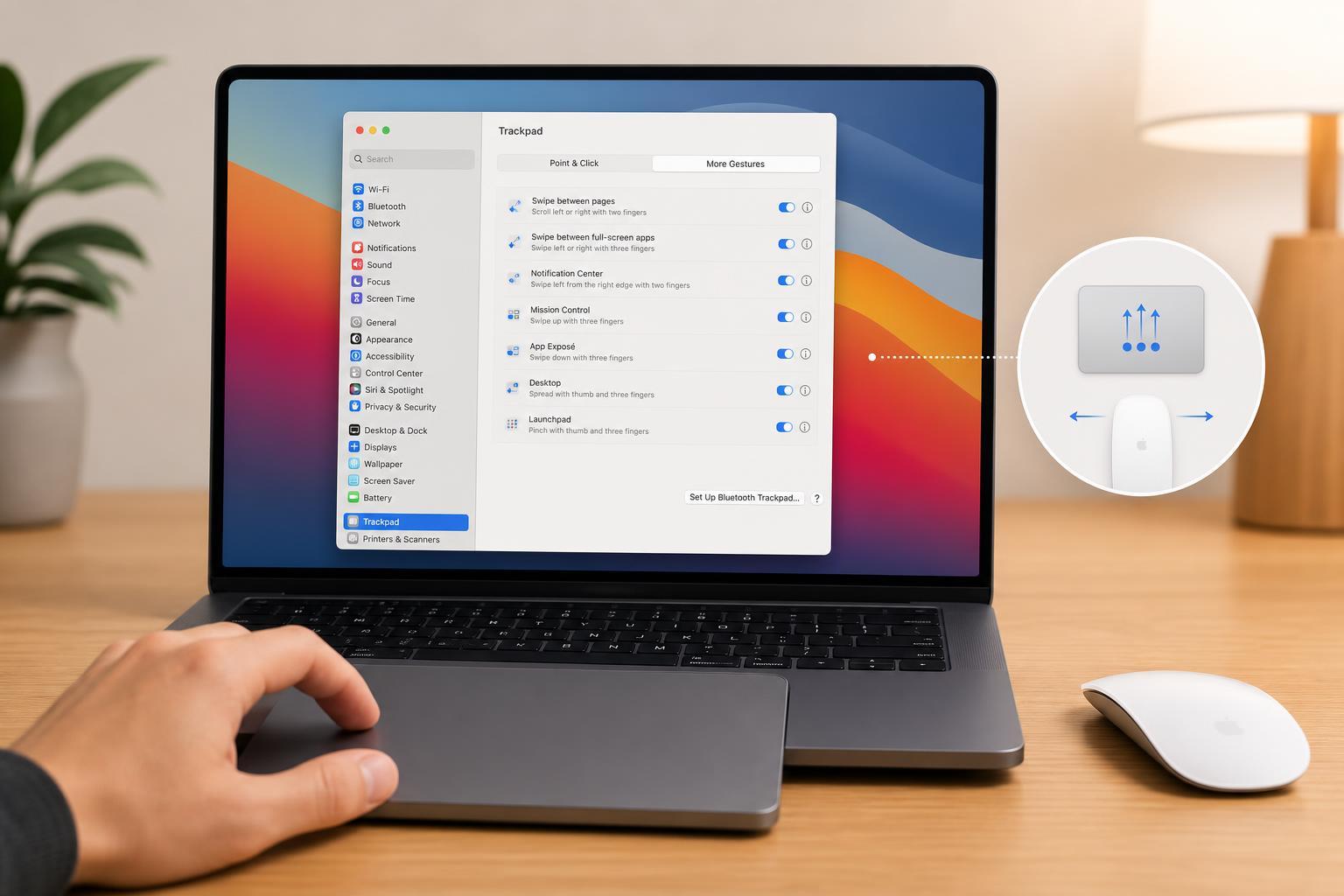
Open the Gesture Settings in macOS
- Click the Apple menu in the top-left corner of the screen.
- Open System Settings.
- Select Trackpad if you are using a MacBook trackpad or Apple Magic Trackpad.
- Select Mouse if you are using a Magic Mouse.
- Look through the tabs or sections for Point & Click, Scroll & Zoom, and More Gestures.
Customize Trackpad Gestures
The trackpad gives you the most gesture options. Apple groups them into a few categories, and each one controls a different kind of action.
- Point & Click: Adjusts click pressure, tap to click, tracking speed, and secondary click behavior.
- Scroll & Zoom: Controls two-finger scrolling, pinch to zoom, smart zoom, and rotation.
- More Gestures: Lets you turn app navigation, Mission Control, Launchpad, notification center actions, and desktop switching gestures on or off.
To change a gesture, open the relevant section and use the checkboxes, sliders, or drop-down menus next to each option. Some gestures can also be assigned to alternate finger patterns or disabled if they get in your way.
Customize Magic Mouse Gestures
The Magic Mouse has fewer gesture options than the trackpad, but it still supports useful controls such as scrolling and swipe-based navigation.
- Point & Click: Change tracking speed, secondary click, and scrolling behavior.
- More Gestures: Enable or disable swipe between pages, Mission Control, App Exposé, and full-screen app switching.
Because the Magic Mouse surface is more limited than a trackpad, gesture changes are usually about deciding which swipe actions you want active and how sensitive the mouse should feel.
Choose the Gestures You Actually Use
The best gesture setup is the one that matches how you work. A lot of users turn on every feature at first, then disable the ones that create accidental triggers or slow them down.
- Keep Mission Control enabled if you frequently work with many windows at once.
- Use desktop swiping if you separate work into different Spaces.
- Disable Launchpad if you never use it and only trigger it by accident.
- Leave pinch-to-zoom on if you regularly edit photos, browse maps, or view large documents.
Adjust Tracking and Scrolling Feel
Gesture comfort is not just about which actions are enabled. Tracking speed and scrolling behavior also affect how natural the device feels.
- Open the Trackpad or Mouse settings page.
- Move the tracking speed slider until cursor movement feels balanced.
- Check the scrolling options and turn on or off momentum and natural scrolling if needed.
- Test the pointer in a browser, file window, or document so you can see how the changes feel in real use.
Use Accessibility Features If Gesture Control Is Difficult
If you find multi-finger gestures hard to use, macOS includes accessibility options that can help you rely less on precise trackpad motions.
- Pointer control options can make movement easier to manage.
- Mouse Keys lets you control the pointer with the keyboard on some setups.
- Reduce motion can make interface movement feel less intense if animations are distracting.
What to Do If a Gesture Is Not Working
If a gesture does not respond the way you expect, the issue is often a settings mismatch rather than a hardware fault.
- Check whether the gesture is actually enabled in Trackpad or Mouse settings.
- Make sure you are using the correct finger count or swipe direction.
- Confirm that Bluetooth is connected if you are using a Magic Mouse or wireless trackpad.
- Look for third-party utilities that may be overriding macOS gesture behavior.
Make the Setup Fit Your Work
Custom gestures are most useful when they support the tasks you do repeatedly. For example, a student might want quick desktop switching, while a designer might care more about zoom and smooth scrolling.
- For multitasking: prioritize Mission Control, app switching, and desktop navigation.
- For browsing and reading: keep scrolling and swipe navigation comfortable.
- For creative work: keep zoom and rotation gestures enabled where they are useful.
- For simple office work: keep only the gestures you use every day and disable the rest.
A Practical Way to Fine-Tune Your Mac Gestures
- Start with the default gesture settings.
- Use your Mac normally for a day or two.
- Turn off gestures that you trigger by mistake.
- Add only the gestures that save you real time.
- Recheck the settings after you change your workflow or add a new mouse or trackpad.
Once your gestures match the way you work, Apple’s trackpad or Magic Mouse can feel much more efficient and comfortable to use.