If Windows 11 sees your Wi‑Fi network but does not reconnect on its own, the problem is usually caused by a saved network setting, adapter issue, power-saving feature, or a connection profile that is no longer behaving correctly. The good news is that this is often fixable without changing your router.
The steps below move from the simplest checks to more involved fixes, so you can narrow down the cause and restore automatic Wi‑Fi connections in Windows 11.
1. Make Sure the Network Is Set to Connect Automatically
Windows can remember a Wi‑Fi network but still be configured to connect manually. If that happens, your PC may show the network in the list but wait for you to join it each time.
- Open Settings and go to Network & internet > Wi‑Fi.
- Select your saved network, or open Manage known networks and choose the network from the list.
- Make sure the option to connect automatically is enabled.
- If the network was saved incorrectly, remove it and connect again, then choose the automatic connection option when prompted.
2. Forget the Network and Reconnect to It
If the saved profile is corrupted, Windows may remember the Wi‑Fi name but not reconnect properly. Forgetting the network removes the old profile and lets Windows create a fresh one.
- Go to Settings > Network & internet > Wi‑Fi > Manage known networks.
- Select the problem network.
- Choose Forget.
- Reconnect to the Wi‑Fi network from the taskbar or Quick Settings panel.
- Enter the password again and enable automatic connection if prompted.
3. Check Wi‑Fi Adapter Power Management
Windows may turn off your wireless adapter to save power, especially on laptops. If the adapter sleeps too aggressively, the system may not reconnect automatically when you wake the device.
- Right-click the Start button and open Device Manager.
- Expand Network adapters and double-click your Wi‑Fi adapter.
- Open the Power Management tab.
- Clear the option that allows the computer to turn off this device to save power.
- Click OK and test the connection again.
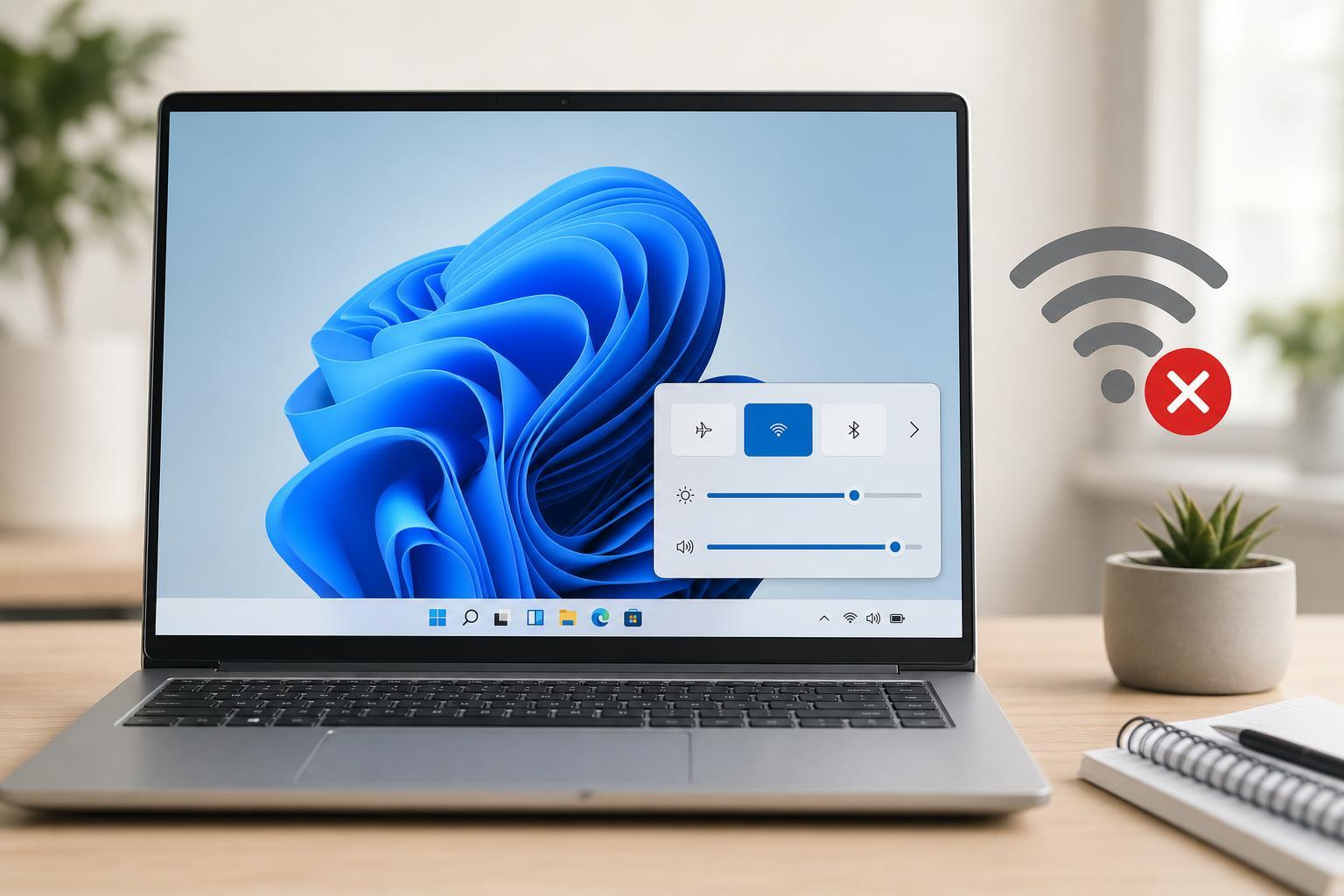
4. Turn Off Airplane Mode and Check Wireless Hardware Controls
Some laptops have a physical wireless switch or a function key that disables Wi‑Fi. If that switch is off, Windows may appear to have networking enabled, but automatic reconnection will not work.
- Make sure Airplane mode is off in Quick Settings.
- Check any wireless key on your laptop, such as Fn plus a function key with a wireless icon.
- If your device has a hardware Wi‑Fi switch, confirm it is turned on.
- If Bluetooth and Wi‑Fi use a shared radio on your system, make sure no utility is disabling the wireless adapter.
5. Update or Reinstall the Wi‑Fi Driver
A damaged or outdated wireless driver can cause connection problems that show up only after sleep, restart, or waking from standby. Updating the driver can restore normal reconnection behavior.
- Open Device Manager and expand Network adapters.
- Right-click your Wi‑Fi adapter and choose Update driver.
- Select Search automatically for drivers.
- If the problem started after a driver update, you can also open Properties and use Roll Back Driver if that option is available.
- If updating does not help, uninstall the adapter from Device Manager and restart the PC so Windows can reinstall it.
6. Reset the Network Stack in Windows 11
If Windows networking components are misconfigured, the system may connect manually but fail to handle automatic reconnection correctly. Resetting the network stack clears and rebuilds those components.
- Open Settings > Network & internet > Advanced network settings.
- Look for Network reset.
- Run the reset and follow the prompts.
- After the reset, reconnect to your Wi‑Fi network and save it again with automatic connection enabled.
7. Check Router Settings if Only One Network Has the Problem
If Windows 11 fails to auto-connect to one Wi‑Fi network but connects automatically to others, the issue may be related to the router or access point rather than the PC.
- Check whether the router is using both 2.4 GHz and 5 GHz bands with the same network name, which can sometimes confuse roaming behavior.
- Make sure the router is not frequently changing settings such as security mode or channel width.
- Confirm that MAC filtering, access control, or device limits are not blocking your PC.
- If possible, test with a different router or hotspot to see whether Windows reconnects normally elsewhere.
How to Narrow Down the Cause
A few quick clues can help you choose the right fix faster:
- If Windows connects manually but never on its own, check the automatic connection setting first.
- If the problem started after sleep or hibernation, focus on power management and driver issues.
- If one network fails but others work, inspect the router settings or the saved profile for that SSID.
- If the Wi‑Fi adapter disappears or shows errors in Device Manager, reinstalling the driver is a strong next step.
What Usually Fixes It Fastest
For most people, the quickest successful fixes are setting the network to connect automatically, forgetting and re-adding the Wi‑Fi profile, or adjusting the adapter’s power settings. If those do not help, the driver or network reset steps are the most useful next moves.