If your spacebar stops working in Windows 11, the cause is usually easy to narrow down. It could be a keyboard setting, a driver issue, a physical problem with the key, or a broader hardware fault. The best fix depends on whether the spacebar fails everywhere or only in certain apps.
This guide walks through five practical fixes, starting with the quickest checks and moving toward deeper troubleshooting so you can figure out whether the problem is software-related or caused by the keyboard itself.
1. Check Whether the Problem Is with Windows or the Keyboard
Before changing settings, test the spacebar in more than one place. Open Notepad, a browser search box, and another app where typing is obvious. If the spacebar works in one app but not another, the issue is likely with that program rather than Windows or the keyboard.
- Try the spacebar in Notepad or WordPad.
- Test it in a browser address bar or search field.
- If possible, plug the keyboard into another computer and test it there.
- If you are using a laptop, try an external keyboard to compare behavior.
2. Turn Off Accessibility Features That Can Affect Typing
Some accessibility features can interfere with normal keyboard input, especially if they were enabled accidentally. In Windows 11, Filter Keys and related options can change how repeated or quick key presses are handled.
- Open Settings and go to Accessibility.
- Select Keyboard.
- Check whether Sticky Keys, Filter Keys, or Toggle Keys are enabled.
- Turn off any features you do not intentionally use.
- Test the spacebar again in a text field.
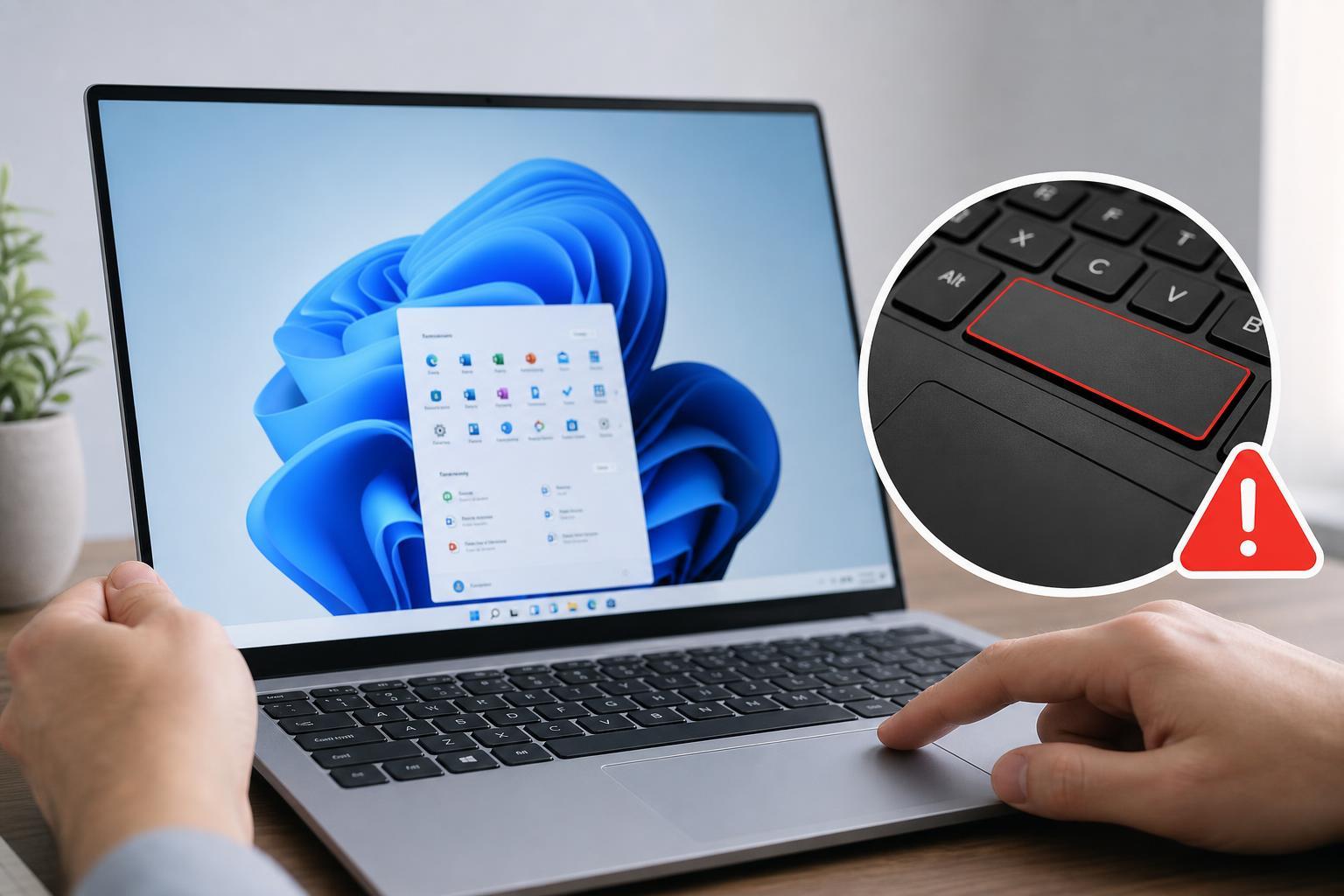
3. Clean the Spacebar and Check for Physical Obstruction
A spacebar is one of the easiest keys to get clogged because it is large and used constantly. Dust, crumbs, pet hair, or a stuck stabilizer can keep it from pressing down properly or returning cleanly after each press.
- Shut down the device if you are using a laptop or detach the keyboard if it is external.
- Tilt the keyboard gently and tap the back to dislodge loose debris.
- Use compressed air in short bursts around both sides of the spacebar.
- If your keyboard allows safe keycap removal, inspect for dirt or a misaligned stabilizer.
- Wipe the area carefully with a dry or lightly dampened microfiber cloth, then test again.
4. Reinstall or Update the Keyboard Driver
If the spacebar works poorly after a Windows update or suddenly stops responding, the keyboard driver may be corrupted or outdated. Reinstalling the driver gives Windows a chance to detect the keyboard again with a fresh configuration.
- Right-click the Start button and open Device Manager.
- Expand Keyboards.
- Right-click your keyboard device and choose Uninstall device.
- If prompted, confirm the removal.
- Restart the computer or use Action > Scan for hardware changes in Device Manager.
- Test the spacebar after Windows reinstalls the driver.
If the problem started after a recent update, you can also check whether Windows has a newer driver available through Windows Update or the manufacturer’s support page.
5. Test for Hardware Failure
If the spacebar still does not work after cleaning, checking accessibility settings, and reinstalling the driver, the keyboard may have a hardware fault. This is more likely if the key feels loose, only registers sometimes, or works only when pressed at an angle.
- Try the keyboard on another PC to see whether the issue follows the keyboard.
- Use a different keyboard on your Windows 11 computer to see whether the system works normally.
- On a laptop, check whether the built-in keyboard works in BIOS or UEFI setup if you know how to access it.
- If the laptop keyboard is failing but an external keyboard works, the built-in keyboard likely needs repair or replacement.
How to Narrow Down the Cause Faster
If you want to identify the problem quickly, these clues can help:
- Spacebar fails everywhere: likely hardware, driver, or Windows settings.
- Spacebar fails only in one app: likely an application-specific issue.
- Spacebar works after cleanup: debris or a sticking key was the cause.
- Spacebar works with another keyboard: the original keyboard is likely faulty.
- Spacebar works with accessibility features off: a Windows setting was interfering with input.
When Replacement Makes More Sense
If the spacebar is physically damaged, the keyboard is older, or the problem keeps returning after cleaning, replacement may be more practical than repeated repairs. This is especially true for inexpensive external keyboards. On laptops, replacement can still be worthwhile if the built-in keyboard is widely used and the repair cost is reasonable.
If you are only missing one key but the rest of the keyboard is fine, a temporary workaround such as an external keyboard can keep you working while you decide whether to repair or replace the original device.