Windows 11 lets you change the look of your desktop with just a few clicks. Whether you want a darker interface, a brighter layout, or a full theme that changes wallpapers and colors together, there are several easy ways to do it.
This guide shows four practical ways to change themes in Windows 11 and explains when each one is the best choice.
1. Change the Theme from Settings
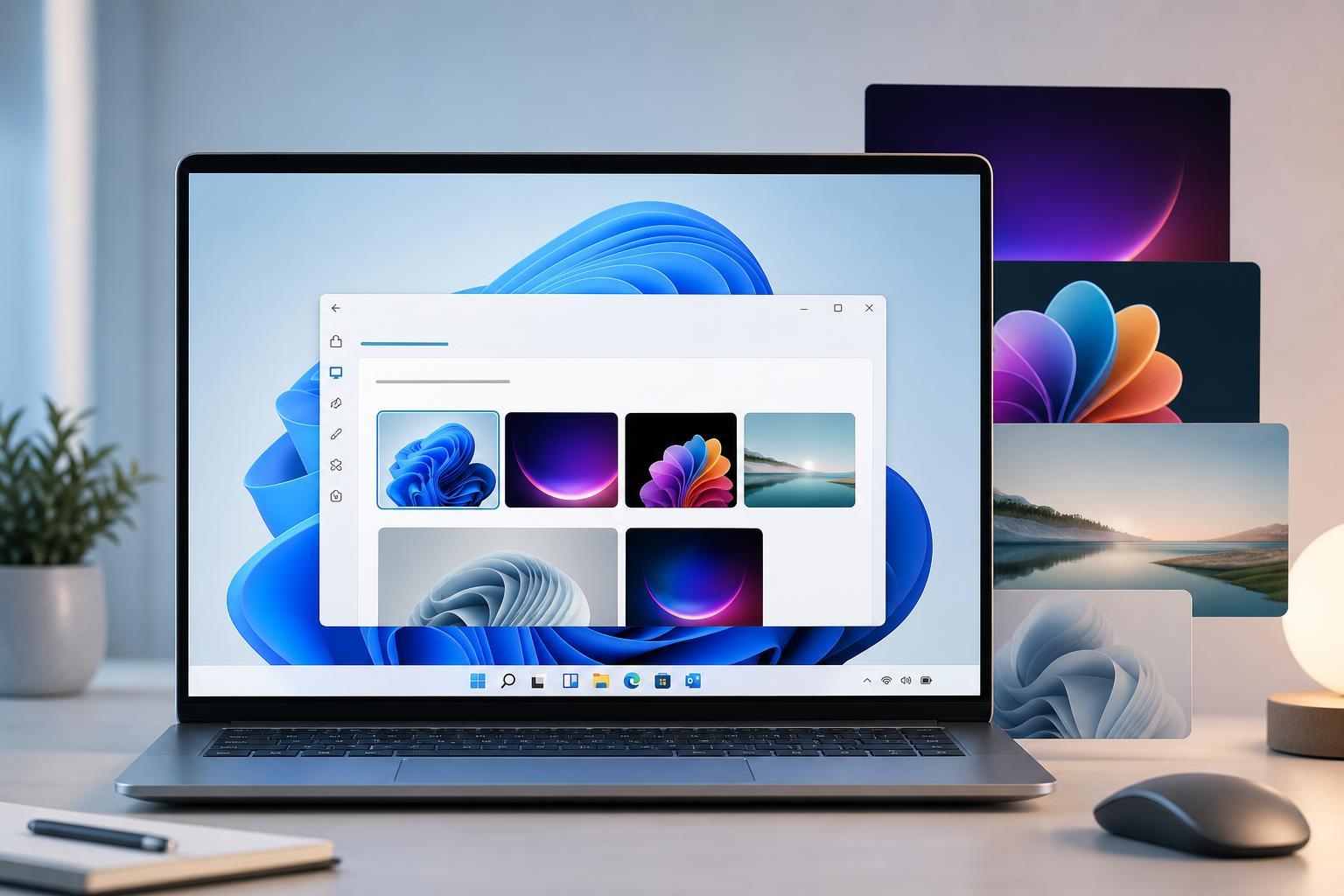
The easiest way to switch themes is through the Windows 11 Settings app. This method lets you quickly pick from the built-in themes that Windows already has installed.
- Right-click an empty area on the desktop and choose Personalize, or open Settings and select Personalization.
- Click Themes.
- Under Current theme, choose one of the available theme thumbnails.
- Windows will apply the theme immediately.
2. Use Dark or Light Mode Separately
If you do not want a full theme change, you can adjust Windows 11’s dark and light appearance independently. This is useful when you want to keep your wallpaper and desktop style the same but change the overall color scheme.
- Open Settings.
- Go to Personalization.
- Select Colors.
- Find Choose your mode and pick Light, Dark, or Custom.
- If you choose Custom, you can set Windows mode and app mode separately.
3. Download More Themes from the Microsoft Store
Windows 11 includes a few default themes, but you can get more through the Microsoft Store. These themes often include coordinated wallpapers and color palettes, and some are based on nature, landscapes, cars, games, or other visual styles.
- Open Settings and go to Personalization.
- Select Themes.
- Click Browse themes or Get more themes from Microsoft Store.
- Choose a theme you like and download it.
- Return to the Themes page and apply the new theme.
4. Apply a High Contrast Theme
High contrast themes are designed to make text and interface elements easier to see. They are especially useful for accessibility, but anyone can use them if they prefer stronger color separation and clearer visibility.
- Open Settings.
- Go to Accessibility.
- Select Contrast themes.
- Pick one of the available contrast themes from the dropdown.
- Select Apply to turn it on.
Choosing the Right Theme Method
Different theme methods serve different purposes. If you want a full visual refresh, use the Themes page. If you only want a darker or lighter interface, use the color mode settings. If accessibility is your priority, high contrast themes are the better choice.
- Use Themes in Settings for the fastest full desktop change.
- Use Light/Dark mode for a simple color adjustment.
- Use Microsoft Store themes for more variety.
- Use Contrast themes for accessibility and visibility.
What to Do If a Theme Does Not Apply Correctly
If a theme does not seem to change anything, check whether you are only changing the wallpaper or whether the full theme is selected. Some themes can also be affected by synced account settings, accessibility options, or custom color settings.
- Make sure you are selecting the theme itself, not just the desktop background.
- Check whether dark mode or high contrast is overriding the look you expect.
- Confirm that Windows is fully updated if the Themes page behaves strangely.
- If you use a Microsoft account, the same theme may sync across devices.
Once you know where the settings are, switching themes in Windows 11 is quick and flexible. You can keep things simple with a built-in theme, personalize the interface more deeply, or use accessibility-focused options when you need better visibility.